Webcam for YouTube Desk Buying Guide 2026
Resolution is the cheapest thing to print on a webcam box and the least likely to change how your channel looks. Here's what actually decides whether your face looks clean or grainy — and what each price tier really buys in 2026.
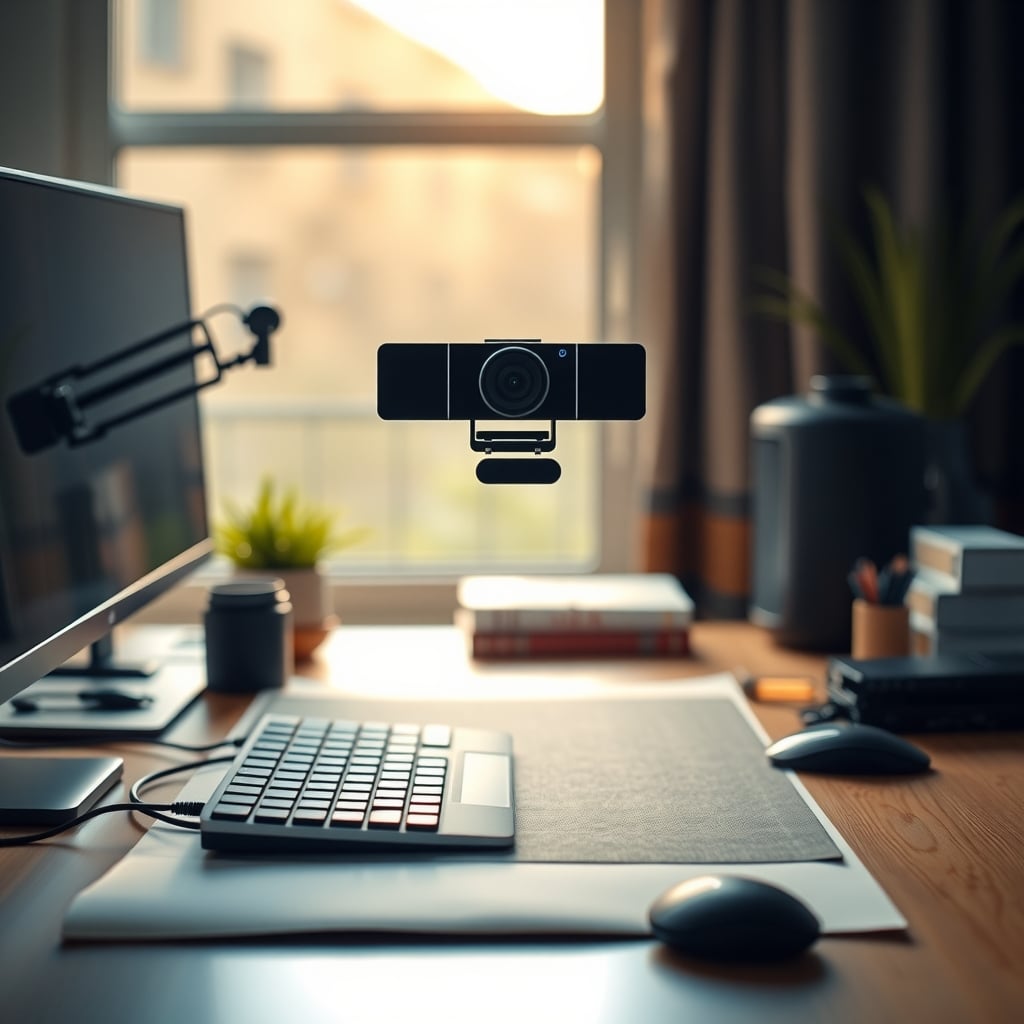
Most people shopping for a webcam for a YouTube desk setup start with the wrong question: How many megapixels? Resolution is the cheapest spec to print on a box and the least likely to change how your videos look. A 4K sensor squeezed onto a tiny chip in a dim home office will look worse on YouTube than a plain 1080p camera with a bigger sensor and a wider aperture.
Here’s the short answer. For a talking-head YouTube desk setup in 2026, buy a camera with a 1/2.8-inch or larger sensor, an f/2.0-or-faster lens, working autofocus, and driverless USB Video Class (UVC) output. Budget $70–$120. Under $50, you’re buying a video-call camera that happens to record. Over $250, you’re buying hardware your room probably can’t feed yet.
The rest of this article explains the reasoning: the specs you can verify yourself, what those numbers mean in a 3 × 2 m room with one window, and where extra spending stops showing up on screen.
What Actually Matters in a Webcam for a YouTube Desk Setup
Sensor size, before resolution. A 1/2.8-inch sensor is the practical floor for a camera you’ll judge yourself on, and it’s what the $70–$120 tier is built around. The 1/3-inch-and-smaller chips in most $30–$50 cameras need more amplification in ordinary indoor light, and amplification is where grain comes from. A 1/1.8-inch or 1-inch sensor is what you pay for at $150–$250, and it buys cleaner shadows rather than sharper detail.
Aperture, in f-stops. f/2.0 versus f/2.4 doesn’t sound like much until you square the ratio: (2.4 ÷ 2.0)² ≈ 1.44, so the f/2.0 lens puts roughly 44% more light on the sensor. That’s the difference between a usable image under typical evening desk lighting and a noisy one.
Autofocus behaviour, not autofocus marketing. A fixed-focus camera is usually set somewhere around 50–60 cm, and anything closer than that goes soft — including your face if you lean toward the monitor. Contrast-detect autofocus hunts visibly when you lean in or hold an object up to the lens. Phase-detect autofocus locks faster and hunts less. If a spec sheet doesn’t say which type it is, assume contrast-detect.
The connection. UVC means driverless operation: OBS, Zoom, macOS, Windows, and Linux’s V4L2 stack all see the camera without extra software. More useful than any logo is whether the camera exposes manual exposure and white balance through UVC controls. Without them, auto-exposure pumps every time you shift in your chair, and on a static talking-head shot, that pumping is the most distracting thing on screen.
Field of view matched to your desk depth. Most webcams sit between 65° and 90°. At roughly 1 m from your face, a 65°–78° lens frames head and shoulders. A 90°-plus lens makes your face small, shows the ceiling, and makes every bit of background clutter unmissable. Wide angle isn’t a feature — it’s a framing choice, and it’s usually the wrong one at desk distances.
Treat the built-in mic as a backup. Webcam audio runs at 16-bit/48 kHz, which is a perfectly fine format. The problem is distance: a camera 80 cm from your mouth picks up the room as much as it picks up you. That’s why choosing a desk mic that rejects room noise matters more than any webcam audio spec.
Still, the lens and sensor decide the purchase. Here’s the physics behind why.
Why a Small Sensor Makes Your Face Look Grainy
Pixel size is the whole story. A 1080p sensor — about 2 megapixels — on a 1/2.8-inch chip has pixels roughly 2.9 µm across. A 4K sensor — about 8 megapixels — on a 1/3-inch chip works out to roughly 1.1 µm pixels. Square those, and you get about 8.4 µm² versus 1.2 µm² of light-collecting area per pixel, meaning the smaller chip has roughly seven times less area per pixel to work with.
The camera compensates by raising gain. Gain raises noise. Video compression then turns noise into smeared blocks — worst on exactly the shot you care about most: a relatively static talking head where nothing is moving to hide it behind.
The other sensor trait you can’t fix in software is rolling shutter. Nearly every CMOS sensor in this price range reads the frame top to bottom over a fraction of a frame time, so fast hand gestures can smear or skew. Global shutter sensors essentially don’t exist at webcam prices, so you work around it by slowing your gestures rather than by shopping for a spec that isn’t there.
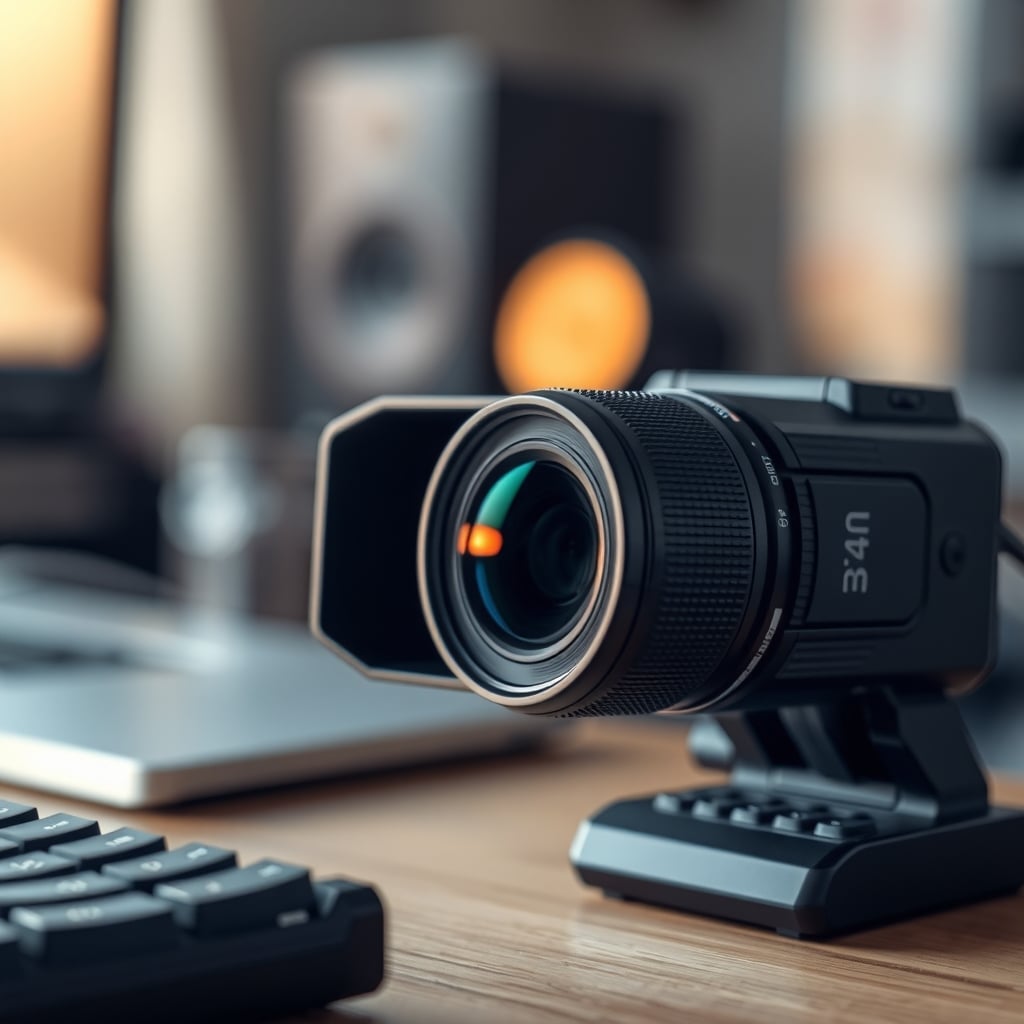
None of that matters if the signal can’t get out of the camera.
USB Bandwidth Is the Ceiling Nobody Prints on the Box
USB 2.0 signals at 480 Mbps and delivers noticeably less once protocol overhead is counted. Uncompressed 1080p30 at 16 bits per pixel needs roughly 1 Gbps, so no UVC camera sends uncompressed 1080p over USB 2.0 — it sends MJPEG or H.264 instead. That’s normal and fine, right up until heavy compression meets a busy background and your gestures turn blocky.
USB 3.0 (5 Gbps — and yes, “USB 3.2 Gen 1” is the same speed with a worse name) removes that ceiling. USB-C is only a connector shape, not a speed: a USB-C port on a laptop can be USB 2.0, and plenty are. Check the data rate, not the shape of the hole.
Two more things worth checking before you buy:
- Cable length is specified, not negotiable. USB-IF rates passive USB 3.x cables at roughly 3 m and passive USB 2.0 at 5 m. Longer runs need active or optical cables, and cheap 5 m “USB 3.0” extension cables are a common cause of a camera that works for ten minutes and then vanishes from the device list.
- Hubs share one pipe. A webcam, a USB microphone, and an external SSD plugged into the same hub split both bandwidth and power budget. It’s a five-second diagnosis and an easy thing to overlook, which is why it’s worth understanding how USB hub power delivery and bandwidth actually work.
The Price Tiers: What $40, $90, $160, and $400 Actually Buy
The $30–$50 fixed-focus webcam. 1080p30, a small sensor around 1/3-inch or smaller, fixed focus, USB 2.0, and a plastic clip that leans on your monitor bezel.
- Good: driverless, works the second you plug it in, cheap enough to keep as a spare.
- Not good: soft at any distance other than its fixed focus point, and visibly grainy in a room without daylight.
- Buy it if: you’re mostly on calls and upload occasionally. Skip it if you’re going to look at the footage critically.
The $70–$120 camera — the one most people should buy. This tier is where a 1/2.8-inch sensor, f/2.0 aperture, real autofocus, 1080p60, and a 1/4″-20 tripod thread all show up together.
- Good: clean 1080p in ordinary room light, smooth motion at 60 fps, and UVC manual exposure controls.
- Not good: 4K at this price is often 4K30 over USB 2.0 with heavy compression, which can look worse in motion than 1080p60.
- Buy it if: you upload 1080p, your room has a window, and you want the purchase to be over with.
The $150–$250 premium webcam. Bigger sensor (1/1.8-inch up to 1-inch), faster optics, sometimes HDR and a selectable field of view.
- Good: a usable image in genuinely dim rooms and more highlight detail if there’s a bright window behind you.
- Not good: still a fixed lens. Real optical background blur doesn’t happen here — what you get is software cropping, which is a framing trick, not depth of field. Our breakdown of how to choose a desk camera without chasing AI framing gimmicks is worth reading before you pay for any of it.
- Buy it if: you shoot in the evening, your desk faces a window, or you’re already committed to a 4K export workflow.
The $350+ camera-plus-capture-card path. A mirrorless or Micro Four Thirds camera, clean HDMI out, and a USB capture device or HDMI switcher feeding OBS.
- Good: real shallow depth of field, interchangeable lenses, proper manual control, and a look a webcam can’t fake.
- Not good: two power sources, an HDMI cable that has to stay in spec, more failure points, and some cameras throttle or shut down during long sessions when used this way. Not every camera outputs a clean signal without on-screen overlays either — check both before you commit to three-hour streams.
- Buy it if: the picture is the product — hands-on tutorials, gear reviews, anything where the shot itself is why people watch.
Four Tiers Side by Side
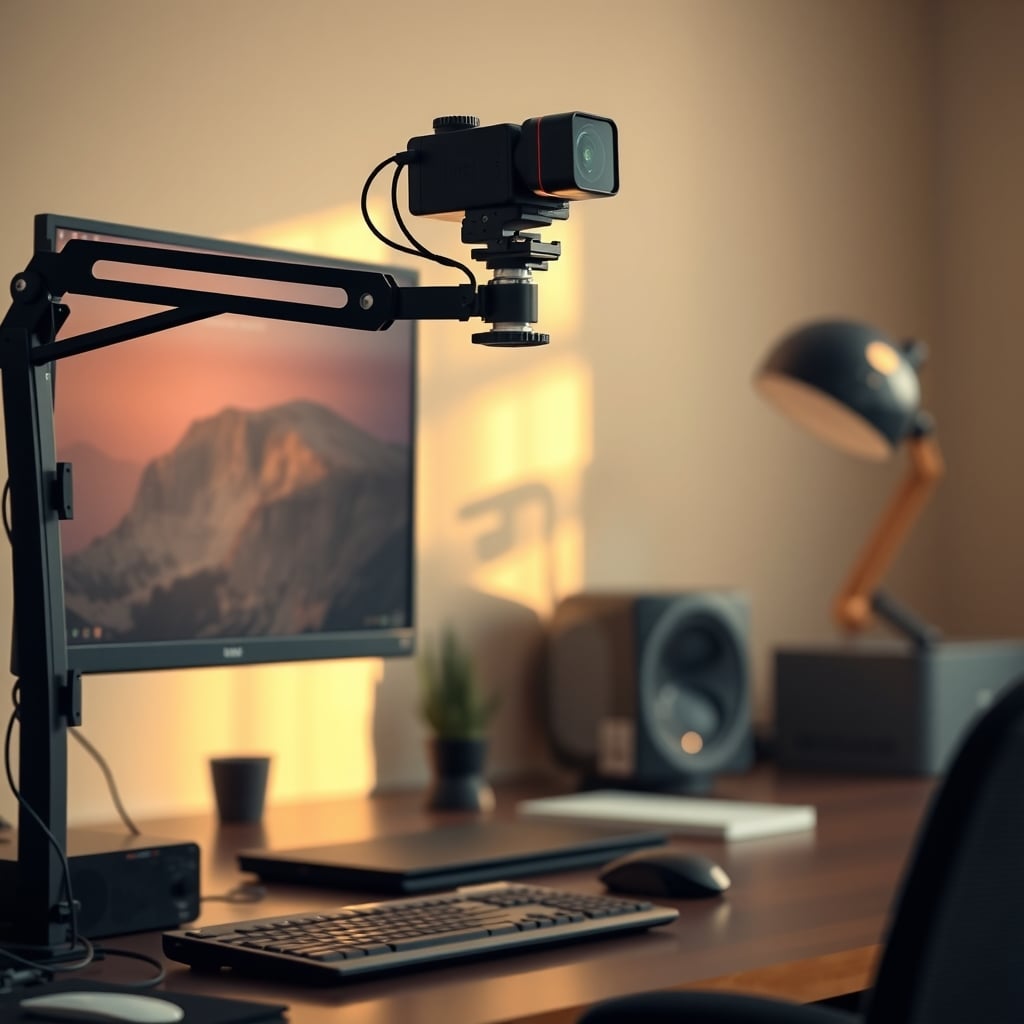
Tier Realistic price Sensor Max output Autofocus Connection Best for Entry fixed-focus webcam $30–$50 ~1/3" or smaller 1080p30 Fixed, ~50–60 cm USB 2.0 Calls and occasional uploads Mid-range webcam $70–$120 1/2.8" 1080p60 or 4K30 Contrast-detect AF USB 2.0 or 3.0 Most talking-head YouTube desks Premium webcam $150–$250 1/1.8" to 1" 4K30 / 1080p60 plus HDR Phase-detect AF USB 3.0 Dim rooms, backlit windows Camera plus capture card $350–$900 total MFT or APS-C 1080p60 / 4K30 into OBS Lens-dependent HDMI into USB capture Videos where the picture is the productWebcam or Camera Plus Capture Card?
The decision hangs on one question: Is the image the reason people watch, or is it just the wrapper around what you’re saying?
If you talk to camera, share screens, and your retention comes from the content, a mid-range webcam is the rational purchase. You get 90% of the perceived quality for 20% of the complexity, and you never troubleshoot an HDMI handshake five minutes before going live.
If your channel is the picture — hands-on builds, gear close-ups, anything where the viewer is looking at the shot as much as listening — the capture path earns its keep. Just budget for the friction, not only the hardware: a camera, a capture device, a lens, a stand, two power bricks, and a cable that mustn’t be cheap.
One honest note on both paths: light beats glass at almost every budget. A $90 webcam with a soft key light placed 45° off-axis will beat a $700 camera pointed at a dim wall. If your footage looks flat rather than noisy, the problem is why your face still looks flat under streaming rig lighting, not your sensor.
Five Mistakes That Cost Real Money
1. Buying 4K for a 1080p deliverable. If your export settings say 1080p, a 4K sensor mostly buys you bigger files and heavier compression. Fix: open your editor’s export preset first. If it’s 1080p, put the difference into a light or a microphone.
2. Sharing a USB 2.0 hub with everything else. A webcam, mic, and drive on one bus split the same bandwidth and power. Fix: give the camera a direct port, or move the SSD elsewhere and check your hub’s data rate rather than its port count.
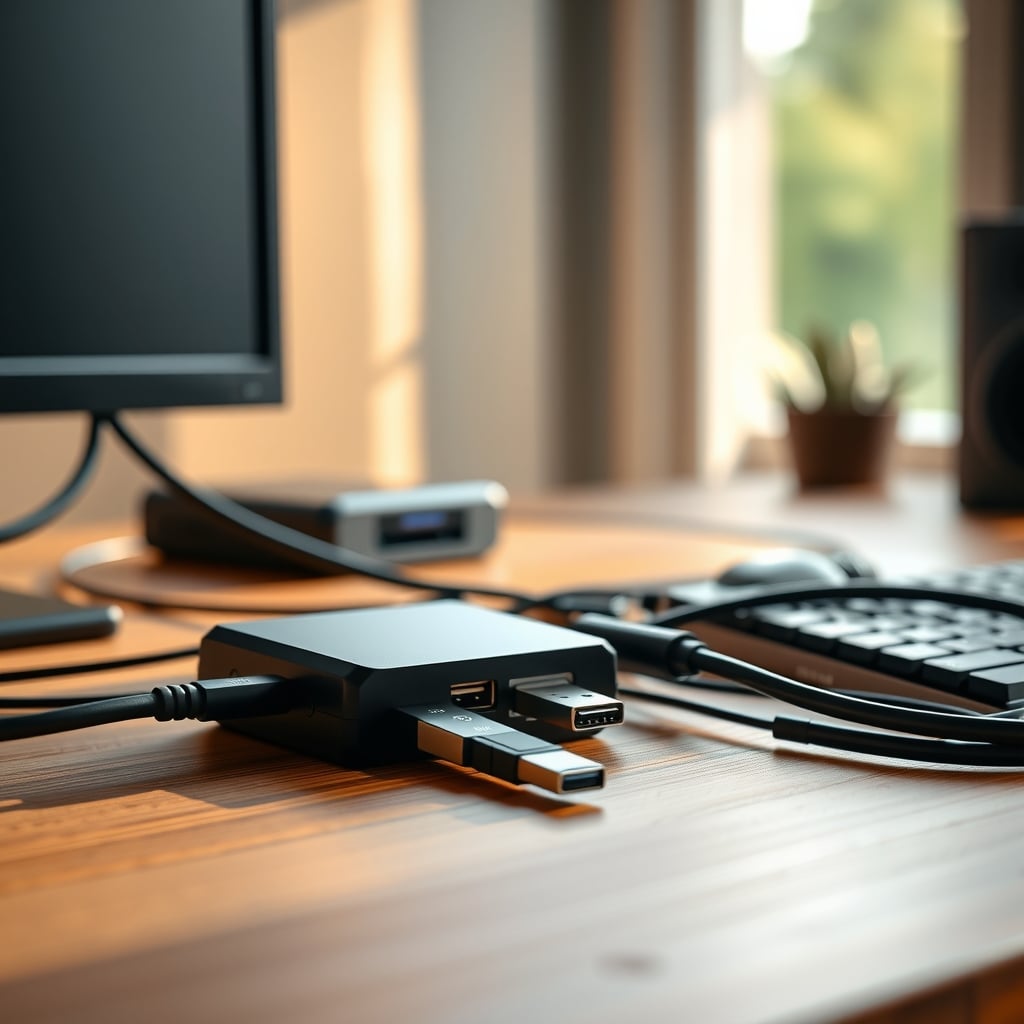
3. Mounting the camera at desk level. A lens below eye level aims up your nose, and a wide lens exaggerates it. Fix: raise the camera to eye level using a monitor mount, a shelf, or the 1/4″-20 thread on a short arm, and sit roughly 1–1.2 m back.
4. Leaving auto-exposure on with a window behind you. The camera meters for the bright window and turns you into a silhouette, then brightens the moment you move. Fix: use manual exposure if the camera exposes UVC controls, or turn your desk so the window is in front of you — the same principle that makes ambient office lighting that works on contrast instead of brightness outperform just adding more lamps.
5. Judging the camera before fixing the light. Room lighting at your face is usually the limiting factor, not the sensor. Fix: one soft light at 45° off-axis, roughly at eye height, before you spend another cent on cameras.
Who Should Buy What
You upload weekly and your room has a window. Buy the $70–$120 tier: 1/2.8-inch sensor, f/2.0, autofocus, 1080p60. It’s the best overall answer for most YouTube desk setups in 2026.
You record after dark, or a bright window sits behind your chair. Go premium at $150–$250 for the larger sensor and HDR, and still buy a key light. Big sensors make dim rooms survivable, not beautiful.
You’re mostly on calls and post once a month. A $30–$50 fixed-focus camera is honest value. Put the savings into a USB microphone, which is a bigger upgrade to how your videos feel than any sensor change.
The shot is the product. Go camera plus capture card, and accept the setup and troubleshooting overhead as part of the cost.
Your desk is under 80 cm deep. Look for a narrower field of view, ideally 65°–70°, or a camera you can physically push back. A 90° lens on a shallow desk will show your ceiling and your walls no matter how you angle it.
Who should skip all of this: anyone delivering 1080p with lighting that already works, upgrading from a functioning 1080p webcam to 4K. At that point you’re paying for resolution your export and your room can’t use.
The Bottom Line
Buy for the sensor and the light, not the megapixel count. For most people reading this, that means a $70–$120 webcam with a 1/2.8-inch or larger sensor, f/2.0 optics, real autofocus, 1080p60 over a USB connection you’ve actually checked, and UVC manual controls so the exposure stops drifting. Then spend your remaining budget on a soft key light and a decent microphone, in that order.
Skip 4K until you’re exporting 4K and your lighting is solved. Skip the $30 fixed-focus tier unless the camera is mostly for calls. And skip the $350-plus capture path unless the picture itself is what your viewers came for — because it’s the only tier where the extra money buys something your audience can actually see.
Frequently Asked Questions
Is a 4K webcam worth it for YouTube in 2026?
Only if you actually export 4K. If your editor is set to 1080p, a 4K sensor mostly adds compression load and file size, and many 4K webcams run 4K30 over USB 2.0 with heavy MJPEG compression, which can look worse in motion than clean 1080p60. Spend the difference on lighting first.
Do I need USB 3.0 for a webcam?
Not for compressed 1080p30 or 1080p60 — USB 2.0 signals at 480 Mbps and is enough for MJPEG or H.264 streams. You need USB 3.0 (5 Gbps) for uncompressed high-frame-rate or 4K feeds. Also remember USB-C is a connector shape, not a speed, so check the port's data rate.
Why does my webcam look grainy even in daylight?
Usually pixel size, not brightness. A 4K sensor on a 1/3-inch chip has pixels around 1.1 µm across, roughly seven times less light-collecting area than the ~2.9 µm pixels of a 1080p sensor on a 1/2.8-inch chip. The camera raises gain to compensate, and gain shows up as noise that compression then smears.
Fixed focus or autofocus for a desk webcam?
Autofocus, if you'll ever move or hold something up to the lens. Fixed-focus cameras are typically set around 50–60 cm, so you go soft if you lean in. Contrast-detect autofocus hunts visibly; phase-detect autofocus locks faster. If the spec sheet doesn't state the type, assume contrast-detect.
How far should a webcam be from my face?
Around 1 to 1.2 m at eye level for a 65°–78° lens, which frames head and shoulders. Placing the camera below eye level and close in makes any wide lens exaggerate the angle upward. A 1/4"-20 thread on a short arm or monitor mount is the easiest fix.
Can a USB hub cause webcam dropouts?
Yes. Devices on one hub share both bandwidth and power budget, so a webcam, USB microphone, and external drive on a single bus can starve each other. Cable length matters too: USB-IF rates passive USB 3.x cables at roughly 3 m and passive USB 2.0 at 5 m, and cheap long extensions are a common cause of cameras disappearing mid-session.
Written by
GlowRig Editorial researches and writes practical guides about desk setups and home office gear. Our articles are produced with the help of AI research tools and are reviewed for accuracy against manufacturer specifications and public user feedback. We may earn a commission from affiliate links, which never affects our recommendations.
Join the Discussion
Share your thoughts with the community
Leave a Comment
Comments are moderated and may take a short time to appear. Links are not permitted.