USB Hub Power Delivery Explained in Watts and Amps
That "100W" label on a hub describes the charger you can plug in, not the power that reaches your laptop. Here's the wattage math, the cable gotcha, and the heat problem nobody puts on the spec sheet.

A hub's wattage rating describes the charger feeding it—not what arrives at your laptop. That one misunderstanding explains most “my laptop still drains while it's docked” complaints. Learn it now, and you won't buy the wrong box twice.
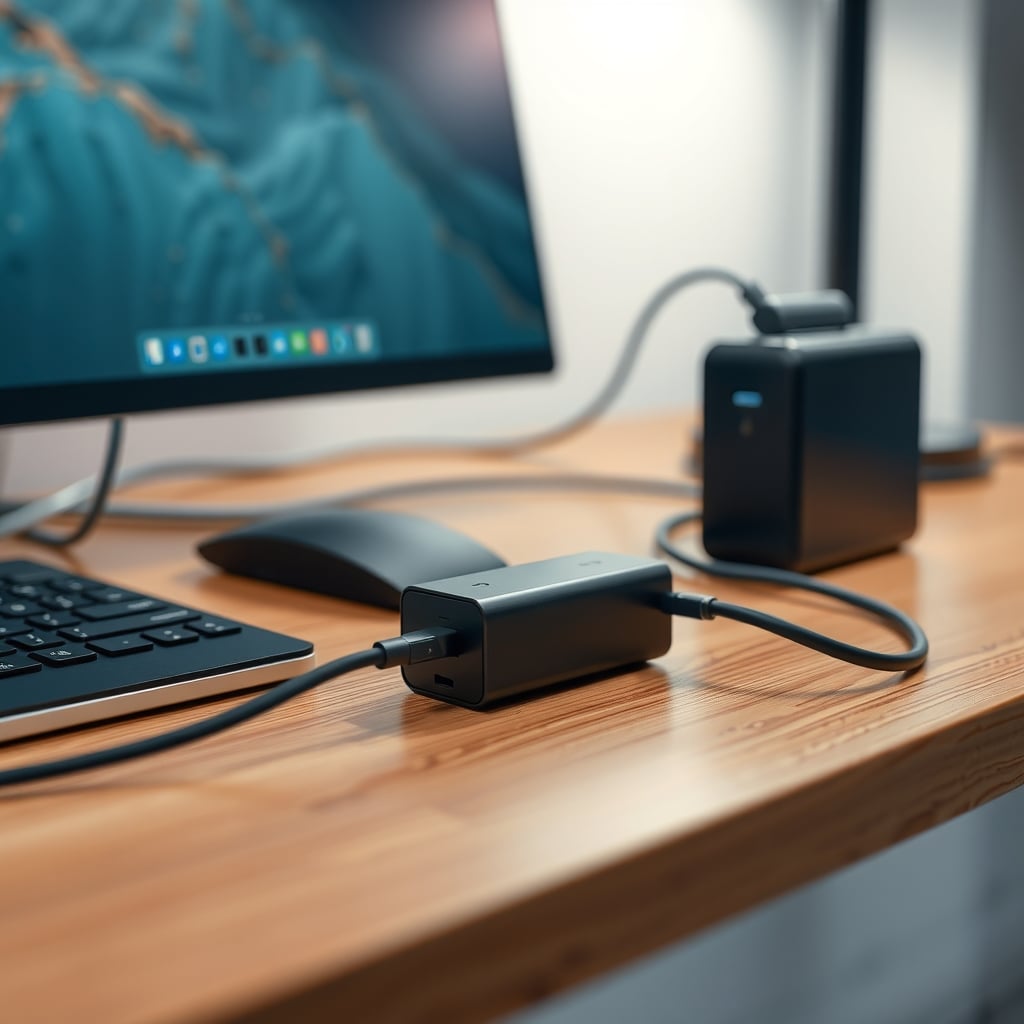
Here's the working rule for USB hub power delivery: on a USB-C hub with power delivery passthrough, the hub keeps a slice of the incoming watts for itself—controller, Ethernet chip, card reader, downstream ports—and passes the rest to your laptop. Honest specs list something like 100W input and 85–90W passthrough output. If a listing only says “100W,” it's describing the largest charger you can plug in, not what your laptop will see.
What USB Hub Power Delivery Actually Negotiates
USB Power Delivery is a handshake over the CC (configuration channel) pin, not a wire that shoves current downhill. The source advertises a menu of fixed voltage and current combinations, and the sink requests one. Under USB PD 3.0, that menu tops out at 20V × 5A = 100W. PD 3.1's Extended Power Range adds 28V, 36V, and 48V for a 240W ceiling, but that's mostly a laptop-brick feature. The overwhelming majority of desk hubs in 2026 still live below 100W.
Two numbers decide everything, and they're rarely printed side by side:
- Input rating: the biggest charger the hub's PD port will accept.
- Passthrough output: what actually reaches the host laptop after the hub pays its own overhead.
A hub that accepts 100W and passes 85W needs a 100W charger to hit 85W. Feed it a 65W brick and you'll land near 55W at the laptop. That's the most common reason a “100W hub” feels weaker than the charger that shipped in the box.
The charger math is boring, and it works: laptop peak draw + hub overhead + roughly 20% headroom. A 14-inch laptop rated at 65W wants a 100W charger behind a passthrough hub. A 16-inch workstation that peaks near 100W wants 140W. Oversizing is safe—PD negotiates downward, and the laptop only pulls what it asks for. Undersizing is what bites, and it looks exactly like the slow-charging symptoms covered in this power troubleshooting breakdown.
Where hubs quietly disappoint is downstream. Charging your laptop at 85W says nothing about the USB-A ports facing your phone.
Port or mode Voltage Max current Watts USB 2.0 host port 5V 0.5A 2.5W USB 3.x host port 5V 0.9A 4.5W USB Battery Charging 1.2 downstream 5V 1.5A 7.5W USB-C default, 3A advertised 5V 3A 15W USB PD 3.0 ceiling 20V 5A 100W USB PD 3.1 EPR ceiling 48V 5A 240WThat third row is the honest ceiling for most hub USB-A ports. A phone that fast-charges on its own brick will crawl on a hub port. That's a spec limit, not a defect. If a listing gets vague, check USB-IF's port-marking language.
The Five Hub Tiers People Actually Buy
Tiers are the fastest way to see where your money goes. Prices below are realistic 2026 street ranges.
Tier 2026 street price Uplink speed Power to laptop Downstream power Best for Where it fails Bus-powered USB-A hub $15–35 USB 3.x, 5Gbps none 4.5W shared across every port Keyboard, mouse, dongles, a DAC Any drive — a 2.5-inch HDD browns out the whole hub at spin-up USB-A hub with 5V input $25–45 USB 3.x, 5Gbps none 5V adapter, typically 2A–4A shared External drives, audio interfaces Never charges the laptop USB-C hub, 60W PD passthrough $35–60 USB 5Gbps roughly 45–50W after overhead 5V/1.5A per port (7.5W) 13–14-inch laptops with 45W chargers A 65W laptop under load still slowly drains USB-C hub, 85–100W PD passthrough $70–120 USB 10Gbps, DP Alt Mode roughly 75–90W 7.5–15W per port 14–16-inch laptops, single-cable desks Needs a 100W+ charger you may not own; runs warm USB4 / Thunderbolt 4 dock $150–300 40Gbps 90–100W, occasionally 140W 15W minimum per port under the TB4 spec Dual 4K60 plus fast storage at once Price, and most desk setups never touch the bandwidthA quick naming note: hub listings are a mess right now. USB-IF dropped the old “Gen 1 / Gen 2” labels in favor of plain “USB 5Gbps” and “USB 10Gbps.” If a product page still says USB 3.2 Gen 2×2, it means 20Gbps over USB-C only—and it has nothing to do with charging wattage.
The bus-powered floor deserves a hard number. A USB 3.x host port guarantees 900mA, or 4.5W for the entire hub. That covers a keyboard, mouse, webcam, and dongle. It does not cover a spinning drive that can pull over an amp on startup. If drives are part of your plan, buy a hub with its own 5V input and stop guessing.
And don't daisy-chain hubs. A bus-powered hub plugged into another hub receives whatever is left after the first hub's devices, which can fall below the spec minimum. Symptoms look like random disconnects, not a clean failure—which is why people chase the wrong fix for weeks.
Heat Is the Column Missing From Every Spec Sheet
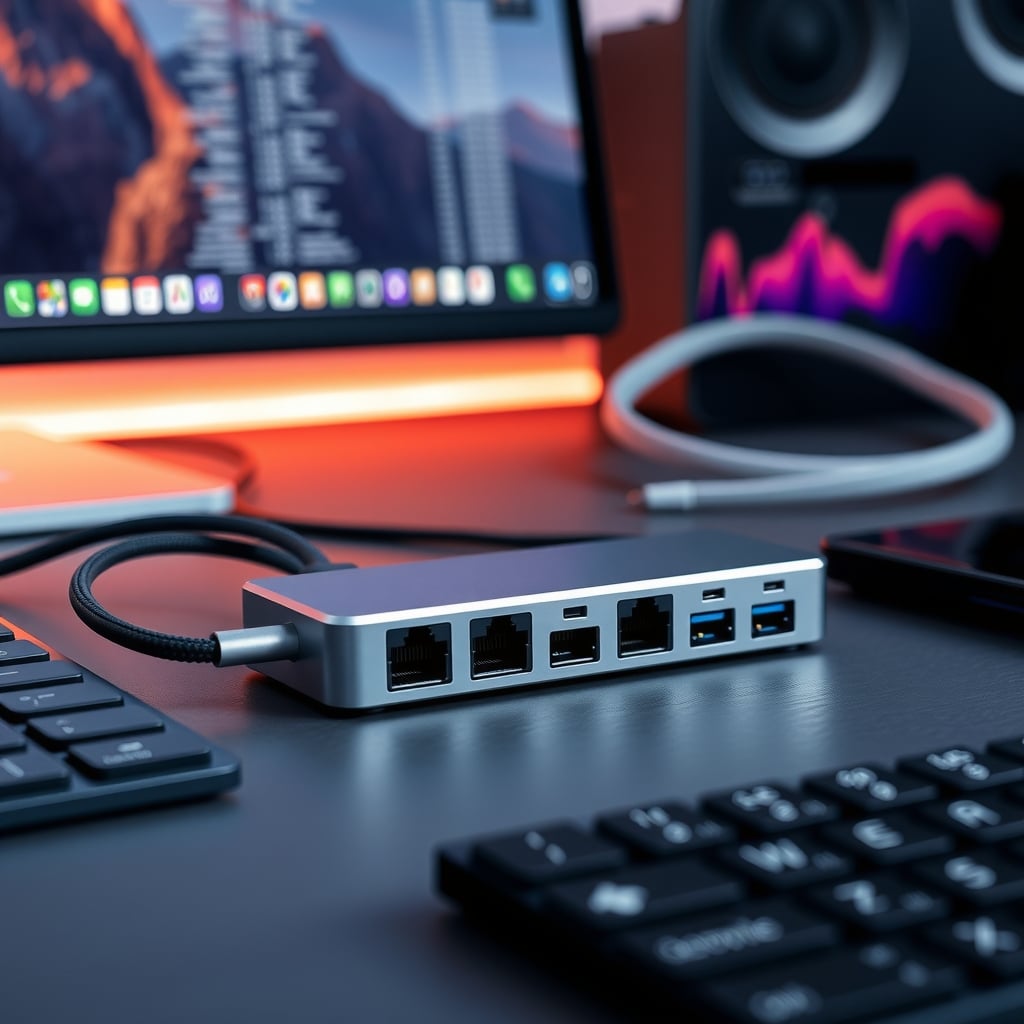
Watts that don't reach your laptop don't vanish. A meaningful fraction becomes heat inside a box the size of a deck of cards, continuously, all day. That's the real reason good 100W passthrough hubs use metal bodies: aluminum spreads heat, plastic traps it. It isn't a design flourish.
Practical rules:
- Warm to the touch is normal. Too hot to hold comfortably for a few seconds is not—that usually means the hub is overloaded or badly designed.
- Don't bury it. Under a desk mat, inside a drawer, or wrapped in a fabric cable sleeve that traps heat, a hub loses its only cooling path.
- Don't stack it on top of your charger brick. Two heat sources sharing one convection surface shorten both lifespans.
- Heat ages electrolytic capacitors. A hub that runs hot from day one is usually the first thing in a setup to die.
Strain matters too. A hub hanging off its uplink cable loads the connector, which is the most fragile part of the assembly—the cable routing mistakes in this guide apply directly. Mount the hub, support the cable, and leave slack at the port.
Five Mistakes That Quietly Break Your Charging Setup
1. Using a 3A cable in a 100W setup. USB-C cables rated for 60W carry 3A at 20V. Above 3A, the cable must be electronically marked so the source knows it's safe to push 5A. A 100W hub plus a 140W charger plus a 60W cable still equals 60W. Check the cable, not just the hub. EPR voltages above 20V require EPR-rated cables too.
2. Assuming every USB-C port on your laptop accepts power. Some are data-only. If the manual doesn't say “USB-C with Power Delivery input” or show a charging icon, assume it doesn't charge. This is common on budget laptops and on the second USB-C port of older models.
3. Buying by port count. A seven-port hub looks like more value until you realize the bus budget is 4.5W split seven ways. Ports are cheap. Watts aren't.
4. Plugging the charger into the wrong port. Hubs have a PD input—sometimes labeled “PD IN,” sometimes shared with the uplink cable. Feeding a charger into a downstream port does nothing, and it's a five-minute confusion that reads like a dead hub.
5. Buying a hub whose video output steals bandwidth from USB data. USB-C has four high-speed lanes. In a 4-lane DisplayPort Alt Mode configuration, USB data drops to USB 2.0 speeds—480Mbps—which is fine for peripherals and miserable for an SSD. If you need 4K60 and 10Gbps data at the same time, you want USB4 or Thunderbolt, where display and data are tunneled separately.
Which Hub Fits Your Desk
You dock one laptop at one desk. Buy an 85–100W PD passthrough hub in the $70–120 range with a metal body and at least one 4K60 output, then size your charger at 100W. This is the tier where money is genuinely well spent, because it collapses charger, video, Ethernet, and ports into one cable.
You run a desktop tower. You have no laptop to charge, so PD passthrough is dead weight. A $25–45 hub with its own 5V input gives you real ports and stable drive power. Skip the premium tier entirely—you'd be paying for a feature you can't use.
You use a tablet as your primary machine. You need PD passthrough just as much as a laptop owner, and 60W is usually plenty. Spend $35–60 and don't overthink it.
You're mobile. Bus-powered hubs are lighter and need no brick, which is the entire point. Accept the 4.5W ceiling and don't expect to run drives off one.
You need two 4K60 displays plus fast storage simultaneously. That's USB4 or Thunderbolt 4 territory at $150–300, and it's the one scenario where the premium dock beats three adapters on price. Thunderbolt 4 also mandates a 15W minimum per downstream port, a step up from the 7.5W USB Battery Charging norm—that gap matters if you run bus-powered gear.
If your desk also has wireless charging pads in the mix, this comparison of Qi2 hub options covers how to keep the wattage budget straight across both.
The Bottom Line
Buy the hub that matches your actual power draw, not the biggest number on the box.
For most people docking a laptop: an 85–100W PD passthrough hub at $70–120 with an aluminum body, paired with a 100W charger and a 5A e-marked cable. That combination leaves roughly 85W available—more than enough for a 65W laptop—and runs cool enough to sit on a desk indefinitely.
Skip PD passthrough entirely if you're on a desktop tower—a $30 powered hub does the same job for your peripherals at half the price. Skip USB4 docks unless you genuinely need 40Gbps plus dual 4K60. And if a hub's spec sheet never states its passthrough output, treat that silence as a number. It's usually the figure the manufacturer would rather you didn't read.
Frequently Asked Questions
How many watts does a USB-C hub actually pass through to a laptop?
A hub rated for 100W input typically passes roughly 85–90W to the host laptop; the rest runs the hub's own controller, ethernet chip, card reader and downstream ports. Always look for the passthrough output figure in the spec sheet, not just the input ceiling. If only one number is listed, it's almost always the input.
Can I use a 100W charger with a 60W hub?
Yes, and it's safe. USB Power Delivery negotiates, so the hub will only draw what it can handle and your laptop will be capped at that hub's passthrough output — usually around 45–50W after overhead. A larger charger never forces more current than the sink requests.
Do I need an e-marked USB-C cable above 60W?
Yes. Above 3A, USB-C cables must be electronically marked so the power source knows it's safe to deliver 5A. Standard 3A cables cap out at 60W (20V x 3A) no matter how large your charger or hub is. Cables certified for PD 3.1 extended power range voltages above 20V require EPR-rated e-marked cables as well.
Why does my USB hub get so hot?
Power that doesn't reach your laptop becomes heat inside the hub — conversion losses on a 100W passthrough add up continuously. Warm to the touch is normal, and metal-bodied hubs handle it better than plastic ones. Too hot to hold comfortably, especially when the hub is buried under a mat or inside a drawer with no airflow, means you should relocate it and check your load.
Written by
GlowRig Editorial researches and writes practical guides about desk setups and home office gear. Our articles are produced with the help of AI research tools and are reviewed for accuracy against manufacturer specifications and public user feedback. We may earn a commission from affiliate links, which never affects our recommendations.
Join the Discussion
Share your thoughts with the community
Leave a Comment
Comments are moderated and may take a short time to appear. Links are not permitted.