Hub vs Docking Station Which Fits a Two Monitor Desk
A $30 hub and a $250 dock both claim dual display support. The difference is where the power comes from — and it decides whether your second monitor runs at 60Hz or falls over. Here's the honest breakdown for a two-monitor laptop desk.

A $30 USB-C hub and a $250 docking station can both print "dual display" on the box. Only one of them will drive two 1440p monitors at 60Hz while charging your laptop and keeping an external SSD from dropping off the bus mid-render. The difference isn't port count — it's where the power comes from.
That's the whole hub vs docking station question in one line: a hub borrows, a dock supplies. On a two-monitor laptop desk, that single fact cascades into everything else — whether your second screen holds 60Hz or limps at 30Hz, whether your ports survive a low battery, and whether your desk needs one cable or five. For most two-monitor laptop desks in 2026, the powered dock is the right buy. The exception is narrow and specific, and we'll get to it.
The Difference Most Buyers Miss Is Wattage, Not Port Count
Port math is easy to compare, which is why every product page leads with it. Watt math is harder, and it's what actually breaks setups.
A bus-powered hub lives inside the USB-C spec's limits. A standard USB 3.x port is required to supply 900mA at 5V — 4.5W — and USB 2.0 ports guarantee only 500mA, or 2.5W. Every device on that hub shares the same budget. A portable SSD can pull 4–5W during sustained writes. A bus-powered webcam adds up to 2.5W. Plug both in plus a keyboard and you're already over what a single port will hand out. That's why hubs develop "personality": the drive that disconnects when the room gets warm, the webcam that stutters only during calls.
A powered dock has its own brick. A typical desktop dock ships with a 120–180W supply and splits it deliberately: 60–100W to your laptop over USB Power Delivery, roughly 15W per downstream port, and a dedicated budget for the display path. Nothing on that dock is negotiating with your laptop's battery for scraps.
The spec sheet won't tell you this, but the charging headroom is the tell. USB PD 3.0 tops out at 100W over USB-C (20V/5A). PD 3.1 EPR extends that to 240W, but only with an EPR-rated cable and an EPR-capable laptop — and plenty of 2026 laptops still ship with 65W adapters. If your dock feeds 90W to the laptop and your laptop only wants 65W, the extra margin goes to your peripherals and to headroom, not to waste.
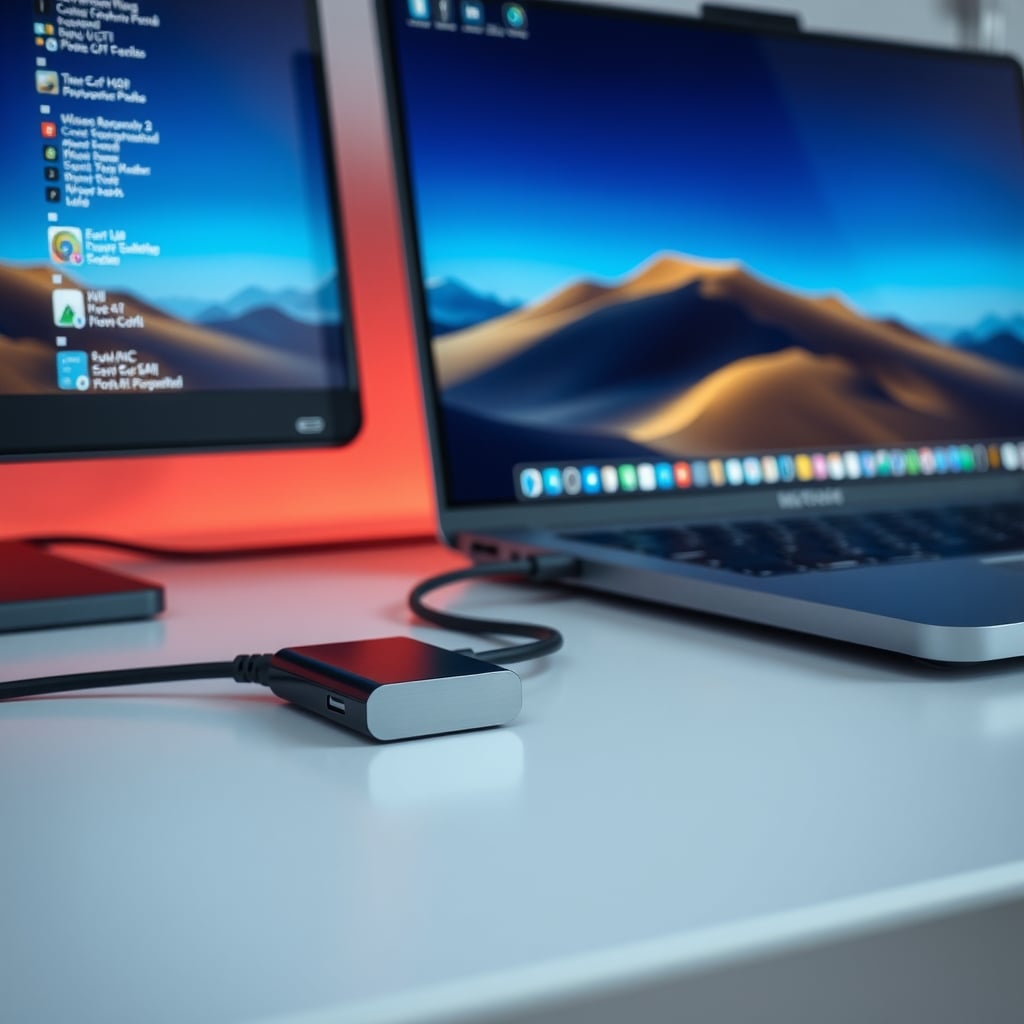
The 30-Second Decision Chart for Two-Monitor Desks
Attribute Bus-powered USB-C hub Powered docking station Typical price (2026) $25–$70 $150–$350 Power source Laptop port, ~4.5W shared budget Own 120–180W adapter Laptop charging Pass-through only, often 60–85W minus overhead Full PD, usually 65–100W sustained Dual monitor ceiling Two screens only if the host supports DP Alt Mode with enough lanes; often 1080p60 + 1080p60 Dual 4K60 with DSC on USB4/Thunderbolt, or dual 1440p60 comfortably Heat Low, but the laptop does the work Moderate; GaN supplies keep it manageable Cables to the desk 1 to the laptop, plus display cables 1 to the laptop; displays live on the dock Best for Single external display, light peripherals, travel Two monitors, wired ethernet, audio, SSD, standing desksIf you want the short version: count your displays first, then count your watts. Everything else is shopping.
The Bus-Powered Hub: Cheap Ports, Borrowed Watts
A $30–$60 hub is a genuinely good object. It's the size of a deck of cards, weighs almost nothing, and turns one USB-C port into HDMI, two USB-A, an SD reader and pass-through charging. If you're building a laptop-only desk with one monitor, this is the correct purchase and spending $200 more buys you nothing you'll notice.
Where it earns its keep: travel, a second desk, a single 1080p or 1440p panel at 60Hz, and peripherals that sip power — keyboard, mouse, a wired headset, a USB mic. Those devices draw tens of milliamps each. Nobody is starving.
Where it falls apart is predictable and physics-driven. The hub's total downstream power comes from your laptop's port, so a low battery means the laptop may renegotiate and cut what it hands out. Reviewers on long-term threads consistently report the same pattern: the SSD drops, then the ethernet adapter, then the webcam — always in that order, because that's the order of power draw. Meanwhile the hub itself gets warm, because power conversion happens in a plastic shell with no heatsink, sitting on your desk mat.
Then there's bandwidth. DisplayPort Alt Mode gives you four high-speed lanes shared between USB 3.x data and video. A hub that offers USB 3.2 Gen 1 (5Gbps) data and dual video is splitting a fixed pipe, and many budget hubs quietly drop the USB side to 480Mbps USB 2.0 speeds once two displays are active. Nothing is broken — that's the design. The spec sheet just doesn't lead with it.
Who it fails: anyone running two monitors, anyone with a wired NAS or gigabit ethernet plus an external drive, and anyone whose laptop charges at 100W and needs pass-through to actually deliver it. For the wattage math on pass-through, USB hub power delivery explained in watts and amps is worth ten minutes before you buy.
The Powered Dock: Watts, Thermals and One Cable
A docking station at $150–$350 is doing a different job. It's a small power distribution unit with a video switch inside, and it's designed to sit in one place and stay there.
The practical win is the single-cable ritual. Laptop down, one USB-C connector in, and the desk comes alive: two monitors, ethernet, an audio interface, a mechanical keyboard, a backup SSD, and 90W of charging. Nothing else to plug in. That matters far more on a standing desk than on a static one, because every cable that runs to your laptop is a cable that has to survive 40 cycles a week of up-and-down. If that's your situation, standing desk cable management that survives movement covers the routing side properly.
The second win is latency-free video. Docks that use native DisplayPort Alt Mode or Thunderbolt/USB4 tunnel your displays through the same GPU path the laptop would use on its own — no compression, no driver layer, no cursor lag. Docks that rely on a USB graphics chip instead compress and encode frames in software, which is fine for spreadsheets and noticeably soft for anything with a mouse cursor in motion. If you're sensitive to input lag, that distinction separates two docks that look identical in a listing.
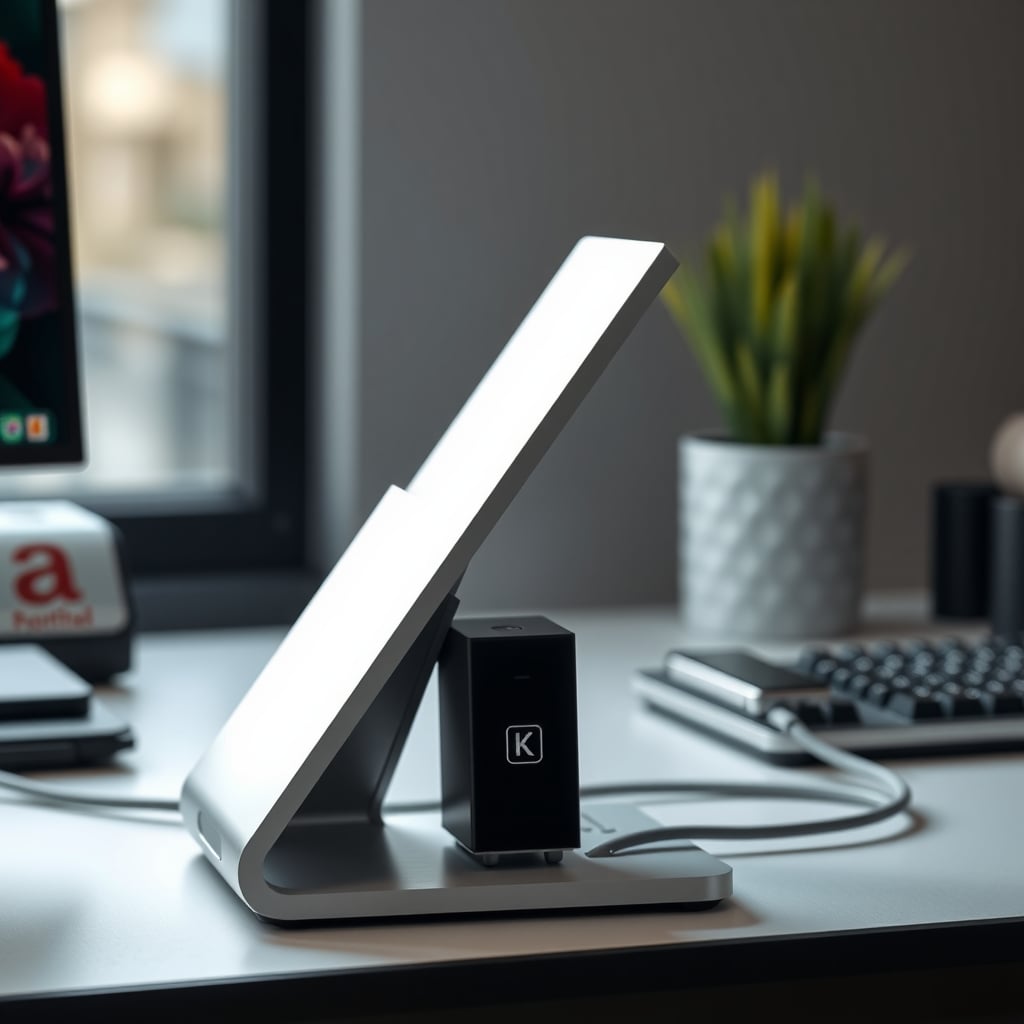
The honest downside is heat and cost. Converting AC to 100W of DC isn't free — at a typical 90% conversion efficiency, roughly 11W leaves the supply as heat, and if that heat has nowhere to go, the dock's firmware may throttle downstream power. Passive aluminium bodies handle this better than sealed plastic boxes with a 30mm fan that will be audible in six months. The good news for 2026: GaN-based supplies have pushed the same wattage into noticeably smaller, cooler bricks than the 2019-era docks, so a modern 120W unit is often smaller than an older 85W one.
Who it fails: anyone who moves desks daily, anyone on a strict budget with one monitor, and anyone unwilling to check the display spec sheet before buying. A dock that claims "dual 4K" but only lists DisplayPort 1.2 with no DSC will hand you dual 4K30, not dual 4K60.
hub vs docking station: Head-to-Head on Five Metrics
Scored out of 10, based on published specs and documented user consensus — not lab testing.
Metric Bus-powered hub Powered dock Why Value under $75 9 4 Nothing beats a hub at this price if you have one display Power headroom 4 9 4.5W shared vs 15W per port plus laptop PD Dual-monitor capability 5 9 Fixed DP Alt Mode lanes vs dedicated video path Heat and longevity 6 7 Hubs run cool but sit in plastic; good docks use metal heatsinking Cable tidiness 6 9 One cable and displays routed off the dock Overall 6/10 9/10 Best for Single display, travel, second desk Two monitors, wired peripherals, standing desksPrice context for 2026: a solid 7-in-1 bus-powered hub runs $35–$60. A USB4 or Thunderbolt-class dock with 96W charging runs $220–$330, and universal docks with a software display chip land $150–$220. That's roughly a 4–6x gap, and it's the entire argument.
Where Both Fail: Heat, Bandwidth and the Cable Under the Desk
Both product types share three weaknesses worth planning around.
The 2.4GHz problem. USB 3.x signalling radiates noise near 2.4GHz — Intel documented this interference pattern years ago and it hasn't gone away. Route a hub or dock's USB 3 cable directly past a wireless mouse receiver and you'll get stutter that looks like a broken mouse. Fix: keep 2.4GHz receivers on a short extension cable away from high-speed USB cables, or move to a Bluetooth peripheral.
Cable quality is a real bottleneck. A 40Gbps USB4 link and 100W of PD both need an electronically marked cable, and the e-marker chip is what tells the dock how much it can push. A random cable from a drawer may be rated 480Mbps and 60W. If your dock is delivering 4K60 one day and 4K30 the next, suspect the cable before the dock. The Power Delivery cable wattage guide explains which ratings to check on the jacket.
Heat stacking. A dock with a 120W brick, a laptop charger, and a monitor power supply on the same power strip under a desk is a warm corner with no airflow. Give the brick 5cm of clearance and don't bury it under a rug or a cable box.

Common Mistakes That Cost You a Port or a Display
1. Buying on port count instead of power. A 12-port hub with no adapter is still a 4.5W hub. Fix: check whether the listing mentions a power supply and its wattage — no wattage figure means bus-powered.
2. Assuming two HDMI ports means two displays. Many laptops only support one external display over DP Alt Mode without MST support or a USB graphics chip. Fix: check your laptop's spec page for "number of external displays supported" before buying either device.
3. Ignoring DSC. Dual 4K60 over DisplayPort 1.4 requires Display Stream Compression. Without it, the same hardware runs dual 4K30. Fix: look for DSC support in the dock's spec table, not the marketing headline.
4. Running a 100W laptop off pass-through. Pass-through charging loses 10–15W to the hub's own overhead. A 100W laptop on an 85W pass-through hub will slowly discharge under load. Fix: match the hub's pass-through rating to your laptop's adapter, or use a powered dock.
5. Mounting a dock to the underside of the desk with no airflow. VESA-mounting a dock is fine and tidy — sealed against a wooden surface is not. Fix: leave a gap, or pick a metal-bodied dock designed for under-desk mounting.
Who Should Buy Which
Buy the hub if: you run one external monitor at 1080p or 1440p, your peripherals are a keyboard, mouse and maybe a webcam, and you want to spend under $70. Also buy it as a travel kit or a second-desk spare — a $40 hub in a bag has saved more presentations than any dock.
Buy the powered dock if: you run two monitors, you want gigabit ethernet and a wired audio interface, you charge a 90W-plus laptop, or your desk moves up and down. This is the group where the extra $180 is not a luxury — it's the difference between a setup that works every morning and one you troubleshoot weekly. If your desk is compact, small desk monitor stand depth is the companion read, because dock placement and monitor depth fight for the same 20cm.
Buy neither if: your laptop already has two USB-C ports and an HDMI out, and you only ever connect one screen. Spend the money on a cable tray instead.
Bottom Line: The Dock Wins for Two Monitors
For a two-monitor laptop desk, buy a powered docking station. Not because it has more ports, but because it owns its power supply — and every other advantage, from dual-monitor stability to peripheral reliability to the single-cable ritual, flows from that one engineering fact. Budget $200–$300, insist on native DisplayPort Alt Mode or USB4 rather than a software display chip, and confirm dual-monitor refresh rates in the spec table before you pay.
Buy the bus-powered hub instead only if you're running one display and light peripherals. In that scenario it's not a compromise — it's the smarter $50 you'll spend, and the extra $200 genuinely buys nothing you'd notice.
The mistake worth avoiding is the middle: a $100 hub with a power adapter that promises dual display but splits DisplayPort lanes badly. That's the worst of both, and it's the most common purchase regret in this category.
Frequently Asked Questions
Is a docking station better than a USB-C hub?
For two monitors or high-draw peripherals, yes. A docking station has its own power supply, so it can deliver 15W per port plus 65-100W of laptop charging, while a bus-powered hub shares roughly 4.5W total from a single USB 3.x port. For one display and a keyboard and mouse, a hub is the better value.
Can a USB-C hub run two monitors at 60Hz?
Usually not at high resolution. DisplayPort Alt Mode gives four high-speed lanes shared between video and USB data, and many budget hubs drop USB to 480Mbps once two displays are active. Dual 1440p60 is realistic on good hubs; dual 4K60 generally needs a dock with Display Stream Compression or a USB4/Thunderbolt connection.
Do docking stations need a separate power cable?
Yes. That is the point. A powered dock ships with a 120-180W adapter that feeds both your laptop over USB Power Delivery and its own downstream ports. You still get a single cable to the laptop, but the dock itself plugs into the wall.
Why does my external SSD disconnect when plugged into a hub?
Power contention. A USB 3.x port only guarantees 900mA at 5V (4.5W), and a portable SSD can pull 4-5W during sustained writes. Add a webcam and the budget is gone, so the host cuts the highest-draw device. A self-powered dock or a hub with its own adapter fixes it.
Does a hub or dock add input lag to my monitors?
A native DisplayPort Alt Mode or USB4 dock passes video through the same GPU path with no added latency. Docks using a DisplayLink-class software display chip compress and encode frames in the CPU, which is fine for office work but soft for cursor-heavy tasks.
Written by
GlowRig Editorial researches and writes practical guides about desk setups and home office gear. Our articles are produced with the help of AI research tools and are reviewed for accuracy against manufacturer specifications and public user feedback. We may earn a commission from affiliate links, which never affects our recommendations.
Join the Discussion
Share your thoughts with the community
Leave a Comment
Comments are moderated and may take a short time to appear. Links are not permitted.