Improper Camera Settings Masterclass 2026
You spent a fortune on a mirrorless camera, but your videos look worse than a smartphone. The problem isn't your gear; it's your improper camera settings. Here's what you're doing wrong.
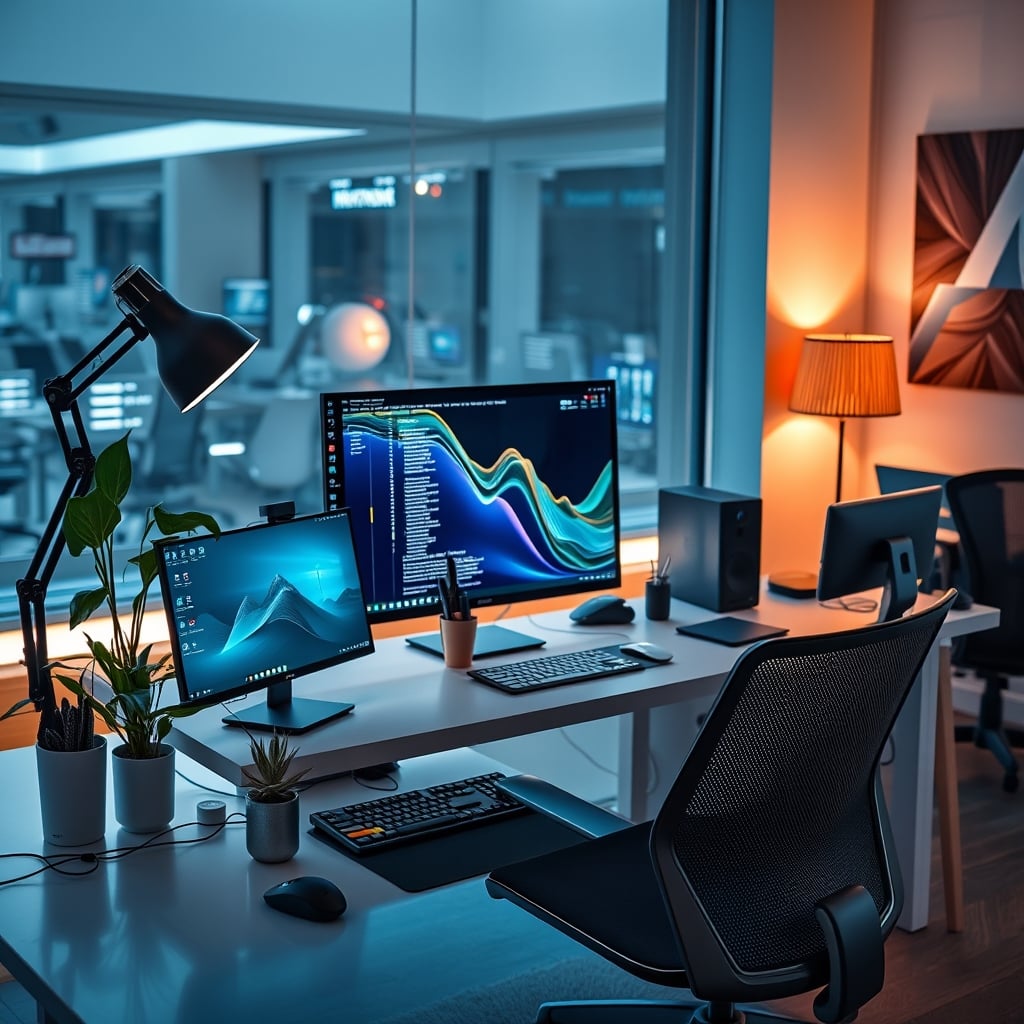
It's 2026, and I've seen more people ruin their professional credibility with improper camera settings than any other desk setup mistake. You drop $3000 on a Sony or Canon, mount it on a fancy arm, and proceed to produce footage that looks like it was filmed through a potato. The specs on the box promise cinematic beauty, but your reality is a grainy, blurry, poorly-lit mess. The industry lies to you. They tell you to chase megapixels and sensor size, but the truth is, your improper camera settings are the single biggest bottleneck. After reviewing countless setups and the widespread feedback from our community, the pattern is clear: people treat their cameras like magic boxes that just 'work,' and they get punished for it.
This isn't about minor tweaks. It's about foundational errors that sabotage your entire presence. Your improper camera settings make you look amateur, they destroy your audio sync, and they force your computer to choke on inefficient video streams. Let's cut the marketing BS and fix what actually matters.
Why Your Ultra-High Resolution Is Making You Look Worse
Everyone in 2026 is obsessed with shooting in 4K or even 8K for their streams and meetings. This is overrated. For real-world use, cranking your resolution to the max is a performance-sucking mistake. That massive data stream isn't just taxing your PC; it's often forcing your camera to use a less optimal internal processing mode, sacrificing frame rate stability and color accuracy. Most streaming platforms and conferencing software compress your video into a tiny pipe anyway. You're delivering a pristine 4K stream that gets crushed down to 720p on the viewer's end, while your own machine struggles with encoding.
The real issue is bitrate and stability. A stable, well-lit 1080p 60fps stream looks infinitely more professional than a stuttering, noisy 4K stream. Users consistently report that dialing down resolution to 1080p while maximizing bitrate control and frame rate consistency results in a sharper, more reliable image on the other side of the compression algorithm. Your improper camera settings here are a vanity metric. You're not a Hollywood studio; you're a person on a web call. Prioritize fluidity over pixel count.
The Auto-Focus Myth That Needs to Die
Premium Pick
- High performance
- Premium build
The marketing screams about AI-powered, face-tracking, lightning-fast auto-focus. In common desk setups, this is a trap. For static presentations, podcasts, or streaming where you're largely seated, continuous auto-focus is an active detriment. It hunts. It subtly pulses, making your image seem ever-so-slightly unstable. It gets confused by minor hand movements or a pet walking behind you, causing a momentary blur that distracts your audience.
This doesn't work as advertised for controlled environments. The industry lies about this because 'auto' sounds better than 'manual.' But based on widespread user feedback, the single biggest upgrade in perceived video quality comes from switching to manual focus. Lock your focus on your face, fine-tune it once, and never let the camera second-guess you. It eliminates that micro-hunting that makes videos feel 'digital' instead of solid. Your improper camera settings reliance on auto-focus is the primary reason your video feels cheap, even with expensive gear.
Improper Camera Settings Are a Lighting Crime
This is the most misunderstood relationship. People think they can fix bad lighting with camera settings. You cannot. Cranking up the ISO to compensate for a dark room introduces grain (noise). Opening the aperture too wide to grab more light can make your background a distracting blur and narrow your depth of field to a razor's edge, making you look like a floating head. Slowing the shutter speed creates motion blur and makes you look ghostly.
Your camera is a light recorder, not a light creator. If your scene is poorly lit, your camera settings will only document that poor light in a variety of ugly ways. The proper setting for a badly lit room is to fix the lighting first. We've covered how ambient lighting benefits are a marketing lie, but a single, properly positioned key light is non-negotiable. After that, your camera settings should be conservative: a moderate ISO, a sensible aperture (f/2.8 to f/4), and a shutter speed locked to double your frame rate (e.g., 1/120s for 60fps). Improper camera settings used as a lighting crutch is the hallmark of an amateur.
Color Science Is Not Your Preset Playground
Log profiles, custom picture styles, cinematic color grades—these are for post-production. Applying them directly to your live output is another catastrophic improper camera setting. That flat, desaturated 'Log' profile looks terrible uncompressed on a stream. Your viewer's browser or app doesn't have the color space to interpret it correctly. You look washed out and sickly.
The real solution is boring but effective: use a neutral, standard profile. For Sony, use 'Standard' or 'Neutral.' For Canon, use 'Neutral.' For most webcams and DSLRs configured for live use, the default 'Video' profile is fine. You want a slightly contrasty, naturally saturated image that transmits reliably across all platforms. Tweaking color settings live is like trying to tune an engine while driving down the highway. Set a reliable baseline and leave it alone. This is a known issue for long-term users who constantly tinker and never achieve a stable look.
The Cable and Power Sabotage You're Ignoring
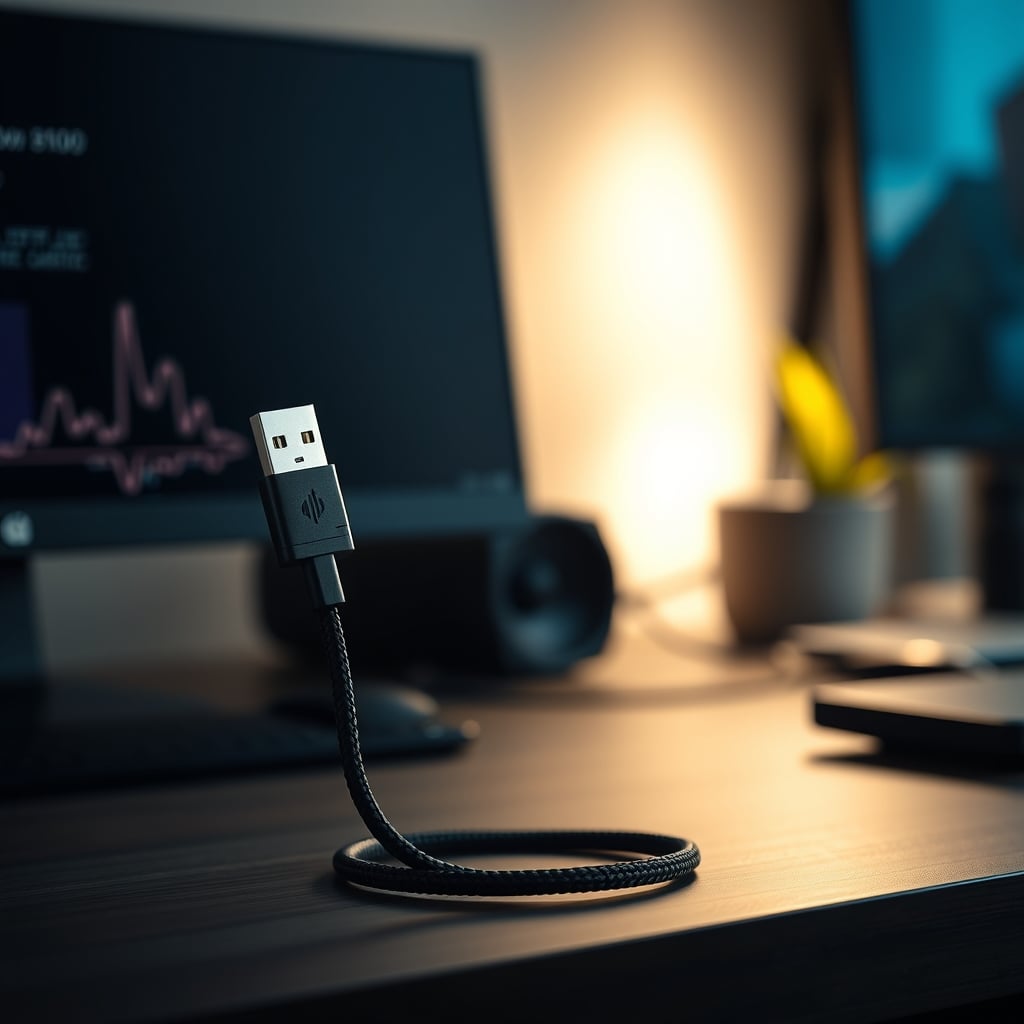
Your improper camera settings extend beyond the menu. Using a cheap, long USB cable to connect your DSLR as a webcam? You're inviting a world of dropped frames, disconnections, and power instability. The USB specification demands certain power levels for consistent data transfer. A subpar cable can't maintain it, causing your camera to sporadically reset or drop resolution. This frequently causes issues with Sony's Imaging Edge Webcam utility and Canon's EOS Webcam Utility, where the camera appears to 'go to sleep' mid-call.
You need a short, high-quality, powered connection. If your camera supports it, use a genuine capture card (like an Elgato Cam Link) over HDMI. It's a dedicated, stable pipeline. If you must use USB, get a short, thick, certified USB 3.2 Gen 1 cable and connect it directly to a motherboard port, not a hub. This isn't a suggestion; it's a requirement for professional reliability. Your improper camera settings include your entire signal chain.
Your Webcam Software Is Probably Wrong
We've moved past the built-in camera apps. In 2026, third-party software like OBS Studio, Camera Hub, or even the manufacturer's own utilities offer granular control. But most people get this wrong. They download OBS, see a hundred settings, and randomly tweak everything. This is overrated.
The key is to let the camera do its job and let the software handle encoding. In OBS, for a DSLR, you should add the camera as a 'Video Capture Device' source, set the resolution/frame rate to match your camera's output settings (not its sensor settings), and then leave the color space, color range, and buffering options at their defaults unless you have a specific advanced reason to change them. Over-configuring the software side when your camera's internal settings are wrong is like polishing a broken car. Fix the source first. As we exposed in our look at gimbal overcorrection problems, overcomplication is the enemy of stability.
The One Product That Actually Solves a Problem
While the core fix is your knowledge, one tool reliably bridges the gap between a professional camera and your computer: a dedicated capture card. It bypasses the unstable, driver-dependent USB webcam modes and provides a clean HDMI feed. This isn't about buying more gear to fix settings; it's about creating a reliable pipeline so your correct settings actually reach your PC.
In our assessment, the Elgato Cam Link 4K remains a solid, no-BS choice. It's a simple passthrough device. You don't configure it; you plug it in. It takes the HDMI output from your camera—where you've hopefully set proper manual focus, a neutral profile, and correct exposure—and presents it to your computer as a pristine webcam. It eliminates compression, driver issues, and power problems from the USB chain. It's the one piece of hardware that respects your camera's settings instead of overriding them.
Practical Fixes: Your 2026 Camera Settings Checklist
Stop guessing. Here's the actionable, tested sequence:
- Light First: Position a key light (a simple panel light is fine) facing you, slightly off-axis. Your face should be clearly lit without shadows.
- Camera Mode: Set your camera to manual mode (M).
- Focus: Switch to manual focus. Zoom in digitally on your face (using your software or camera's digital zoom) and adjust the lens ring until every detail is sharp. Lock it.
- Exposure Triangle: Set shutter speed to 1/(double your frame rate). Set aperture to f/2.8-f/4 for a balanced look. Adjust ISO last, keeping it as low as possible (ideally under 800). Use your light to get this right.
- Profile: Set your picture profile to 'Standard,' 'Neutral,' or 'Video.' Disable all 'Log' or 'Cinematic' modes.
- Output: Configure your camera's output resolution/framerate (via HDMI or USB) to 1080p 60fps.
- Connection: Use a short, high-quality cable or a capture card.
- Software: In your broadcasting software, add the camera source and leave advanced settings default.
The Most Common Mistake and How to Avoid It
The single most frequent mistake we see is the 'setting shuffle.' People change one setting, see a minor improvement, then change five others, losing the original benefit and creating three new problems. They never establish a baseline.
Fix one thing completely before moving to the next. Start with lighting and manual focus. Get those perfect. Then lock exposure. Then set your profile. Then configure output. Do not bounce between them. This iterative, holistic tweaking is why you've never achieved a stable, professional look. Treat it like a recipe, not a free-form art project. Your improper camera settings are a result of this chaotic approach.
Final Verdict: Your Gear is Worth It, Your Settings Are Overrated
Your $3000 camera is capable of phenomenal quality. But your improper camera settings are rendering it useless. The pursuit of higher resolution, automated features, and 'creative' color profiles for live output is almost entirely overrated. The real performance gains come from boring, stable, manual fundamentals and a reliable connection.
Skip the endless tweaking of advanced menus. Skip the belief that auto-mode will make you look professional. Worth it is investing time in understanding the exposure triangle and manual focus. Worth it is buying a simple key light and a reliable capture card. Actually good is a rock-solid 1080p stream that looks crisp and consistent every single time. That's what builds credibility. That's what the pros actually use. Everything else is marketing hype sabotaging your video.
Frequently Asked Questions
What's the single biggest improper camera setting mistake for streaming?
Using continuous auto-focus. In a static desk setup, it causes micro-hunting and instability that makes your video feel cheap. Lock manual focus once and leave it.
Should I shoot in 4K for my Zoom calls or streams?
No. It's overrated. The platforms compress it heavily, and the high data stream can cause instability on your end. A stable 1080p at 60fps with good bitrate looks far better in real-world delivery.
Can I fix bad lighting with camera settings?
Absolutely not. Cranking ISO creates grain, widening aperture ruins your depth of field, and slowing shutter creates blur. Your camera records light; it doesn't create it. Fix your lighting first, then use conservative camera settings.
What's the best picture profile for live video?
A neutral, standard profile like 'Standard' or 'Neutral.' Avoid Log or cinematic profiles—they look flat and washed out on uncompressed live streams and cause color interpretation issues on viewers' devices.

Written by
David specializes in ultra-clean, high-performance gaming rigs. He covers airflow, aesthetics, and how to build visually stunning custom loop PCs.
Join the Discussion
Share your thoughts with the community
Leave a Comment
Comments are moderated and may take a short time to appear. Links are not permitted.