Mirrorless Camera Webcam Setup Guide for 2026
Your camera is not the problem — the signal path is. Here's the exact order to set up a mirrorless camera as a webcam, from clean HDMI checks to killing the auto-everything settings that wreck your feed.
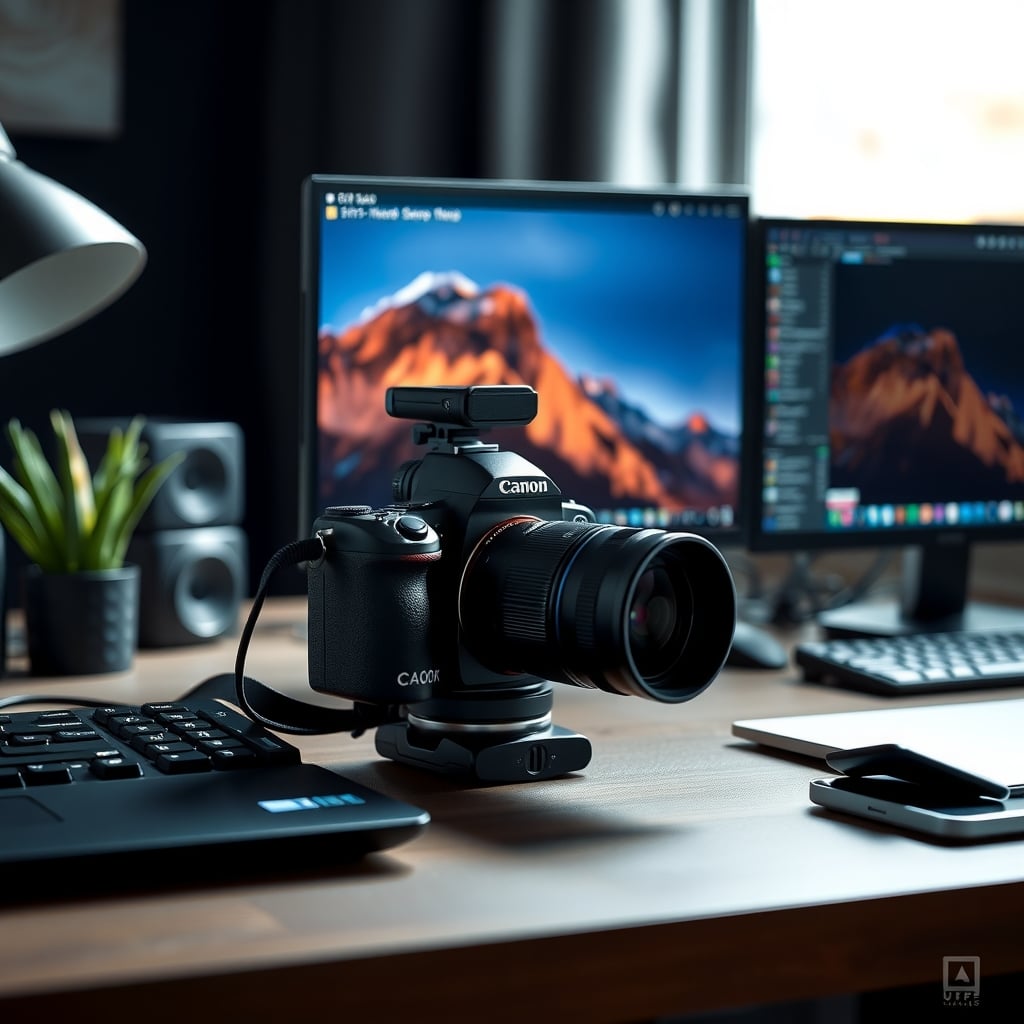
The most common failure in a mirrorless camera webcam setup has nothing to do with the camera itself. It's the signal path. People buy a decent body, plug HDMI into a cheap unrated dongle, and end up with a soft, laggy 1080p feed that looks worse than the laptop webcam they were trying to replace.
The fix is knowing which of two paths you're on. Either the camera outputs clean HDMI into a capture card, or it runs in its built-in USB webcam mode. The HDMI path gives you full sensor quality, better low light, and real background blur — at the cost of more gear and more failure points. USB mode is one cable and a hard ceiling. This guide walks the HDMI path step by step, with the USB fork flagged where it matters. Budget roughly $120–$200 in add-ons on top of a camera and lens you already own.
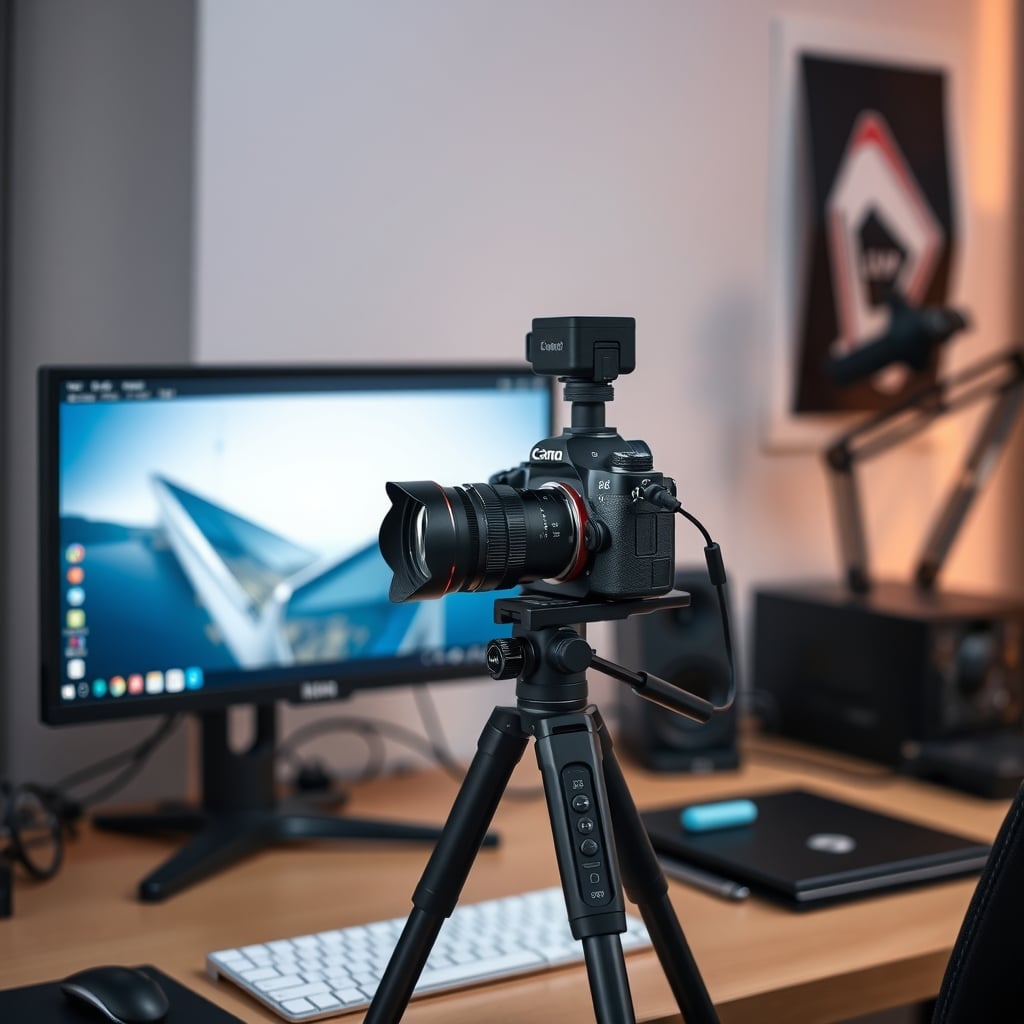
What You Need Before You Touch a Cable
Gather this first. Half the setup problems people blame on software are actually missing hardware.
- A camera with clean HDMI output — a menu option usually labeled something like HDMI Info Display, HDMI Control, or Rec Control that can be turned off. If your body can't hide the on-screen overlays, the HDMI path is closed to you.
- A UVC-class capture card — UVC means USB Video Class, a driver-free standard maintained by the USB-IF. Anything that needs a proprietary driver is a red flag for a permanent desk.
- A certified HDMI cable, 2 meters or shorter — HDMI 1.4 carries 10.2 Gbps, which is plenty for 1080p60. HDMI 2.0 raises that to 18 Gbps for 4K60.
- Continuous power — a dummy battery with an AC adapter, or a USB-C PD coupler rated above your camera's draw. This is not optional.
- A mount — tripod, desk clamp, or a 1/4"-20 arm attached to your monitor arm.
- A lens in the 24–35mm full-frame equivalent range. Wider distorts your face; longer flattens it and forces you into the next room.
- A separate microphone. On-camera mics pick up autofocus motors and stabilization whine.
Step 1 — Confirm Clean HDMI Before You Buy a Capture Card
Open your camera's menu and find the HDMI output section. Turn off anything that adds information to the feed: info display, focus peaking overlays, grid lines, recording control, and timecode burn-in. Then plug into a TV or monitor and look at the picture.
Why it matters: those overlays are invisible on the camera's own screen but baked into the HDMI signal. A focus box over your forehead is a support ticket waiting to happen.
What goes wrong: some bodies drop the HDMI output to a lower resolution while recording internally, or output a limited color range (4:2:0 rather than 4:2:2). Check the spec sheet's HDMI output line before you spend money.
⚠️ Warning: If your camera has no clean HDMI option and no USB webcam mode, stop here. No capture card fixes that.
Step 2 — Put the Camera on Mains Power and Kill Auto Power-Off
Set the camera's auto power-off to Off or the longest interval available (many default to 30 minutes). Then switch from battery to a dummy battery with an AC adapter.
Why it matters: a mirrorless body running continuous HDMI output burns through a battery fast, and more importantly it generates heat. A cold call at minute 45 is a real thing.
What goes wrong: USB-C power while the camera is running is not universal. Plenty of bodies only charge over USB-C when powered off, which makes a USB-C coupler useless for live use — check your manual's "USB power supply" behavior.
⚠️ Warning: Cameras sold in some regions historically capped internal recording at 29:59 to dodge a camcorder tariff classification. That limit shouldn't affect a clean HDMI feed, but overheating warnings during long calls are common on compact bodies in warm rooms. Reduce output to 1080p and pull the memory card if you don't need local recording.
Step 3 — Lock Exposure, White Balance, and Focus Manually
Set the mode dial to Movie or Manual. Then:
- Set shutter speed to 1/50 or 1/60, roughly double your frame rate.
- Set aperture between f/2.8 and f/4 for separation, or f/5.6 if you move around a lot.
- Set ISO to whatever gets you a correctly exposed face, not the background.
- Set white balance to a fixed Kelvin value — 5000K to 5600K for a daylight-balanced key light — instead of Auto.
- Switch autofocus to face/eye detection if your body is reliable, otherwise zone AF centred on your face. Manual focus is the safest option for a static desk.
Why it matters: auto white balance drifts when a cloud passes or a lamp switches on, and auto exposure pumps every time you lean toward the keyboard. Both look amateur on a call.
What goes wrong: if you shoot against a bright window with a wide aperture, the camera's autofocus will hunt between your face and the window edge. Close the blind or move the desk; no AF setting fixes bad physics.
Step 4 — Match Resolution and Frame Rate to the Path You Chose
Set the camera's HDMI output to a standard format — 1080p at 30 or 60 frames per second — rather than "Auto." Then set the same resolution in your streaming or conferencing app.
Why it matters: non-standard timings are the single most common cause of a black preview window even when the capture card shows up correctly in the OS device list. Conferencing apps also commonly top out at 1080p, and group calls often negotiate down to 720p, so chasing 4K capture mostly buys you headroom to crop.
What goes wrong: double-conversion. If the app scales the feed again, you get mush. Pick one resolution and hold it everywhere.
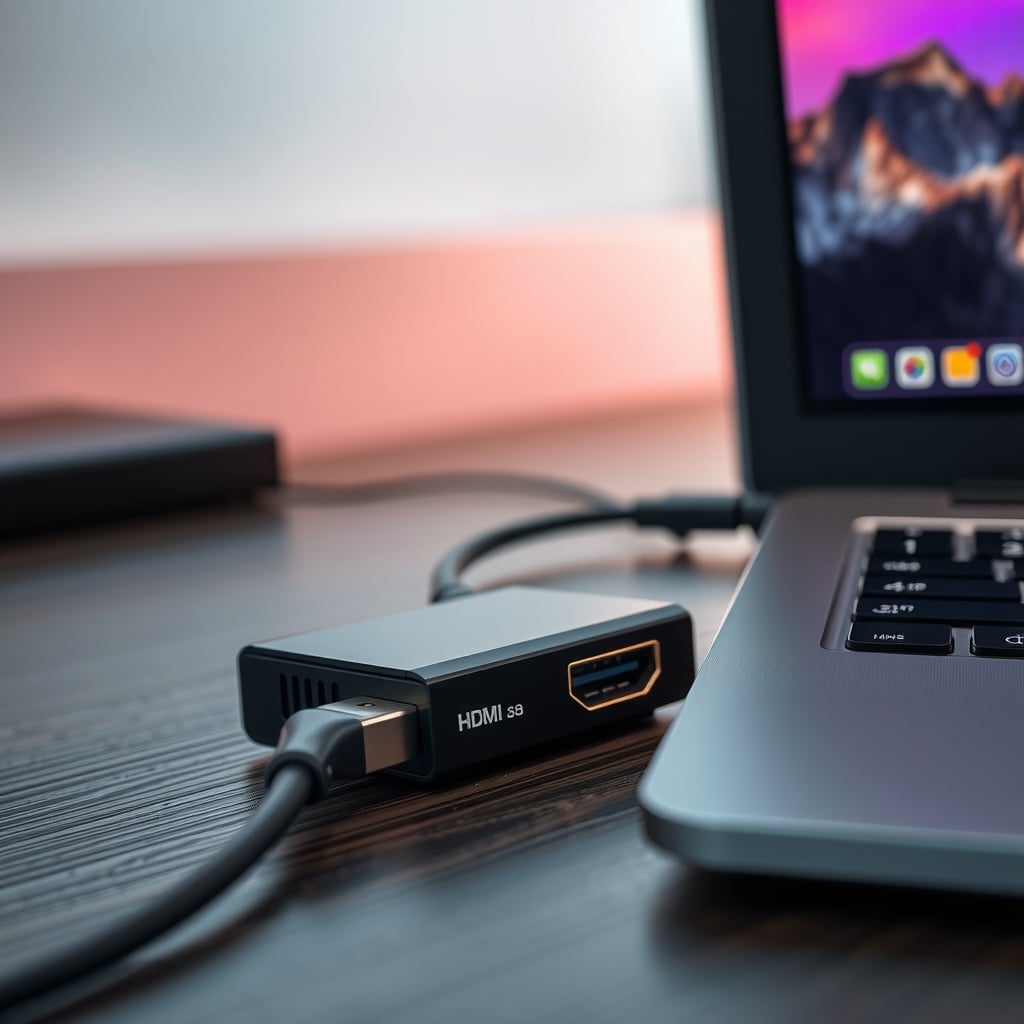
Step 5 — Set Anti-Flicker to Match Your Mains Frequency
Find the anti-flicker or flicker reduction setting and set it to 50Hz in Europe, Asia, Africa, and Australia, or 60Hz in North America. Pair it with a shutter speed of 1/50 or 1/60 respectively.
Why it matters: a mismatched shutter and mains frequency produces rolling horizontal bands across your face that no denoiser removes.
What goes wrong: LED dimmers and cheap desk lamps flicker at their own rates. If bands persist after fixing the camera setting, test by turning the lamp off mid-call.
Step 6 — Get the Audio Off the Camera
Turn off the camera's built-in mic and route audio separately — a USB mic on the desk, or a lavalier into the camera's mic input if the body has one. In your streaming software, add the capture card as a video source and the mic as a separate audio source. In your conferencing app, select the card for video and the mic for audio.
Why it matters: on-camera mics sit next to the lens, which means they hear the autofocus motor, image stabilization, and your hands. A unidirectional desk mic beats an omnidirectional one for exactly this reason — it rejects the room and the gear.
What goes wrong: ground-loop hum when camera and mic are on different power strips. Put everything on one strip.
Step 7 — Frame the Shot for a Desk, Not a Tripod
Put the lens at eye level, roughly 0.8 to 1 meter from your face, and aim it so the top of your head has a little air. Match your lens to the sensor:
Sensor Crop factor Lens for roughly 28mm-equivalent framing Full frame 1.0x 28mm APS-C 1.5x (some bodies 1.6x) 18mm Micro Four Thirds 2.0x 14mmWhy it matters: a lens that's too wide puts your nose in the middle of the frame with a fisheye bulge, and one that's too long forces you to sit awkwardly far back.
What goes wrong: mounting the camera below eye level. The upward angle reads as a hostage video, and it captures your ceiling instead of your background.
The mirrorless camera webcam setup Decision: Capture Card or USB Mode
Both paths work. They fail differently, and the difference is money versus convenience.
Path Typical cost Clean output ceiling Added latency Audio Best for Camera's USB webcam mode (UVC) $0 Often 1080p30, sometimes 720p or lower Lowest Camera mic over USB Travel, occasional calls HDMI into a UVC capture card $60–$180 1080p60, or 4K30 on 4K-rated cards One to three frames Card's HDMI audio or separate mic Permanent desk setups HDMI into an internal PCIe card $150–$300 4K60 on good cards Low Separate Desktop towers with a free slot HDMI into a hardware switcher $250+ 1080p60 per input Low Built-in mixer Multi-camera streamingThe USB mode ceiling is the thing people miss. Many bodies cap webcam mode at 1080p30 and some drop to 1024x768, and a handful only output webcam mode while the mode dial sits in a specific position. Read your manual's webcam section before you assume it's a free upgrade.
On the capture card side, a UVC card is genuinely plug-and-play on all major desktop operating systems. If you're weighing a capture card against a hardware switcher for streaming, the capture card versus switcher comparison for streamers covers where each one breaks down.
What $60, $150, and $400 Actually Buy You
Under $100. A 1080p60 UVC card, a certified 2-meter HDMI cable, and a dummy battery. This is enough for a genuinely sharp desk feed. Buy the card with a metal shell and a heatsink if you can — cheap plastic cards run warm during hour-long calls and some drop frames when they get there.
$150–$250. A 4K-capable card, a proper desk clamp mount, and a used 28mm or 35mm equivalent prime. The prime is the biggest visual upgrade in the whole list: a kit zoom at f/5.6 looks flat and busy, a prime at f/2.8 pulls your background apart.
$400+. Only worth it if you're running multiple cameras or recording. A hardware switcher, matched lighting, and a second body are streaming tools, not webcam tools. If you're at this tier, budget for lighting before another camera — key light choice affects your image more than sensor size.
One connectivity note that bites people: UVC capture cards want a real USB 3.0 port (5 Gbps) and they do not like sharing a bus with a hub full of drives. If you're running a multi-port hub, check the hub's power delivery budget before you buy — an underpowered hub is why a card shows up as "USB 2.0 device" and silently drops to a compressed format.
Mistakes That Make a $1,500 Camera Look Cheap
Buying a 4K capture card for a camera that outputs 1080p. Check the camera's HDMI output resolution spec first. The card can't invent detail.
Using an unrated 5-meter HDMI cable. Long passive cables drop the signal or flicker. Certified, short, or active — pick one.
Leaving a flat or log picture profile enabled. A log profile is designed to be graded later. On a live call it looks grey and washed out. Switch to a standard or neutral profile with Rec.709 color.
Running the camera on battery for a full workday. It dies mid-sentence. Dummy battery, always.
Letting autofocus hunt on an empty wall. Point the camera at a wall with some texture behind you, or lock focus manually.
Ignoring the app's own resolution setting. Video conferencing apps all have their own video quality toggles. A perfect camera feed rendered at the app's default is still soft.
Troubleshooting the Feed
Black preview window, but the card appears in the device list. Set the camera's HDMI output to a fixed 1080p30 or 1080p60 instead of Auto. Non-standard frame timings are the usual culprit.
Laggy preview and lip-sync drift. Drop to 1080p30, move the card to a port directly on the machine rather than a hub, and close anything else streaming from the same USB controller.
Overheating warning during long calls. Reduce output resolution, remove the memory card if you're not recording locally, open the battery door, and stop charging the battery while the camera runs.
Colors look green or orange. You're almost certainly on auto white balance, or the card is outputting a different color space than the app expects. Fix white balance to a Kelvin value and check the card's format setting in your capture software (YUY2 versus MJPEG).
Everything looks soft. Check three things in order: the lens is actually focused at your sitting distance, the app isn't scaling the feed, and the camera isn't in a low-bitrate mode because of a USB 2.0 connection.
Three Upgrades That Punch Above Their Price
Save a custom mode preset. Most bodies let you store a whole settings bank to a mode dial position. Build one called Webcam with your shutter, aperture, white balance, and picture profile locked in, so you never rebuild it.
Use the camera's overlays for yourself, not the stream. Zebras and focus peaking can stay on the camera's internal screen while the HDMI feed stays clean. You get exposure and focus confirmation without baking it into the picture.
Record locally for anything that matters. A short internal clip is your safety net for client calls and interviews. Just weigh it against heat and card speed.
Who Should Build This, and Who Shouldn't Bother
Build the HDMI capture setup if: you're on video more than an hour a day, you already own a mirrorless body and a decent lens, and you want real background separation instead of fake software blur. The recurring cost is zero and the image quality gap over a $150 webcam is obvious in low light.
Use the camera's USB webcam mode instead if: you travel, you take two calls a week, or your HDMI output can't be made clean. It's one cable and the quality is usually a clear step above a laptop camera.
Skip the whole thing if: you need to show a whiteboard, a shared desk, or a group of people. A wide fixed-lens webcam is genuinely better for that, and a 28mm-equivalent prime will not fit four people in frame. The honest answer for that use case is a plain webcam — there's a real case for when a camera upgrade isn't worth it.
Skip it if your body can't be powered continuously. A camera that dies at 40 minutes is worse than a webcam that never does.
Bottom Line
Spend your money in this order: dummy battery first, capture card second, lens third, everything else after. A $90 1080p60 UVC card, a certified 2-meter HDMI cable, and continuous power will beat a $300 card running on a dying battery every single time.
If you already own a mirrorless camera with clean HDMI output, the add-on cost is roughly $120–$200 and the result is a permanent, sharp, low-light-capable desk feed. If you don't own the camera yet, don't buy one for video calls — a good webcam plus better lighting is cheaper and simpler. The camera-as-webcam path is a great use of gear you already have and a poor reason to buy new gear.
Frequently Asked Questions
Do I need a capture card to use a mirrorless camera as a webcam?
Only if you want the camera's full HDMI output. Many mirrorless bodies have a built-in USB webcam mode that works with no extra hardware, but it's usually capped at 1080p30 or lower and sometimes drops to 720p. A UVC capture card (typically $60–$180) unlocks clean 1080p60 and lets you use the camera's full sensor quality.
Why does my camera show up as a webcam but the preview is black?
Nine times out of ten the camera's HDMI output is set to Auto and the capture card can't lock onto the timing. Set the HDMI output to a fixed 1080p at 30 or 60 frames per second, then reopen the app. Also confirm the card is on a USB 3.0 port rather than a shared hub.
How do I stop my camera from overheating during long calls?
Drop the HDMI output to 1080p, remove the memory card if you're not recording locally, open the battery door for airflow, and power the camera from a dummy battery rather than charging a battery in-body while it runs. Compact bodies generate real heat during continuous HDMI output.
What lens should I use for a desk webcam setup?
Aim for roughly 28mm full-frame equivalent at about 0.8 to 1 meter from your face. That means a 28mm on full frame, an 18mm on APS-C, or a 14mm on Micro Four Thirds. Wider distorts your features; longer forces you to sit too far back for a desk.
Can I leave the camera in auto mode for video calls?
You can, but auto white balance drifts when light changes and auto exposure pumps when you move. Lock white balance to a fixed Kelvin value (roughly 5000K–5600K for daylight-balanced lighting), set a manual shutter around 1/50 or 1/60, and use face or zone autofocus rather than full-area AF.
Written by
GlowRig Editorial researches and writes practical guides about desk setups and home office gear. Our articles are produced with the help of AI research tools and are reviewed for accuracy against manufacturer specifications and public user feedback. We may earn a commission from affiliate links, which never affects our recommendations.
Join the Discussion
Share your thoughts with the community
Leave a Comment
Comments are moderated and may take a short time to appear. Links are not permitted.