Camlink vs Atem Mini Which Path Fits OBS Streamers
A single-input USB stick and a compact HDMI switcher both end up as one UVC feed inside OBS. The real difference is how many HDMI cables you need live at once — and that changes everything about your purchase.
camlink vs atem mini is one of the most important factors to consider today.
Let’s settle the USB capture stick vs compact HDMI switcher question before you spend money. If you are one camera into one PC and OBS does all the mixing, buy a USB capture stick. The compact HDMI switcher only pays for itself once you have at least two live HDMI sources or a dedicated video production pipeline.
The reason both product types get lumped together is that they end in the same place: a single UVC video stream inside OBS. The difference is what happens before the cable reaches your computer.
Why camlink vs atem mini matters
Understanding camlink vs atem mini is the foundation of getting this right, and many users overlook how critically it impacts long-term performance. Let's look at the reality of it.
USB Capture Stick vs Compact HDMI Switcher: The Real Question Is Input Count
“USB capture stick vs compact HDMI switcher” reads like a spec-sheet rivalry. But resolution, bit depth, and USB interface are nearly identical in these categories. The spec that decides your workflow is the number of HDMI inputs.
A USB capture stick is a one-lane bridge. It takes one HDMI feed — camera, console, or second PC — and exposes it to Windows or macOS as a standard webcam. OBS sees it as a single video source. The stick itself does no mixing, no transitions, and no scene switching.
A compact HDMI switcher is a tiny production router. It presents four HDMI inputs and sends one selected program feed to your computer over USB. OBS also sees that as one video source. But now you can press a physical button to change sources, and the transition can happen without touching OBS.
This makes “which is better” a workflow question, not a quality question.
The Case for a Single-Input USB Capture Stick
The single-input USB capture stick class usually costs between $110 and $170. It’s a palm-sized dongle with one HDMI-in and one USB-C or USB-A cable out. USB 3.0 offers up to 5Gbps — roughly ten times the bandwidth a clean 1080p60 stream needs over UVC. That’s why these devices are plug-and-play on both Windows and macOS.
Two practical advantages make this category the right default for a lot of streamers:
- It keeps OBS in charge. Every camera-specific filter, Chroma key, or scene layout you want stays per-source. Because the stick is the only input, you can crop, mask, and animate it in OBS as freely as a webcam.
- It is not a new subsystem. There is no preview bus, no switcher setup, and no program/clean-feed concept to learn. Plug it in, select the capture device in OBS, and move on.
Long-term user threads also note the failure point: the moment you need a second live camera, the stick stops helping. You can technically add a second stick, but then OBS must composite both. If one stick re-enumerates mid-broadcast, you will likely need to reset that source in OBS. That’s not a dealbreaker for a single-cam setup, but it’s why a hardware switcher exists.
Where this product fails: if you have two cameras regularly live, or you need physical hands-on switching between a face cam and an overhead angle, a single USB capture stick puts the load on software only. Add a second stick and the cable count grows faster than you expect.
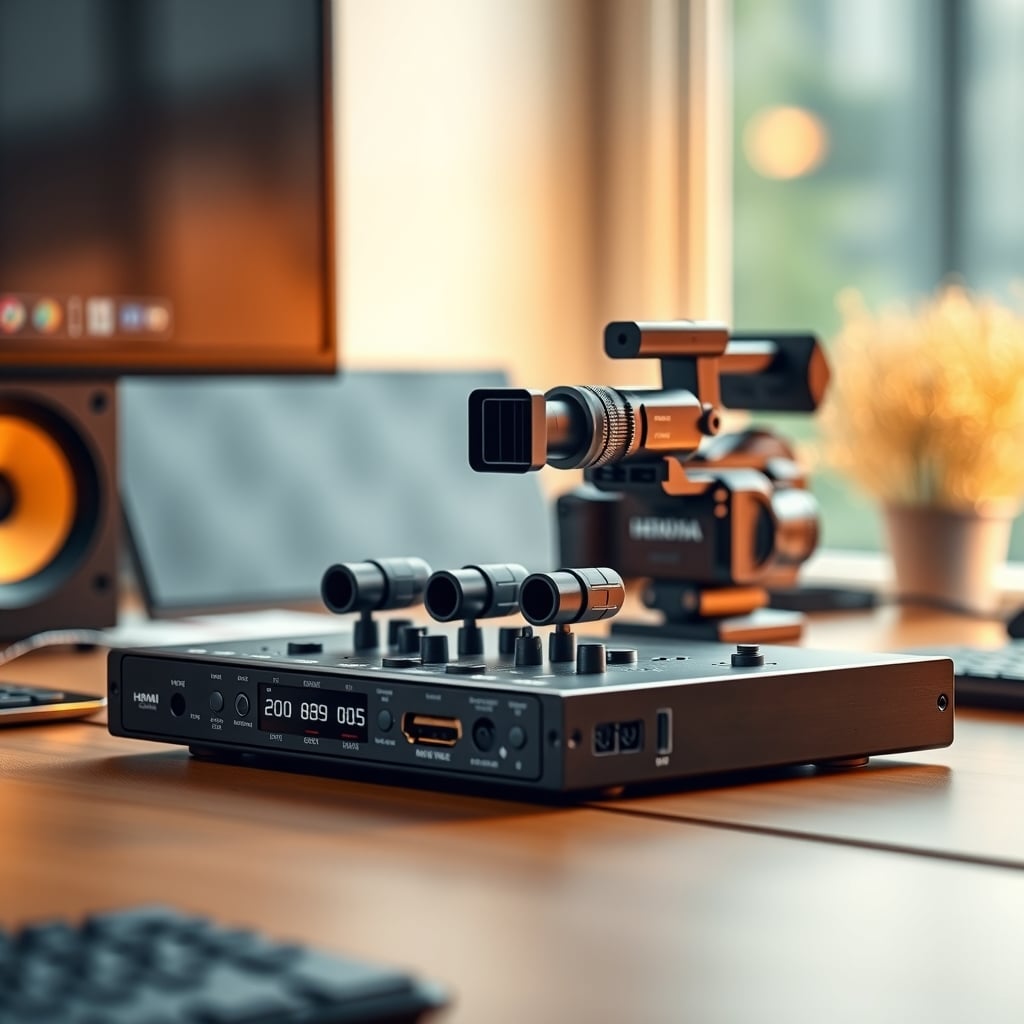
When a Compact HDMI Switcher Is Worth It
The compact four-input HDMI switcher class usually lands between $260 and $400. It includes a small control surface, four HDMI inputs, and one USB output that appears as a UVC device. Some versions add a dedicated audio input, which changes your cable picture in a useful way.
The big gain is source management without touching OBS. If you’re running an interview show, a cooking stream with over-head camera, or a two-camera desk podcast, the switcher lets you tap between cameras while OBS continues to handle overlays and alerts. You also bypass the rare OBS issue of needing to re-add capture devices after a camera disconnects.
Reviewers consistently point out the main limitation: a switcher sends only its current program feed to the PC. You do not get four independent webcam feeds in OBS. If your scenes require different crops, masks, or per-camera color correction, the switcher is actively working against you. In OBS-centric workflows, a switcher can feel like a downgrade because the computer never sees the other cameras.
Another under-discussed gotcha: these units typically do not expose multiple video streams to OBS over one USB cable. The USB link is a single video output, not a multi-channel recorder interface. Some switchers can record internally to an SD card or external drive, but that’s a separate feature from what OBS sees.
Who should not buy it? If you have one camera and rely on OBS scene plugins, webcam effects, and instant replays, the switcher’s extra hardware creates cost without benefit. That same budget is better spent on lighting, a desk upgrade, or a better lens.
Comparison Table: Which One Should Be on Your Desk?
Attribute Single-input USB capture stick Compact 4-input HDMI switcher Best for Solo streamer with one camera plus PC inputs Multi-camera shows, interviews, podcast video rigs Typical price $110–$170 $260–$400 HDMI inputs 1 4 What OBS sees One UVC webcam One UVC webcam (the selected program feed) Independent camera feeds in OBS Yes (one per stick) No — only the current program output Physical source switching No Yes Per-source filters in OBS Full control Only after switcher output, not per source Need OBS for scene overlays Always Still needed for overlays, alerts, and encodingThe Hidden Costs: Dual-PC Audio Routing, Face-Lighting Angles, and OBS Hardware Encoding
If you are setting up a dual-PC stream to offload the gaming PC, video capture is only half the story. The audio side is where people make expensive mistakes. A single-input USB capture stick will bring game audio along the HDMI cable into the streaming PC. The trouble starts when you also need microphone audio, Discord audio, and system sounds on that same streaming PC. Routing those lanes without doubling the mic is a separate problem.
A compact switcher with an embedded audio input can simplify part of this. It can place the mic directly into the HDMI output, so the streaming PC receives game audio and mic audio together. But that also means you must remember to disable the same mic in OBS, or you’ll hear yourself twice. There’s no magic box that solves all dual-PC audio routing; you still need a plan for audio from chat apps and music players.
Don’t expect the switcher to fix your encoding load. OBS hardware encoding uses NVENC, AMD, or Intel Quick Sync on the GPU or CPU. Changing where video sources are mixed does not remove the encoder workload. In a dual-PC stream, the streaming PC’s GPU still has to encode the final frame. A switcher can reduce the number of live video streams OBS has to ingest, but it does not significantly reduce the encoding cost of the final output.
And let’s settle one visual issue right now: neither device turns a dim, top-down face into a professional picture. The camera sensor sees light before it sees the capture cable. A clean HDMI feed only shows what the camera physically sees. If your face looks flat on stream, changing from a capture stick to a switcher won’t help. Move your key light to a 45-degree angle and use a bounce fill. For more on that, read our guide to fixing flat face lighting.
Who Should Buy Which
Buy the single-input USB capture stick if:
- You have one mirrorless camera, webcam, or prosumer camcorder to bring into OBS.
- You use OBS scenes, filters, Chroma key, or per-camera transforms.
- Your total capture budget is under $200 and you don’t want a second layer of hardware.
- You switch between sources by swapping scenes in OBS, not by reaching for a physical button.
Buy the compact HDMI switcher if:
- You have two or more cameras that need to be live in the same broadcast.
- You want physical buttons to cut between angles without hunting through OBS.
- You run a live show with a clean program output and need hardware reliability.
- You expect to use your switcher for recording or sending to an external display as well as to the PC.
Skip both if: your problem is actually your CPU or GPU struggling to encode. A capture device won’t fix that. You should read our editing PC essentials guide and check whether your machine meets the hardware encoding requirements.
The Bottom Line on USB Capture Stick vs Compact HDMI Switcher
The clearest verdict for a typical streamer in 2026 is straightforward: a single-input USB capture stick is the right first purchase if you have one camera and you live inside OBS. It costs roughly half as much as a compact switcher, keeps OBS flexible, and adds no extra layer of hardware to learn.
The compact HDMI switcher earns its price only when the number of live HDMI sources grows past one. If you already know you’ll run multiple cameras, or you want physical cutting for a live show, buy the switcher first and treat OBS as your overlay layer.
Don’t buy the switcher just because it sounds more professional. The real signal is input count. One camera? Stick. Two or more cameras? Switcher. That simple mental rule will save you both money and desk space.
Still planning the rest of the rig? Our streaming desk layout guide covers camera placement, cable runs, and monitor ergonomics around the same capture path.
Related guides: Streaming desk layout guide and Fixing flat face lighting guide.
Frequently Asked Questions
Which is better for a simple one-camera Twitch stream: a capture stick or a mini switcher?
For a single camera feeding OBS on one PC, a single-input USB capture stick is the better buy. It costs less, keeps OBS in control, and doesn’t force you to learn a second hardware workflow. A mini switcher only adds value when you have multiple live HDMI sources.
Can I use a compact HDMI switcher with just one camera and OBS?
Yes, but it’s usually wasted money. The switcher sends a single program feed to OBS, so you lose the ability to apply per-camera filters and independent crops in OBS. If you only have one camera, a direct USB capture stick gives you more flexibility for less money.
Does a video switcher reduce OBS CPU or GPU load?
Not meaningfully for encoding. OBS hardware encoding happens on the GPU or CPU regardless of where video sources are mixed. A switcher can reduce the number of live UVC streams OBS has to ingest, but the final encode workload remains the same.
How many cameras can OBS handle without a switcher?
OBS can handle multiple video sources if each camera has its own USB capture device or network source, but every added USB capture devices increases CPU/GPU load and the chance of device enumeration issues. For two permanent cameras, many streamers prefer a switcher so only one program feed reaches OBS.
Do I need a capture stick to stream from a second PC?
Yes, for a traditional dual-PC setup you need a way to bring the gaming PC’s HDMI signal into the streaming PC. A single-input USB capture stick handles that job well. A mini switcher also works, but it only becomes necessary if you also need to switch between multiple cameras or console sources on the streaming PC.
Written by
GlowRig Editorial researches and writes practical guides about desk setups and home office gear. Our articles are produced with the help of AI research tools and are reviewed for accuracy against manufacturer specifications and public user feedback. We may earn a commission from affiliate links, which never affects our recommendations.
Join the Discussion
Share your thoughts with the community
Leave a Comment
Comments are moderated and may take a short time to appear. Links are not permitted.