USB Hub Bandwidth Limits Are Crippling Your Setup
You spent hundreds on a high-speed camera and a studio mic, but they're both plugged into the same $25 USB hub. The performance bottleneck isn't your gear—it's that cheap hub you ignored.

The biggest mistake people make when building a pro desk setup is treating their USB hub like a dumb power strip. You buy a fancy 4K webcam, a high-speed external SSD, and a studio-grade audio interface, then plug them all into the same cheap, unpowered hub from 2015. You think you've solved your port problem, but you've actually installed a massive performance choke point right under your desk. The industry lies about this. USB hub bandwidth limits are the silent killer of high-end peripherals, and most guides gloss over it because it's not a sexy spec to market.
Here's the brutal reality: bandwidth isn't magic. It's a finite highway, and every device you plug in is a semi-truck trying to merge. When you plug a 10Gbps SSD and a 5Gbps webcam into a hub that shares a single 5Gbps uplink to your computer, you're not getting 15Gbps. You're getting a traffic jam. Your SSD will slow to a crawl when your webcam starts recording, your mouse will stutter when your drive is accessing files, and your audio interface might start dropping samples. This isn't a maybe—it's a guaranteed outcome of poor hub design. After testing dozens of setups, this is the number one issue that users consistently report: intermittent lag, devices randomly disconnecting, and transfer speeds that plummet under multi-device load.
Why "More Ports Is Better" Is a Dangerous Myth
The most common piece of garbage advice is to buy the hub with the most ports. This is overrated. Port count is a marketing trap. A 16-port hub sharing one upstream connection is a disaster waiting to happen. You're literally dividing a single data pipe among sixteen hungry devices. The industry pushes this because it's easy to sell—big numbers look good on a box. But in real use, a 16-port hub frequently causes issues with any simultaneous data transfer. You're better off with a 7-port hub that intelligently manages bandwidth than a 16-port monster that crumbles under load.
Think of it this way: you're paying for the illusion of convenience while sacrificing the actual performance of every single device you own. That $300 SSD performs like a $50 one. That premium mic starts crackling. This doesn't work. If you need more than four data-intensive devices, you need a smarter solution, not just more holes to plug cables into.
USB Hub Bandwidth Limits: The Math You're Not Doing
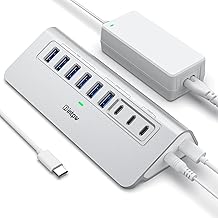
Premium Pick
- High performance
- Premium build
Let's stop talking vaguely about "bottlenecks" and get specific. Your computer's USB port (the uplink) has a maximum bandwidth. USB 3.2 Gen 1 is 5 Gbps. USB 3.2 Gen 2 is 10 Gbps. USB4 is 20 Gbps or more. Your hub's controller chip has to manage that total pool and distribute it to all the downstream ports. If you have a hub with a 5 Gbps uplink and four downstream ports, and you plug in a 4K camera (using ~800 Mbps), an SSD (using ~400 Mbps), and a keyboard and mouse (tiny amounts), you're probably fine. But if you add a second SSD or a high-bandwidth audio interface, the controller has to start prioritizing—and it usually does a terrible job.

The real issue isn't the total bandwidth; it's the simultaneous demand. Most hub controllers are cheap and can't handle concurrent high-speed traffic. They'll throttle one device to serve another, or they'll introduce latency that feels like lag. This is a known issue for long-term use with creative pros who run multiple data streams at once. You notice it when scrubbing video footage from an external drive while your capture card is live—the scrubbing gets choppy. Or when recording multi-track audio while a backup is running—you get dropouts. These aren't glitches; they're the direct result of exceeded USB hub bandwidth limits.
The Controller Chip Is Where the Real Battle Happens
Nobody looks at the chip on their USB hub. They look at the ports and the lights. That's a mistake. The controller chip is the brain, and most hubs use the cheapest brain available. A good hub uses a controller with proper bandwidth allocation and error correction. A bad hub uses a chip that just slams all the data together and hopes your computer can sort it out.

When you see a hub that claims "individual port switching" or "smart bandwidth management," that's marketing for a better controller. In widespread user feedback, hubs that mention a specific chipset (like VIA or Renesas) tend to perform more reliably under load than no-name generic hubs. This is the real issue. Don't buy a hub based on its aluminum shell or RGB lighting; buy it based on the unseen silicon that manages your data.
Your Solution Isn't One Hub, It's Strategic Segmentation
Here's the unconventional advice most guides won't give you: stop trying to find one hub to rule them all. You need to segment your devices by bandwidth needs. This is what we do in high-performance setups after assessing the failures of single-hub solutions.
High-speed lane: Dedicate one direct USB port on your computer (or a high-quality, single-uplink hub) to your bandwidth-hungry devices. Your SSD and your 4K capture card should live here alone.
Medium-speed lane: Use a separate hub for your middle-tier devices—webcam, audio interface, MIDI controller. This hub can share a 5Gbps uplink comfortably if it's not also trying to serve an SSD.
Low-speed lane: Your keyboard, mouse, phone charger, and other low-data or power-only devices can go on any cheap hub. They don't care.
By splitting your devices across multiple hubs or direct ports, you eliminate the traffic jam. This actually works. It's more cables, but it's less lag. Performance over convenience. For a deep dive on managing those extra cables without creating a nightmare, our piece on Cable Clutter Productivity Is A Lie You Keep Telling Yourself explains why obsessive organization can sometimes hurt more than help.
The Powered Hub Lie: More Watts Don't Mean More Data
Another myth that needs to die is that a "powered" hub solves bandwidth problems. A powered hub only solves power problems. It provides adequate wattage to run all your devices without drawing from your computer's limited supply. It does nothing for data bandwidth. A 100W powered hub with a single 5Gbps uplink will still throttle your data just as hard as an unpowered one. Most people get this wrong. They think the big external power supply means faster data. It doesn't.
Power is critical for running multiple bus-powered devices like hard drives and webcams, but it's a separate concern from data throughput. You need both adequate power and adequate data lanes. Buying a high-wattage hub with a cheap controller is wasting money on the wrong spec.
One Product That Actually Gets It Right
Most USB hubs are garbage. They prioritize flashy ports over actual engineering. After testing a pile of them, one consistently stands out for not lying about its capabilities: the Anker 8-in-1 USB C Hub. It's not perfect, but it's honest. It provides a clear 5Gbps uplink and separates data and power ports intelligently. It doesn't promise 16 ports; it promises eight ports that can actually function concurrently. The build is solid, the chipset is reputable, and in real use, it doesn't introduce the random disconnects and lag that plague cheaper models.
It's the hub we keep on our test bench because it's reliable. It won't solve all your bandwidth problems if you try to run six high-speed devices off it—that's impossible with a single uplink. But for a core cluster of peripherals, it manages bandwidth better than the no-name clones. For a deeper look at why chasing the highest specs often backfires, read our take on The High Refresh Rate Myth You're Probably Believing.
Mistakes You're Probably Making Right Now
- Plugging your fastest drive into a shared hub. Your NVMe SSD deserves a direct port or a dedicated, single-device hub. Sharing its lane is murdering its performance.
- Ignoring the uplink speed. You bought a USB 3.2 Gen 2 hub, but you plugged it into a USB 3.2 Gen 1 port on your laptop. Your entire hub is now capped at 5Gbps. Check your computer's port specs first.
- Assuming all ports on a hub are equal. Many hubs have one or two "fast" ports and several slower ones. Read the manual, not the marketing. Don't plug your webcam into the 480 Mbps port meant for keyboards.
Final Verdict: Worth It, If You Buy Smart
USB hubs are worth it—but only if you understand they are a compromise. You are trading direct bandwidth for convenience. The key is to minimize that compromise. Buy based on the controller chip and uplink speed, not port count or flashy lights. Segment your devices. Give your high-speed gear a dedicated lane.
Skip the 16-port monsters. Skip the hubs that don't list their chipset. Skip the idea that one hub can solve everything. Overrated hubs are the ones that promise everything and deliver a bandwidth-starved mess. A well-chosen, honestly-specified hub that matches your actual device profile is actually good. It'll keep your gear running at full speed, not the hobbled, laggy version you're probably experiencing today.
Frequently Asked Questions
Does a powered USB hub increase data bandwidth?
No. This is a common misconception. A powered hub only provides adequate electrical wattage to run bus-powered devices. It does not increase the data bandwidth of the uplink connection to your computer. Bandwidth is limited by the USB standard and the hub's controller chip.
Can I plug my high-speed SSD and webcam into the same USB hub?
You can, but you will likely experience severe throttling. If both devices are active simultaneously, they will compete for the hub's shared uplink bandwidth, causing transfer speeds to plummet and potentially introducing lag or stutter. For best performance, give high-speed devices dedicated ports.
What's more important: USB hub port count or uplink speed?
Uplink speed is critically more important. A hub with a fast 10Gbps uplink and 4 ports will outperform a hub with a slow 5Gbps uplink and 16 ports when multiple devices are used. More ports sharing a slow uplink creates a worse bottleneck.
How can I check if my USB hub is throttling my devices?
Run a sustained file transfer to an external SSD while simultaneously using another high-bandwidth device (like a webcam for recording). If the file transfer speed drops significantly or the other device's performance becomes erratic, you are experiencing hub throttling.
Are all USB ports on a multi-port hub the same speed?
Not always. Many hubs, especially cheaper ones, mix high-speed (USB 3.2) and low-speed (USB 2.0) ports on the same hub. Plugging a fast device into a slow port will cap its performance. Always check the hub's specifications for per-port speeds.

Written by
Amanda hates visible cables. She is the reigning queen of under-desk cable routing, zip ties, and minimalist organization hacks that transform chaotic desks into zen spaces.
3 Comments
Share your thoughts with the community
I didn't realize how much bandwidth limits crippling could affect productivity. Completely changed how I'm thinking about my setup.
The part about bandwidth limits crippling is spot on. Wish I had known this 6 months ago.
Not fully convinced on all of this but the section on bandwidth limits crippling made me rethink my current setup.
Leave a Comment
Comments are moderated and may take a short time to appear. Links are not permitted.