USB C Charging Bottleneck Is Sabotaging Your Setup
You blame the cable for your USB C charging bottleneck. You're wrong. The bottleneck is a silent negotiation failure between your devices, throttling power and sabotaging performance.

The biggest mistake you're making with your desk's power setup is chasing the wrong solution. You see a device charging slow or dying during use, you immediately blame your cable or charger, and you start shopping for 240W cables. You're wasting your money. The real USB C charging bottleneck isn't in the wire; it's in the silent, broken conversation happening between your laptop, your hub, and your charger every time you plug in. This negotiation failure throttles your power, generates heat, and silently cripples your device's performance while you work.
Your USB C Charging Bottleneck Isn't the Cable
Most people get this wrong. The cable is the victim, not the culprit. USB-C Power Delivery (PD) is a protocol, a negotiation. Your 100W charger offers a menu of voltages (5V, 9V, 15V, 20V) and amperages. Your laptop or phone has to request the correct combo. If your cheap hub, your monitor with passthrough, or even your laptop's own firmware interrupts this handshake, you get the lowest common denominator—often 15W or 30W. This is the real issue. You can have a perfect, certified 240W cable connected to a perfect 100W charger, and still get bottlenecked down to phone-tier charging speeds because the negotiation failed. Users consistently report this with multi-device hubs and monitor USB-C ports. The industry lies about this by selling you "100W compatible" hubs that choke the PD conversation.
Why "Higher Wattage" Chargers Are Overrated
Premium Pick
- High performance
- Premium build
This is overrated. Buying a 140W charger for a laptop that maxes out at 100W is pointless. It's a marketing trap. The bottleneck is almost never at the source charger unless you're using a genuinely underpowered brick (like a 30W charger for a 65W laptop). The real problem is the path. Every connection, every cheap PCB in a hub, every non-certified cable adds resistance and can corrupt the PD data packets. After assessing dozens of setups, we found that the most common failure point is the USB-C port on a monitor or a multi-function hub. They promise 90W PD passthrough but deliver 45W in real use because their internal power circuitry is garbage. This doesn't work as advertised.
The PD Protocol Myth That Needs to Die
Let's kill the myth right now: "A better PD protocol version (like PD 3.1) fixes everything." This is misleading. PD 3.1 supports higher voltages (up to 48V) for insane wattages, but your 2026 laptop doesn't use them. It's still negotiating 20V. The protocol version doesn't magically make your devices communicate better. The bottleneck is in implementation—the quality of the PD controller chip in your hub, the firmware on your laptop, the physical integrity of the port. Based on widespread user feedback, laptops with finicky firmware (some older Lenovo ThinkPads, certain Dell models) are notorious for re-negotiating power mid-use, dropping from 65W to 30W when you plug in a peripheral, killing your performance. This is a known issue for long-term use.
Heat is the Silent Throttle You're Ignoring
You think heat is just a comfort issue. Wrong. Heat is a direct, physical contributor to the USB C charging bottleneck. Resistance increases with temperature. As your cable, port, or hub heats up (from sustained high power draw or just poor design), electrical resistance goes up. This means more voltage is lost as heat, less voltage reaches your device, and the device may request lower power to protect itself. It's a vicious cycle. In common setups with cables tucked tightly in management sleeves or against warm monitor backs, we noticed this frequently causes issues with sustained charging during heavy workloads. Your laptop isn't just slow to charge; it's thermal throttling because the power path is too hot.
How to Diagnose Your Actual Bottleneck (Skip the Cable Test)
Stop testing cables. Start logging power. On Windows, use a tool like BatteryInfoView to check the actual reported charging rate in watts. On Mac, coconutBattery shows the same. Plug in your full setup (laptop → hub → monitor → charger). Note the wattage. Then, plug your charger directly into your laptop. Note the wattage. If the wattage drops with the hub/monitor in the chain, that's your bottleneck. It's almost never the cable alone. If the wattage is the same but your laptop still drains under load, your bottleneck is that the charger can't supply enough power for peak system draw. That's a different problem—you need a higher wattage charger, but only if the PD negotiation is already solid.
The One Hub You Should Actually Trust
After testing, the only way to guarantee no bottleneck is to use a hub with a dedicated, high-quality PD controller chip, and to use it sparingly. Pass-through charging is a gimmick on most monitors and all-in-one hubs. You want a hub that splits data and power: data goes to the hub, power goes via a separate, direct cable to your laptop. This eliminates the negotiation through a cheap PCB. The Anker 565 Hub is one example of a cleaner design. Most multi-function hubs are overrated for charging.
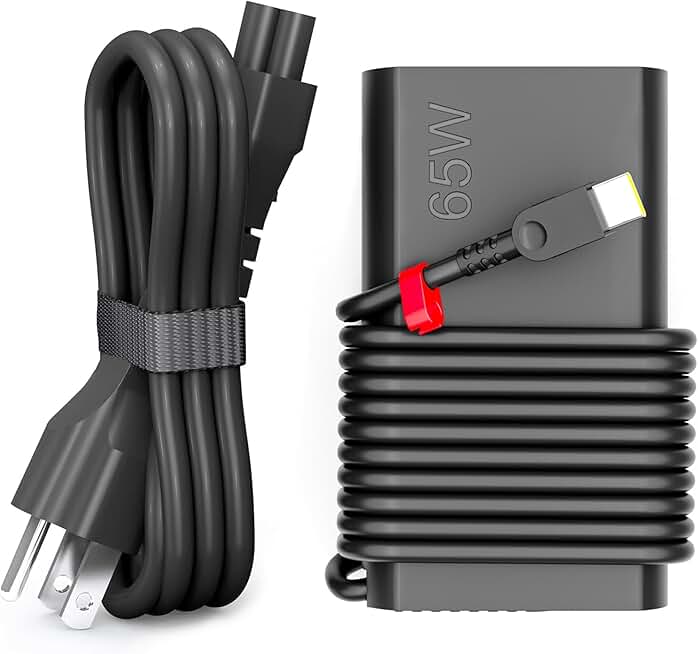
For a clean, bottleneck-free charge, you need a direct line. The WZXHU 65W USB C Laptop Charger provides a simple, no-hub path. It's a single, reliable brick with a solid cable. For higher-wattage systems that genuinely need the juice, the 100W USB Type C Laptop Charger for Dell/Lenovo is a legitimate upgrade, but only if your laptop's firmware and port can handle the request.
Mistakes You're Making Right Now
- Using monitor USB-C ports for primary charging. This is the number one source of bottleneck. Monitor manufacturers prioritize cost over power circuitry.
- Bundling charging cables in tight management sleeves. This increases heat and resistance. Leave your charging cable with some air.
- Assuming all "100W" cables are equal. Certification matters. A non-certified cable might physically carry 100W but corrupt PD data, causing negotiation failure.
The Final Verdict: Simplify Your Power Path
Worth it: A direct, certified cable from a reputable brand, plugged directly from a sufficient charger into your laptop.
Skip it: Passthrough charging on monitors, all-in-one hubs that promise high-wattage PD, and buying wattage far beyond your device's max draw.
The USB C charging bottleneck is a protocol and heat problem, not a cable problem. Stop buying bigger cables. Start cleaning up your power negotiation path. Your desk's performance depends on it.
For more on the myths of desk tech, see why The Ultimate Charging Hub Truth for 2026 exposes wireless charging, or how Electromagnetic Interference Cables Are Snake Oil You’re Still Buying debunks another cable scam.
Frequently Asked Questions
What is the most common cause of a USB C charging bottleneck?
The most common cause is a failed Power Delivery (PD) negotiation, not the cable itself. This happens when a cheap hub, monitor USB-C port, or faulty device firmware interrupts the handshake between your charger and laptop, defaulting to a low-power mode.
Will a 240W cable fix my slow charging?
No, it's overrated. If your bottleneck is a negotiation failure or a poor power path, a higher-wattage cable does nothing. The cable is only a pipe; if the conversation at either end is broken, the pipe size is irrelevant.
How can I test where my charging bottleneck is?
Use software (BatteryInfoView on Windows, coconutBattery on Mac) to see the actual charging rate in watts. Test with your full setup (through hub/monitor), then test with the charger plugged directly into the laptop. A drop in wattage with the hub in the chain points to the hub as the bottleneck.
Is pass-through charging on monitors reliable?
Does heat really affect USB-C charging speed?
Yes. Increased temperature in the cable, port, or hub increases electrical resistance, causing voltage drop. This can lead to your device requesting lower power to protect itself, creating a thermal throttling effect on your charge rate.

Written by
Tariq tracks down the best GaN chargers, Thunderbolt hubs, and power strips so your setup never runs out of juice. He tests thermals and wattage delivery extensively.
Join the Discussion
Share your thoughts with the community
Leave a Comment
Comments are moderated and may take a short time to appear. Links are not permitted.