Streaming Desk Layout Guide for 2026
Most streaming desk layouts fail because the camera is too low and the mic is in the way. Here's how to place your gear so the stream looks clean — even on a budget.
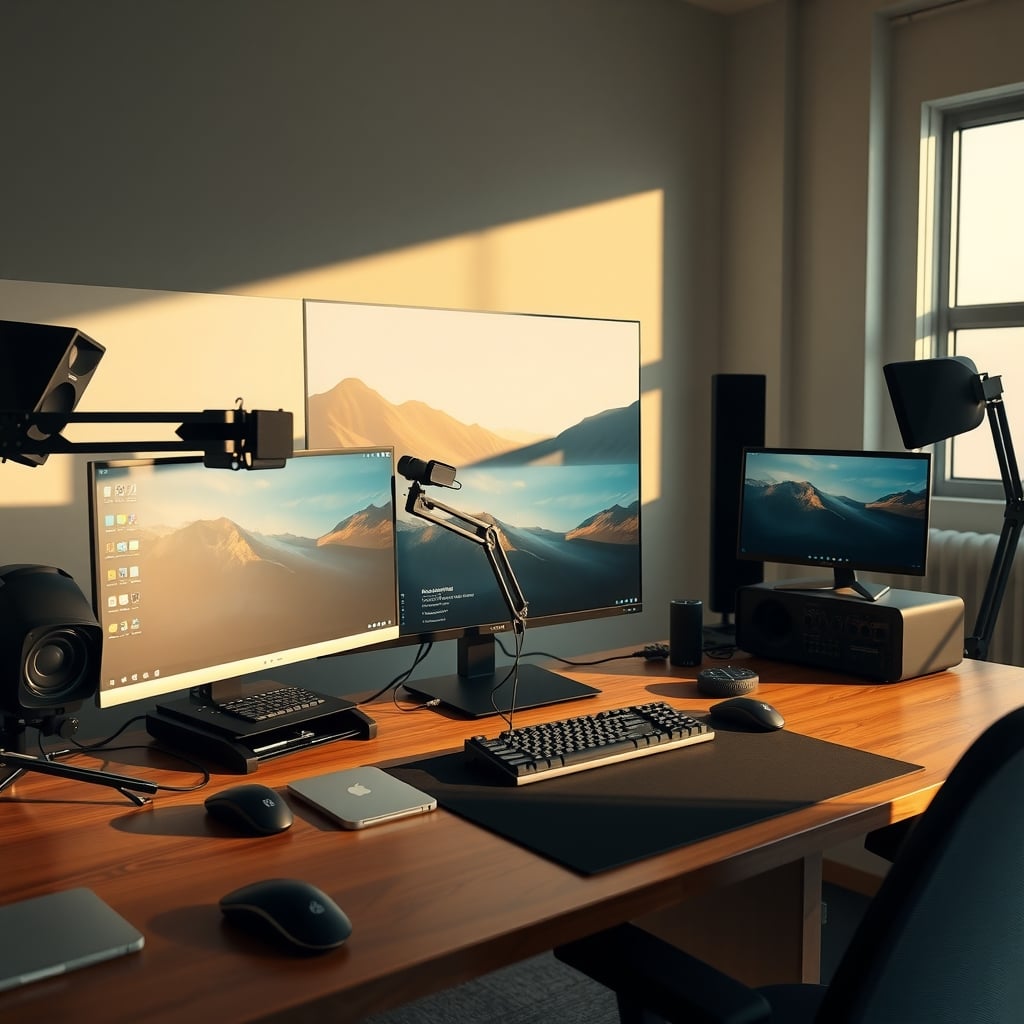
Putting together a streaming desk layout is really about three physical decisions: where the camera sits, where the mic sits, and where the cables run. Get those right and the stream looks clean even with budget gear. Get them wrong and no amount of RGB will save you.
The three most important variables are camera height, face-lighting angles, and mic placement. A streaming desk layout that works starts with the camera, not the monitor. Your audience sees only what the camera shows, so the rest of the room doesn't matter. Before you buy anything, figure out where the camera will sit at eye level.
Start With the Camera and Face-Lighting
An eye-level camera is non-negotiable. If the lens is below your chin, viewers get an up-the-nose angle that makes everyone look bad. Place the camera on a monitor arm or a stack of books until the lens is roughly at your eye line. OSHA's computer workstation e-tool recommends the top of the monitor screen at or slightly below eye level for comfort—the same rule applies to a webcam sitting on top of that monitor.
For lighting, the 'streaming desk layout' works when you treat light as a separate element. Position a key light at a 45-degree angle from the camera, above face level, and add a fill light on the opposite side if you can. The physics: the larger the light source relative to your face, the softer the shadows. That's why a softbox 30 inches away gives better results than a bare LED strip directly overhead. If you're still getting a flat face, read our Streaming Rig Lighting: Why Your Face Still Looks Flat before adding more RGB.
Think of the desk in three zones: capture, command, and streaming rig. The capture zone is the area in front of the camera: your face, shoulders, and maybe the edge of the desk. Keep it clutter-free. The command zone is where your keyboard, mouse, and main monitor live. The streaming rig zone holds the PC, capture card, audio interface, and power management. For most right-handed people, putting the rig zone on the left or behind the monitor keeps cables out of camera sight.
Give yourself enough clear space for the keyboard and mouse. A clamp-on monitor arm can free the area between the camera and the keyboard, making the whole layout feel less cramped. When you're laying out the command zone, keep the mic arm out of your typing path. The boom arm should swing in from the side, not across the keyboard.
Cable Routing: The Invisible Layout
Once camera, mic, and PC positions make sense, the desk layout is mostly cable management. Route all cables along the back edge, not across the keyboard area. A simple under-desk cable tray and hook-and-loop ties solve 90% of the mess. If you have a boom arm with internal cable management, use it; the cable out of the mic looks cleaner and won't get snagged by the arm's pivot. For a deeper dive, see our Cable Management Fails You Keep Making in 2026.
Also think about power: a power strip mounted under the desk with a short extension to each device keeps the floor area trip-free. Keep USB hubs away from the camera cable; a long run can cause flaky connections on some webcams unless you use an active USB 3.0 cable.
Common Streaming Desk Layout Mistakes
- Camera too low. Fix: raise the webcam or use a monitor arm clamp at eye level.
- Mic arm blocking your face. Fix: swing it off to the side; you don't want a wall of pop filter between you and the camera.
- Using monitor glow as face light. Fix: add a small key light even if it's a cheap desk lamp with a diffuser. The monitor makes your face flat and cyan.
- No mix-minus in a dual PC setup. Fix: route the mic to the streaming PC, then send a mix-minus back to the gaming PC so the gaming PC doesn't hear its own mic.
- Cluttered cables pulling on the boom arm. Fix: leave slack in the mic cable so the arm can move without resistance.
- Forgetting the USB hub distance. If you plug your webcam into a hub with a long cable, some cameras get flaky. Keep the camera close to the host system or use an active USB 3.0 cable.
Who Should Buy What
Start with your current hardware. If you have a single PC with a recent GPU, skip the dual-PC upgrade. A cheap webcam raise setup—books or a monitor stand alternative—will give you the biggest visual improvement. If your mic is on a tripod on the desk, a boom arm is the single best desk layout upgrade. The $18.99 InnoGear arm is the right price for a first arm; if it feels flimsy or your mic sags, move to the FIFINE BM88 at $56.99. If you have a heavy dynamic mic, the $39.99 InnoGear Mic Arm with dedicated cable management is a safer bet than the budget arm.
Bottom Line: Less PC, More Placement
The best streaming desk layout in 2026 is the one that puts the camera at eye level, a key light at 45 degrees, the mic off-axis, and all cables out of the frame. For most people, that means staying on a single PC and using hardware encoding. Spend your money on a good boom arm and a second light before you buy a second PC. Layout fixes are cheaper—and often more impactful—than gear upgrades.
Frequently Asked Questions
What is the best streaming desk layout for a single PC?
Place the camera at eye level on a monitor arm or stand, key light at 45 degrees from the camera, the mic off-axis to your mouth, and route cables along the back of the desk. Use one PC with OBS hardware encoding (NVENC or AMF) and you'll get clean 1080p60 without a second system.
Do I need a dual PC setup for streaming in 2026?
Only if you play heavy games at very high settings and want zero encoding lag on the gaming side. Modern GPUs have dedicated encoders (NVENC/AMF) that let a single PC handle streaming and gaming simultaneously. Dual PC adds complexity, cost, and audio routing headaches.
How do I route audio from my gaming PC to my streaming PC without echo?
Use an audio interface on the gaming PC with two outputs: one to your headphones, one to the streaming PC's line input. Then send a mix-minus from the streaming PC back to the gaming PC so the gaming PC doesn't echo the mic. Or use software virtual audio cables to accomplish the same routing.
Written by
GlowRig Editorial researches and writes practical guides about desk setups and home office gear. Our articles are produced with the help of AI research tools and are reviewed for accuracy against manufacturer specifications and public user feedback. We may earn a commission from affiliate links, which never affects our recommendations.
Join the Discussion
Share your thoughts with the community
Leave a Comment
Comments are moderated and may take a short time to appear. Links are not permitted.