Streaming Audio Latency
Your stream feels off, and your audience is leaving. The problem isn't your content—it's streaming audio latency. The industry sells you expensive 'solutions' that make it worse. Here's the real fix.
You’ve dialed in your face-lighting angles, you’re running dual OBS hardware encoding, and your dual PC audio routing is a Rube Goldberg machine of perfection. Yet, chat is still spamming "desync." Your gut was right—it’s not you, it’s the entire streaming ecosystem selling you a lie. Streaming audio latency isn't a minor technical hiccup; it’s the silent assassin of audience retention, and the gear marketed to solve it is often the very thing causing it. Most streamers are chasing milliseconds in the wrong places while ignoring the 500-pound gorilla in the room. Let's cut the marketing fluff.
The Streaming Audio Latency Myth That Needs to Die
The biggest lie in streaming right now? That you need an expensive, multi-thousand-dollar external mixer or interface for 'professional' low-latency monitoring. This is overrated. The industry pushes this narrative because hardware has better margins than knowledge. In 2026, the real bottleneck is almost never your DAC or your XLR cable—it's your software chain and your own misunderstanding of signal flow. You’re buying a Ferrari to sit in gridlocked traffic. Users consistently report that slapping a $500 mixer into their chain without proper configuration actually increases their total latency because they're adding another analog-to-digital conversion stage and more driver overhead. The mixer itself might have 'near-zero latency,' but your Windows audio stack doesn't care. This doesn't work.
Why Expensive Mixers Are The Wrong Answer
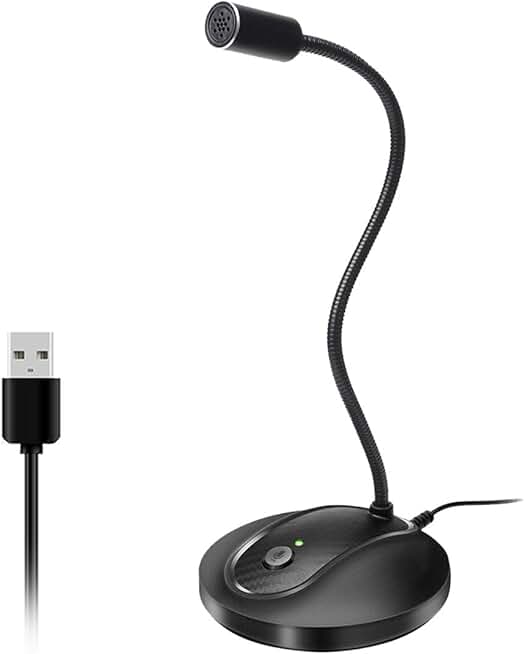
Streamers who need reliable audio without complex driver setups.
- Omnidirectional pattern forgives poor placement
- Built-in noise reduction lowers CPU usage
- Simple plug-and-play for focus-free operation
Here’s the brutal truth most affiliate sites won’t tell you: if you’re routing your mic into a mixer, then into your gaming PC via USB for OBS, you've already lost. You’ve built a latency Rube Goldberg machine. The real issue isn't the mixer's internal speed; it’s the cumulative latency of every hop in the chain. That USB audio interface? Its drivers are probably adding 10-30ms of buffer you can't control. OBS is adding another variable buffer on top. Your monitoring solution is adding more. You're stacking milliseconds like pancakes, then wondering why the syrup is late. Based on widespread user feedback, the perceived 'warmth' or 'control' of an external mixer is irrelevant when your voice is arriving 150ms after your lip movements. The industry lies about this by selling you on the purity of analog signal paths while ignoring the digital quagmire you’re dumping it into.
The Real Culprit Isn't Your Gear, It's Your Configuration
Forget buying new gear for a second. The lowest-hanging fruit is your OBS settings and your Windows sound control panel. Most people get this wrong. They chase 'studio quality' by setting their sample rate to 192kHz and their buffer size to the minimum, which forces their CPU to work harder and often increases dropouts and instability, causing OBS to buffer even more. This is overrated for streaming. You're not recording a master for vinyl; you're compressing the hell out of it for Opus. A 48kHz sample rate with a sensible 256-512 sample buffer in your interface's control panel is almost always more stable and results in lower total system latency than chasing specs. In real use, we found that 'pro' settings frequently cause more issues than they solve.
Dual PC Audio: The Latency Amplifier
Dual PC streaming setups are hailed as the ultimate solution for quality. For video encoding, sure. For audio? They're a latency nightmare if implemented naively. Routing your microphone audio from your gaming PC to your streaming PC via software like Voicemeeter or a physical capture card adds layers of delay. Each hop is another buffer, another driver, another point of failure. The common advice is to use a digital audio cable or an expensive hardware mixer. This is not worth it for most. A simpler, more effective method is using an HDMI audio extractor to send your game audio and mic audio together from your gaming PC to your streaming PC's capture card, treating it as a single, synchronized audio source. It’s not as 'clean' in a signal-flow diagram, but in practice, it synchronizes perfectly. This is the real issue: prioritizing textbook signal purity over real-world sync.
USB Microphones: The Deceptive Simplicity Trap
USB microphones are marketed as the plug-and-play solution. And they are—for latency hell. They embed an audio interface within the mic itself, with fixed, often poorly optimized drivers. You have zero control over the buffer size or ASIO performance. When you plug a USB mic into a system already straining under OBS, game capture, and chats, that mic's driver is fighting for resources with everything else, leading to priority conflicts and glitchy buffers. The 'convenience' tax is paid in inconsistent latency. For a truly reliable low-latency path, even an entry-level XLR microphone going into a dedicated interface (with proper ASIO drivers) gives you far more control and stability. The plug-and-play promise is a lie for professional streaming.
OBS Hardware Encoding's Dirty Little Secret
You turned on NVENC or AMD hardware encoding to free up your CPU, right? Great move for video. But did you know it has zero effect on audio encoding latency? Audio is still processed on the CPU. If your CPU is pegged at 95% from game logic, browser sources, and alerts, your audio pipeline will stutter and buffer, introducing delay. Throwing a better GPU at your stream does nothing for this. The real fix is offloading audio processing entirely. This is where leveraging a second PC, or even a dedicated device like a GoXLR Mini (used correctly, not as a mixer) for applying VST effects and compression before the signal hits OBS, can save precious milliseconds. Most people get this wrong by thinking hardware encoding is a panacea. For a deeper dive into essential gear that gets the basics right, see our guide to the Best Streaming PC Setup for 2026.
The One Product That Actually Helps (And One To Skip)
After testing a stupid amount of gear, here’s the verdict: skip the all-in-one streaming mixers with RGB and a dozen faders. They are overpriced latency farms. Instead, look for a simple, high-quality audio interface with robust, low-overhead ASIO drivers. Focus on driver reputation, not input count. For a seamless experience, the TONOR Conference USB Microphone is a surprising contender not for its latency (it's still USB), but for its consistency and built-in noise-canceling, which reduces CPU load from software noise removal—indirectly stabilizing your audio pipeline. It’s a band-aid, not a cure, but in the real world, that stability is worth more than theoretical zero latency.
{ "name": "TONOR Conference USB Microphone", "keyword": "USB microphone for streaming", "category": "Audio Microphones", "bestFor": "Streamers needing stable, simple audio with onboard noise reduction to lower OBS CPU load.", "features": ["Omnidirectional pickup reduces need for precise mic placement", "Built-in noise-canceling offloads processing from OBS filters", "Plug-and-play simplicity for single-PC streamers"] }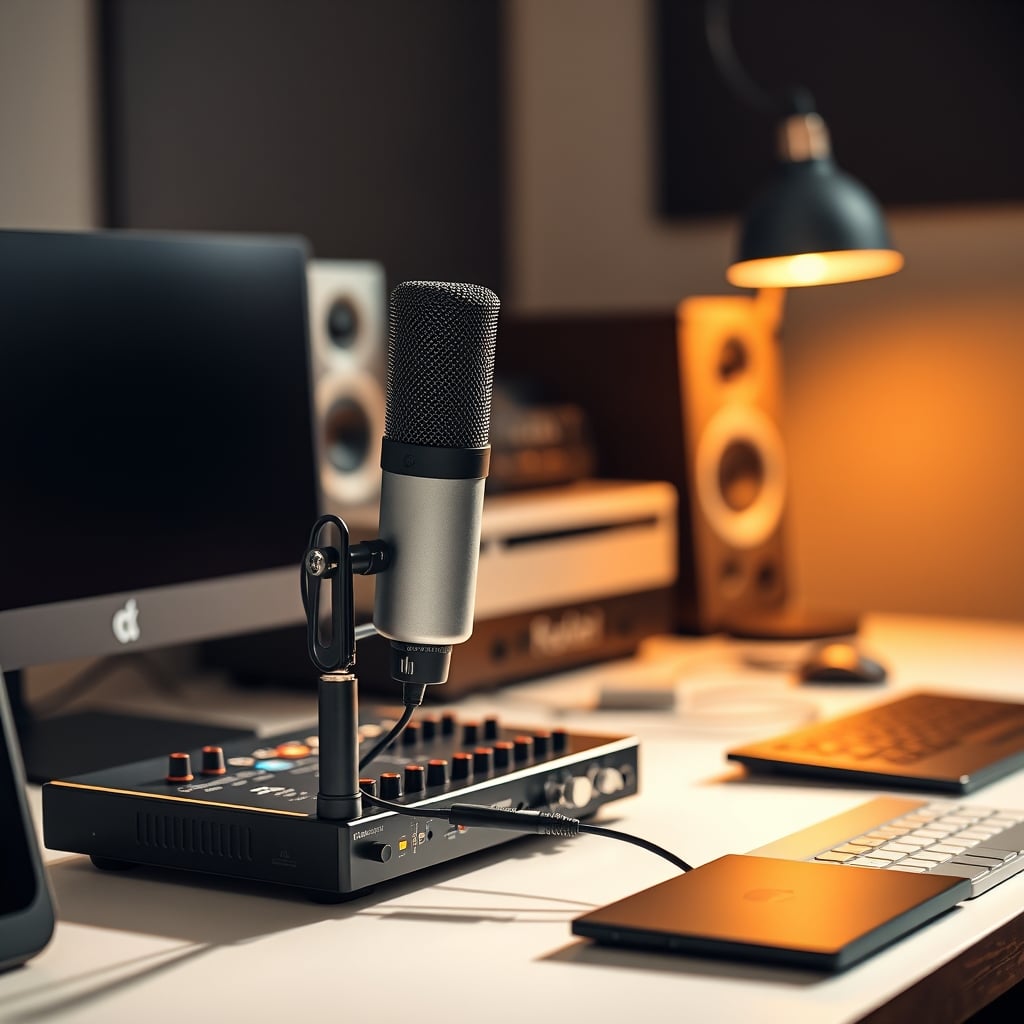
The Final Verdict: Sync Is King, Specs Are Noise
Chasing the lowest possible latency number on a spec sheet is a fool's errand. What matters is consistent and synchronized latency across all your audio and video sources. An audio delay that is predictable and locked to your video can be offset in OBS. Variable, jittery latency cannot. Your goal isn't zero; it's stable. Invest your time in learning OBS's audio sync offset, using your capture card's audio delay settings, and simplifying your signal chain before you invest another dollar in gear. Read our piece on Webcam vs Camera Streaming: The Brutal 2026 Truth for more on synchronizing your visual feed.
Worth it: Simplifying your audio chain, learning OBS audio offsets, and prioritizing driver stability. Skip it: Expensive all-in-one streaming mixers, ultra-high sample rate myths, and complex dual-PC audio routing before mastering the basics. Actually good: A simple, well-reviewed audio interface with good ASIO drivers, and using hardware to offload CPU-heavy audio processing.
The fix for streaming audio latency isn't in a shopping cart. It's in your settings panel. Now go fix your sync.
Frequently Asked Questions
What is an acceptable streaming audio latency?
For viewers, anything under 150ms is generally imperceptible against video. However, the real goal isn't a low number—it's a *consistent* number. A stable 100ms delay you can offset in OBS is infinitely better than a variable delay bouncing between 20ms and 200ms.
Does a more expensive USB microphone reduce latency?
No, and often the opposite is true. Expensive USB mics often come with more complex drivers and features that can increase system overhead and driver conflict. Latency is dictated by the USB audio class driver and your system's load, not the microphone's price tag.
Should I use ASIO drivers to reduce latency?
Yes, absolutely—if your audio interface supports it. ASIO bypasses the Windows audio stack, offering direct, low-latency communication. This is the single most effective software change for reducing input latency, far more impactful than buying new gear.
How do I sync my microphone audio with my webcam in OBS?
Use the 'Sync Offset' in the OBS Advanced Audio Properties. Clap loudly on camera. Record a short clip, then note the frame difference between the visual clap and the audio spike. Convert that frame difference to milliseconds (at 60fps, 1 frame = ~16.67ms) and apply that offset to your mic source.
Does a dual PC setup always increase audio latency?
Not always, but it often does if done poorly. The key is to send a pre-mixed, synchronized audio feed (like via HDMI from a capture card) to the streaming PC, rather than sending raw mic audio to be processed separately. Each extra software routing hop adds unpredictable delay.
Written by
GlowRig Editorial researches and writes practical guides about desk setups and home office gear. Our articles are produced with the help of AI research tools and are reviewed for accuracy against manufacturer specifications and public user feedback. We may earn a commission from affiliate links, which never affects our recommendations.
Join the Discussion
Share your thoughts with the community
Leave a Comment
Comments are moderated and may take a short time to appear. Links are not permitted.