Monitor Ergonomics Positioning Is a Lie You're Still Believing
For years, you've been told to place your monitor an arm's length away. That advice is actively hurting you. The real science of monitor ergonomics positioning reveals most guides are spreading myths that lead to fatigue, pain, and wasted money on overhyped gear.
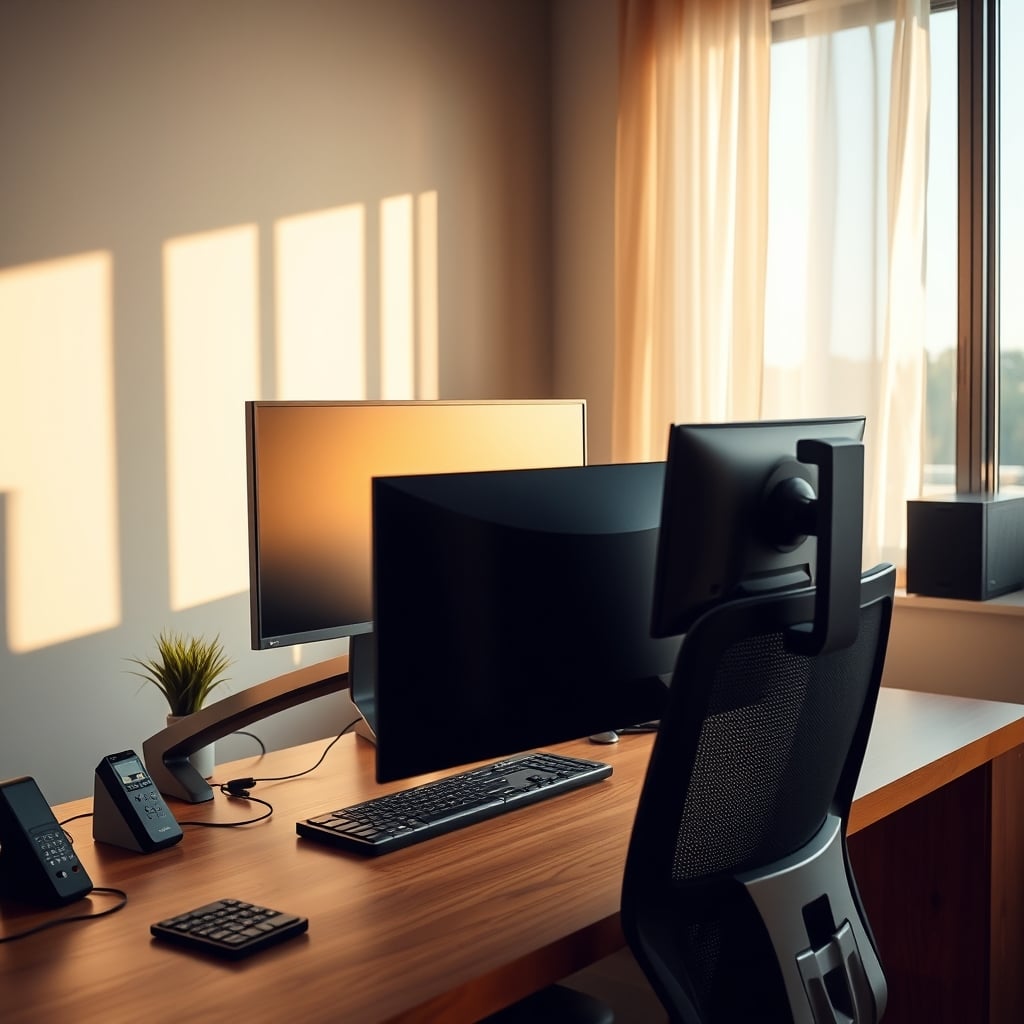
I’ve spent the last two years watching a collective neck injury unfold in real time—and it’s not from some extreme sport. It’s from smart, tech-savvy people faithfully following the most oversimplified, regurgitated, and flat-out wrong advice about monitor ergonomics positioning.
Day after day, they trust a rule of thumb as useful as a chocolate teapot, slowly molding their spines into question marks. Why? Because the industry sold a clean, one-size-fits-all solution. It’s a lie. And your pursuit of the “perfect” setup is probably making things worse.
Forget the corporate wellness PDFs and influencer desk tours. The standard advice is broken.
You’ve been told to:
- Place the top of your screen at or below eye level
- Keep it an arm’s length away
- Tilt it back 10–20 degrees
This is the holy trinity of monitor placement—and it’s mostly garbage. It ignores your body, your tasks, your vision, and the fact that you’re not a mannequin in an OSHA diagram. This prescriptive nonsense leads directly to the two most common complaints I hear:
“My neck hurts” and “My eyes feel strained.”
No kidding. You’re using a template, not a solution.
Why Monitor Positioning Actually Matters
Monitor ergonomics positioning isn’t about checking boxes. It’s the foundation of sustained comfort and performance—and most users overlook how critically it impacts long-term health. Let’s fix that.
Why the “Arm’s Length” Rule Is Wrong
This myth needs to die. Today.
The command to keep your monitor an outstretched arm’s length away isn’t just oversimplified—it’s actively harmful for most people.
Here’s why: that distance is usually too far for comfortable, sustained focus on text. It forces your eyes to work harder, leading to the very eye strain you’re trying to avoid. In practice, users unconsciously lean forward, rounding their shoulders and undoing any theoretical benefit.
We’ve all seen it: someone sets their “ergonomic” distance, then within an hour they’re hunched forward like they’re reading fine print.
The industry clings to this rule because it’s a easy soundbite—not because it’s based on physiology.
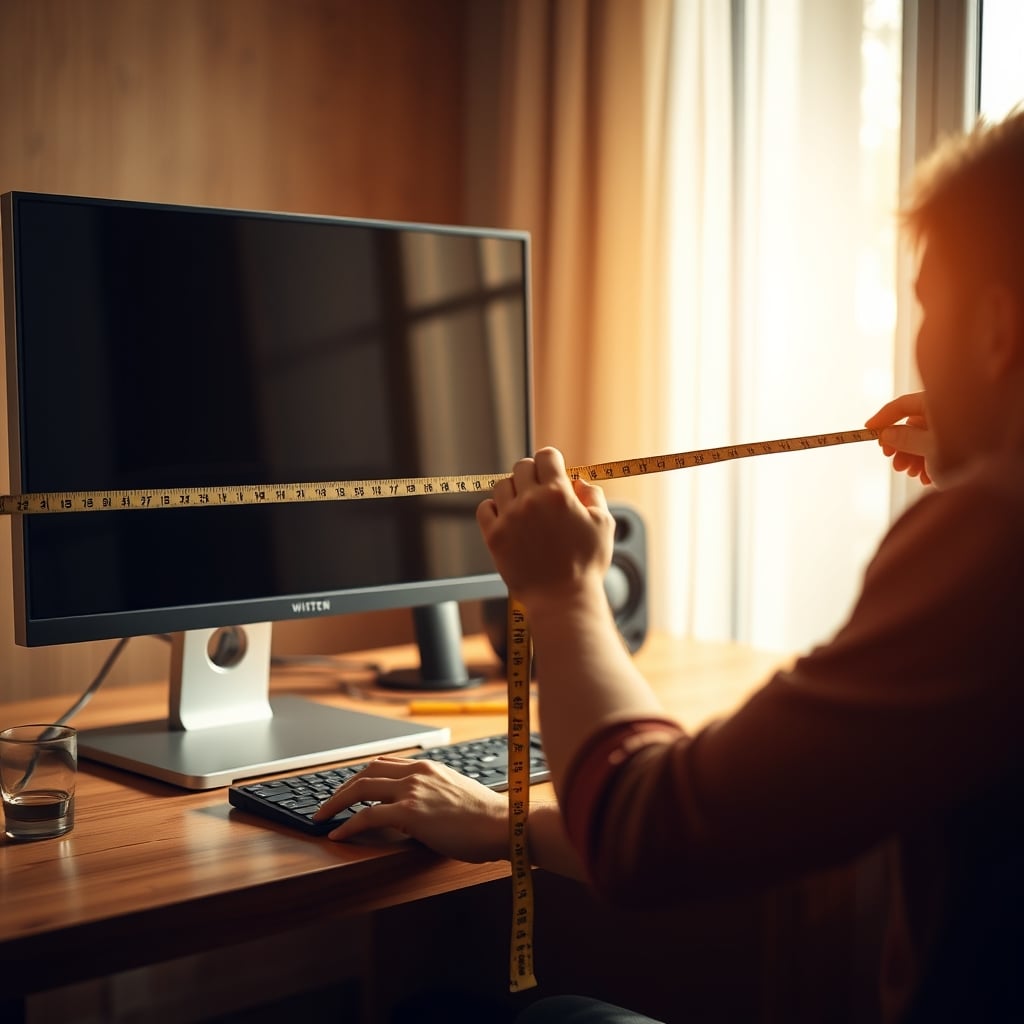
For most modern 27-inch 1440p or 4K monitors, the sweet spot is actually closer—around 20 to 25 inches from your eyes.
Yes, closer.
This brings the screen into a more natural focal plane without straining your eyes. If you find yourself squinting or leaning in, your monitor isn’t too close; your display scaling or font size is too small, or you may need an eye exam.
The arm’s-length rule is a relic from the era of bulky, low-resolution CRTs. It has no place in 2026.
The “Top of Screen at Eye Level” Dogma—Debunked
Another sacred cow for the slaughterhouse: the idea that the top bezel must align with your eyes.
This rigid placement—often achieved with expensive arms or wobbly book stacks—creates a downward gaze angle that’s great for looking at your keyboard, but terrible for looking straight ahead.
For focused work like coding, writing, or designing, you want the center or upper-third of the screen aligned with your horizontal sightline. This places the content you actually use in a neutral, forward-looking posture.
Staring at the top bezel pushes your primary visual target lower, encouraging forward head posture and upper back rounding.
Stop following the diagram—think about where your eyes rest 90% of the time.
Tilt Is the Most Overrated Adjustment
Forget the endless debates over a perfect 10–20° backward tilt. For a modern thin-bezel IPS panel with a matte coating, the optimal tilt is often zero degrees, maybe one or two.
Why? Glare.
Tilting the screen back turns it into a reflection magnet for overhead lights and windows—causing more eye fatigue than any minor postural gain.
A flat or near-flat orientation relative to your gaze minimizes reflections and keeps image geometry consistent.
Stop wasting mental energy on tilt. Focus on distance and height instead.
The Monitor Arm Trap for Small Desks
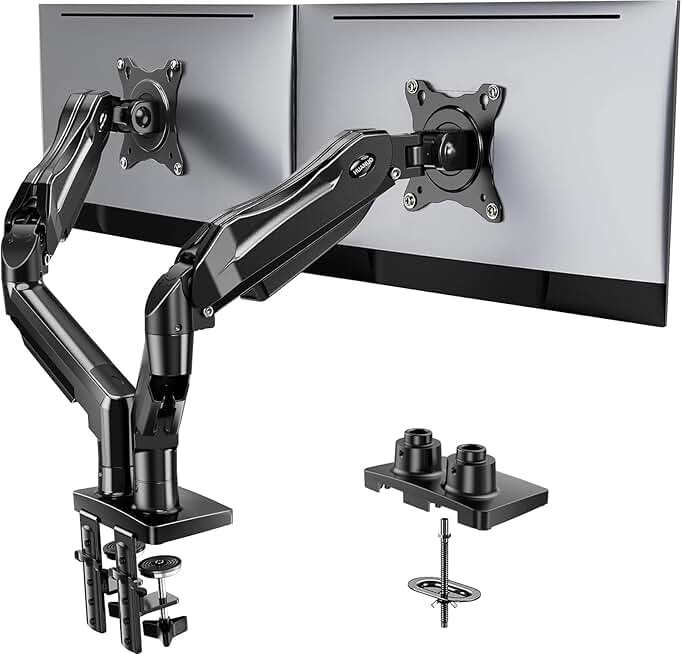
The monitor arm industry wants you to believe clamps and gas springs are the path to ergonomic nirvana. For a small desk, they’re often a space-wasting, stability-killing mistake.
As we’ve explained in our piece Monitor Arms Small Desk: Why 90% Are Making Your Setup Worse, a bulky arm base eats precious real estate and introduces wobble that a standalone stand doesn’t have.
That promised flexibility? You’ll set it once and never move it again.
For a compact desk, a high-quality height-adjustable monitor stand with a small footprint often offers more stability and usable space.
The goal is adjustable height—not necessarily an arm.
The Real-World Fix: Start With Your Chair
Your monitor positioning is impossible to get right until your chair is dialed in. Most people adjust their screen to compensate for a poor seated posture. You can’t fix a broken foundation by hanging a new window.
Here’s how:
Sit back so your back is fully supported. Feet flat, elbows near 90°, hands resting comfortably on the desk.
Now look straight ahead with your head level.
Where your gaze naturally falls is where the center of your screen should be—not the top.
This shift from “monitor first” to “body first” solves more problems than any measuring tape.
The Ultrawide & Multi-Monitor Minefield
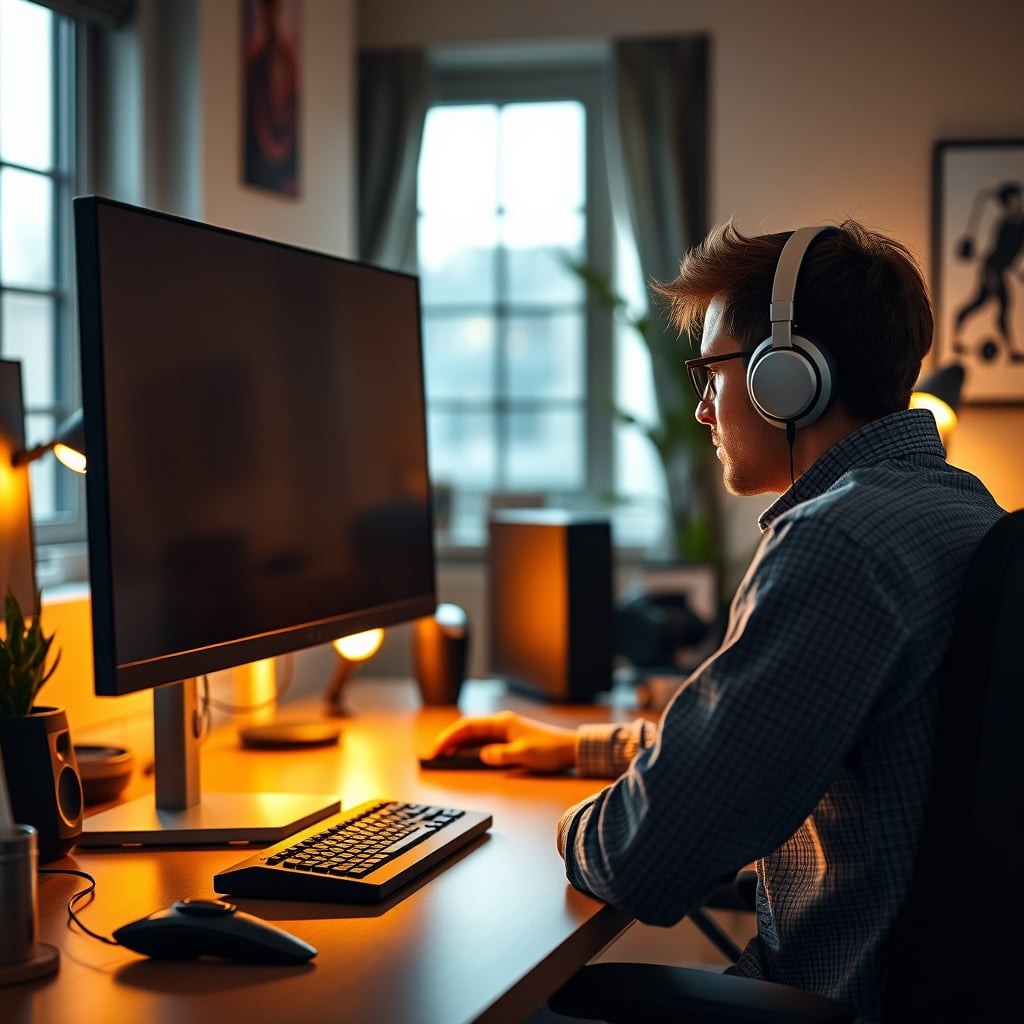
With multiple screens or a massive ultrawide, standard advice fails spectacularly. “Center the bezel” on dual monitors guarantees you’ll twist your neck for primary tasks.
A functional approach:
- Designate one monitor as your primary.
- Center that screen directly in front of you using the body-first method.
- Place the secondary monitor to the side, angled inward.
Your primary gets perfect ergonomics; the secondary gets what’s left.
For a 49-inch super-ultrawide, treat the center third as your primary zone. Trying to optimize the entire width will leave you panning painfully all day.
Glare & Ambient Light: The Silent Killers
You can nail the geometry and still feel awful if your screen is washed out by a window or overhead light.
Positioning isn’t just about coordinates—it’s about light.
Ideally, place your primary light source (like a window) perpendicular to your screen, not behind or in front. If that’s impossible—as it often is in home offices—you must control the light.
Chasing Ambient Lighting Benefits Are a Marketing Lie can lead you astray. A simple monitor light bar or a desk lamp that lights your desk—not your screen—is far more valuable than any “perfect” tilt.
Don’t optimize posture while blinding yourself with glare.
Mistakes You’re Probably Making
Let’s get specific. You’re likely guilty of at least one:
- Using a laptop stand without an external keyboard – This raises the screen but forces your hands into an awful typing position. Elevate the laptop only if you use a separate keyboard and mouse.
- Believing bigger is always better – A 32-inch monitor on a shallow desk means swiveling your head like an owl. Screen size must match viewing distance.
- Ignoring text clarity – If you’re running a 4K monitor at 100% scaling on Windows, you’re reading microscopic text. Increase scaling or font size before moving the monitor.
- Forgetting to stand – The best ergonomic adjustment isn’t on your monitor—it’s the “Stand Up” reminder on your phone or watch. Movement beats millimeter-perfect placement every time.
The Verdict: It’s Worth It—But Not How You Think
Is monitor ergonomics positioning worth the effort? Absolutely—but not as a rigid, diagram-chasing exercise. The real payoff comes from understanding the principles:
- Sightline to your actual content
- Glare mitigation
- Harmony with your seated posture
Skip the obsessive measuring.
Skip the blind faith in monitor arms.
Skip the idea of one perfect setup.
Start with your body, control your light, prioritize clarity over arbitrary distance, and break any “rule” your body complains about.
The goal isn’t a textbook diagram—it’s feeling better at the end of the day.
That’s the only metric that matters.
In 2026, with the gear we have, this should be simple. We’ve overcomplicated it with dogma.
Tear down the posters of the perfect ergonomic human.
Listen to your neck.
That’s your real guide.
Frequently Asked Questions
Is the 'arm's length' rule for monitor distance actually wrong?
Yes, it's largely wrong and often counterproductive. For modern high-resolution screens, that distance is frequently too far, forcing eye strain and causing users to lean in. A closer distance of 20-25 inches for a 27-inch monitor is often better for focus and reduces neck strain.
Should the top of my monitor be at eye level?
No, this common advice is flawed. For focused screen work, you want the center or upper-third of the screen at eye level. Aligning the top bezel places your primary content too low, promoting forward head posture and neck pain.
Are monitor arms necessary for good ergonomics?
No, they are not necessary. While they offer flexibility, a stable, height-adjustable monitor stand often provides sufficient ergonomic adjustment without the wobble or space consumption of an arm, especially on smaller desks. The key is height adjustment, not the specific mechanism.
What's the single biggest mistake people make with monitor positioning?
Adjusting their monitor before dialing in their chair and seated posture. You cannot correctly position a monitor if you're sitting incorrectly. Always set your chair height, back support, and armrests first, then position the monitor to match your natural, upright gaze.

Written by
Mia is an interior designer turned tech minimalist. She curates the most aesthetic, clutter-free desk setups on the internet, focusing on natural light and wood tones.
Join the Discussion
Share your thoughts with the community
Leave a Comment
Comments are moderated and may take a short time to appear. Links are not permitted.