Dual Pointing Device Setup Guide
You think your one-perfect-mouse setup is optimized. You’re wrong. Clinging to a single pointing device is the silent productivity tax you’re paying in 2026. This is the real guide, cutting through the spec sheets and influencer hype.

Let’s start with a brutal truth: if you’re using just one mouse for everything in 2026, you’re working with a fundamental handicap. You’ve spent thousands on monitors, chairs, and keyboards, but you’re still making the single biggest input error. The common failure point isn't a lack of gear—it’s the stubborn belief that one tool can excel at precision pixel-picking, rapid navigation, and long-term comfort without compromise. It can’t. This is where a proper dual pointing device setup separates the pros from the amateur hour.
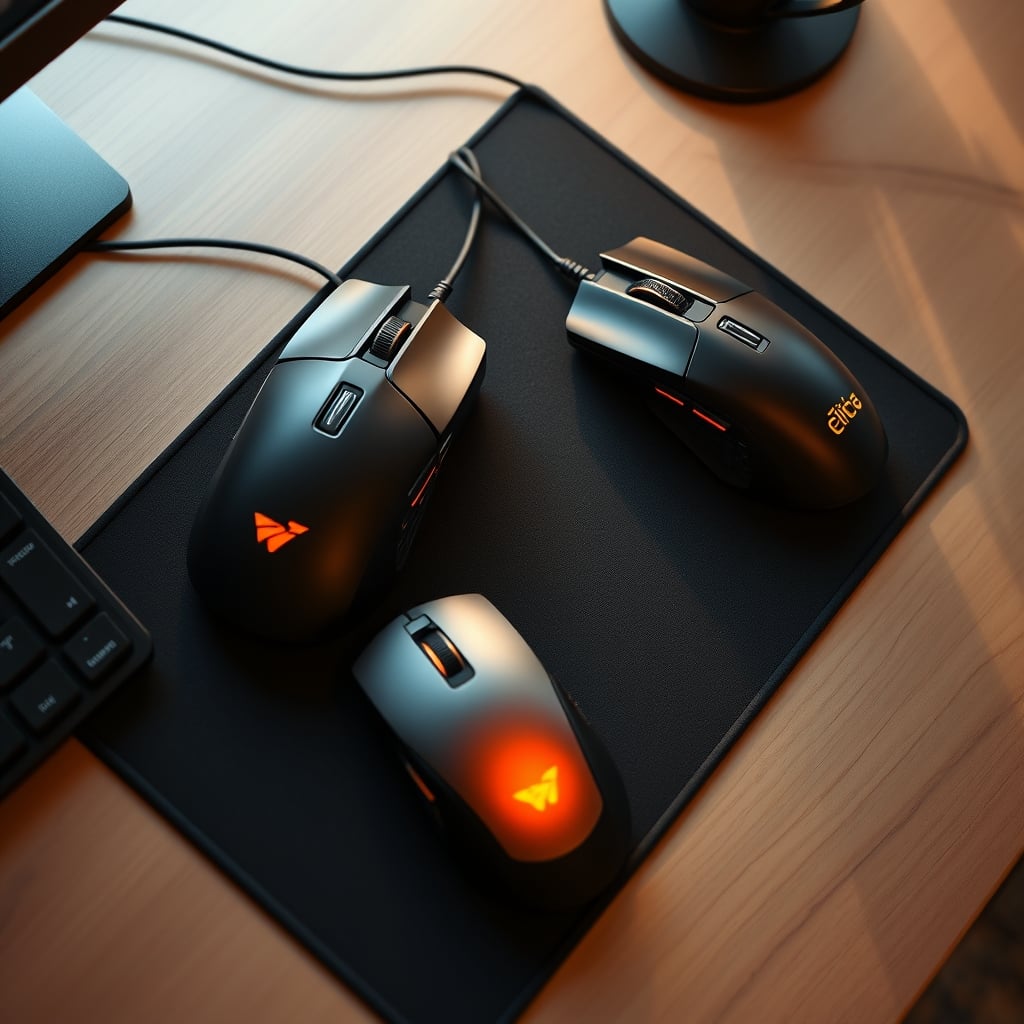
Most setups fail because they treat the second device as a spare tire, not a primary tool. They buy a cheap trackball "for fun" or a graphics tablet because an artist on YouTube uses one, then leave it in a drawer when it doesn’t instantly feel natural. The real issue is a lack of intentional role assignment. You don’t just add a second thing to your desk; you architect an input system where each device has a dedicated, non-overlapping job. The industry lies about compatibility and "one-size-fits-all" ergonomics. In real use, forcing a single device to do everything leads to fatigue, repetitive strain, and a subtle but constant friction that kills deep work flow.
Why the "One Perfect Mouse" Myth is Garbage
This is the cornerstone misconception that needs to die right now. The marketing narrative sold to you is that with enough DPI, enough buttons, and the right shape, you’ll find your endgame mouse. This is overrated. It’s a fantasy. No single device can be optimal for both high-speed document scrolling and sub-pixel photo editing. The biomechanics are fundamentally at odds. A lightweight, fingertip-grip gaming mouse is terrible for your wrist during eight hours of spreadsheet work. A heavy, palm-filling ergonomic mouse is a boat anchor for fast UI switching and gesture commands.
Based on widespread user feedback, the pursuit of the one perfect mouse leads to a cycle of buyer’s remorse and perpetual upgrading. You’re not solving the problem; you’re rotating through variations of the same compromise. The real issue is task-specific performance. Most people get this wrong because they’re evaluating a mouse in a vacuum, not within the context of their actual, varied workload.
The Anatomy of a Real Dual Pointing Device Setup
Forget symmetry. This isn’t about having two identical mice. That’s useless. A real system is built on complementary asymmetry. One device for speed and navigation. One device for precision and comfort. Your primary mouse—likely a standard optical model—handles the fast, broad-stroke work: browser tabs, scrolling long documents, dragging files, OS-level gestures. Your secondary device is your specialist. Its sole purpose is to eliminate the weaknesses of the primary.
For example, a large trackball stays planted. Your hand rests atop it, and your thumb or fingers handle cursor movement with zero arm movement. This is not for speed. This is for marathon sessions of coding, writing, or detailed UI work where minimizing shoulder and wrist fatigue is the only metric that matters. Conversely, a graphics tablet with a pen is your pixel-perfect surgeon for photo editing, digital art, or any task requiring absolute cursor precision. The pen grip also uses completely different muscle groups, providing active relief. For a step-by-step on assigning these roles, see our guide on optimizing your input devices.

The magic happens in the handoff. You don’t think about switching. Your muscle memory learns that for this kind of task, your hand simply goes to that tool. It becomes as subconscious as shifting gears in a car.
The Trackball Trap (And How to Avoid It)
Here’s where most people fail spectacularly. They buy a popular trackball, plug it in, try to use it like a mouse for everything, and declare it "unusable." This doesn’t work. You cannot use a trackball as a direct mouse replacement. It is a fundamentally different input method. The industry lies about the "adjustment period" being the only hurdle. The real hurdle is using it for the wrong jobs.
A trackball’s superpower is stationary precision and low-effort cursor nudging. Its kryptonite is fast, large-distance travel across multiple monitors. Trying to fling a trackball to zip from one screen corner to another is a frustrating mess. In a dual setup, you let your standard mouse handle those long throws. You use the trackball for the focused work within a single screen or window. Assign it to your primary monitor only in your OS settings if you have to. This is a known issue for long-term use that most reviews gloss over because they test devices in isolation for two hours, not in a system for two weeks.
Graphics Tablets Aren't Just for Artists
This is the most underrated angle for knowledge workers. A medium-sized graphics tablet, like a Wacom Intuos, is a secret weapon for anyone who manipulates visual media or needs pinpoint accuracy. The pen allows for control that a mouse simply cannot match—the difference between clicking near a point and clicking exactly on it. But beyond Photoshop, think about diagramming, CAD software, video editing timeline scrubbing, or even just as a supremely comfortable way to navigate your OS when your mouse hand is tired.
The setup is critical: you must disable Windows Ink or similar tablet services for general use unless you actually need pressure sensitivity. You’re after absolute positioning and the ergonomic benefit of the pen grip. This is overrated if you just want a mouse alternative for email, but actually good if your work has a visual or precision component.
Software is Your Secret Weapon
Hardware is only half the battle. The glue that makes a dual pointing device setup sing is intelligent software control. Relying on default Windows or macOS settings is a guaranteed path to frustration. You need an application that can manage distinct profiles per device and per application.
Tools like SteerMouse (macOS) or the often-overlooked power of Logitech Options+ (for their devices) let you do the essential work: crank the sensitivity way down on your trackball for fine control while leaving your primary mouse on a faster setting. You can remap buttons contextually. The most powerful trick? Having your secondary device’s sensitivity automatically drop further when a specific app (like Lightroom or your code editor) is foregrounded. This level of automation is what transforms two separate gadgets into one cohesive system. Don’t sleep on this; it’s the difference between a clever idea and a daily driver.
The Cable Management Lie You're Being Sold
Naturally, adding a second (or third) device means more cables or more dongles. The common advice is to buy a giant, multi-port USB hub and hide everything. This is overrated and often a performance-killing mistake. Users consistently report signal interference, power starvation, and input lag when stacking multiple high-polling-rate pointing devices on a single, cheap hub. You’re adding latency to the system you’re trying to optimize.
The real solution is strategic, direct connection. Your primary, speed-critical mouse should go into a dedicated, high-speed USB port directly on your motherboard or dock. Your secondary device can often tolerate a hub, but do your research. For a deep dive on why most hubs are trash, see our exposé on USB C Hub Issues Exposed. Wireless options can simplify this, but introduce their own management hell with separate receivers or Bluetooth conflicts. The goal isn't an invisible desk; it's a reliably fast one.
The Final Verdict: Stop Compromising
After living with this setup for years, and validating it with feedback from other power users, the conclusion is inescapable. Clinging to a single pointing device in 2026 is like using a single kitchen knife for every task—you can do it, but you’re working harder, not smarter, and the results are worse.
Is it worth the investment, the desk space, and the initial configuration hassle? For anyone whose livelihood depends on prolonged computer use—writers, editors, programmers, designers, data analysts—the answer is a definitive Worth it. The reduction in physical fatigue is tangible. The elimination of task-switching friction directly translates to longer, deeper focus sessions. You’re not just buying a second mouse; you’re buying back your comfort and your focus.
Skip it if your computer use is purely casual—checking email and watching videos. But if you’re in your chair for hours a day, building a dual pointing device system isn't a gadget flex. It's the single most impactful, under-discussed productivity upgrade you can make this year. Stop optimizing your single tool and start architecting your toolset.
Frequently Asked Questions
Does a dual pointing device setup really improve productivity?
Absolutely, but not in the way you might think. The primary benefit isn't speed—it's sustained comfort and reduced cognitive load. By assigning specific tasks to the optimal tool, you eliminate the physical strain and subtle frustration of using a compromise device. This lets you maintain deep focus for longer, which is the true productivity multiplier.
What's the best secondary device to pair with a standard mouse?
It depends entirely on your work. For long-form writing, coding, or general comfort: a large thumb-operated trackball (like the Logitech MX Ergo). For precision visual work like photo editing or design: a graphics tablet (like a Wacom Intuos). Don't get a vertical mouse as a secondary; it's too similar to a standard mouse and doesn't provide enough complementary benefit.
Won't switching between two devices feel awkward and slow me down?
Initially, yes—for about two days. Your brain is remarkably good at building contextual muscle memory. The key is strict role assignment. Once your subconscious learns 'trackball for this app, mouse for that,' the switch becomes instantaneous and automatic. The minor initial slowdown is vastly outweighed by the long-term ergonomic and focus gains.
How do I manage multiple wireless receivers and avoid interference?
This is a real challenge. First, prioritize devices that can use a unifying receiver (like Logitech's) to combine multiple devices into one dongle. Second, if you must use separate dongles, use a powered USB hub with spacing between ports and connect it to a front-facing port to reduce interference. Avoid cheap, unpowered hubs. For a deep dive on hub pitfalls, read our guide on USB hub compatibility.
Written by
GlowRig Editorial researches and writes practical guides about desk setups and home office gear. Our articles are produced with the help of AI research tools and are reviewed for accuracy against manufacturer specifications and public user feedback. We may earn a commission from affiliate links, which never affects our recommendations.
Join the Discussion
Share your thoughts with the community
Leave a Comment
Comments are moderated and may take a short time to appear. Links are not permitted.