USB Dock Compatibility Issues
That sleek USB dock promising one-cable nirvana? It's probably lying. We break down why 2026's multi-function docks are silently degrading performance, causing heat issues, and creating more problems than they solve.

I watched a $400 external SSD throttle to USB 2.0 speeds through a 'premium' dock. My webcam dropped frames during a client call. My studio monitors hissed with interference. All because I trusted the marketing on a single, elegant hub. The reality of usb dock compatibility issues in 2026 isn't just about a device not being recognized—it's about your entire setup performing at a fraction of its potential while you blame your computer. The industry sells consolidation as the ultimate goal, but what they're really selling is a bottleneck wrapped in aluminum.
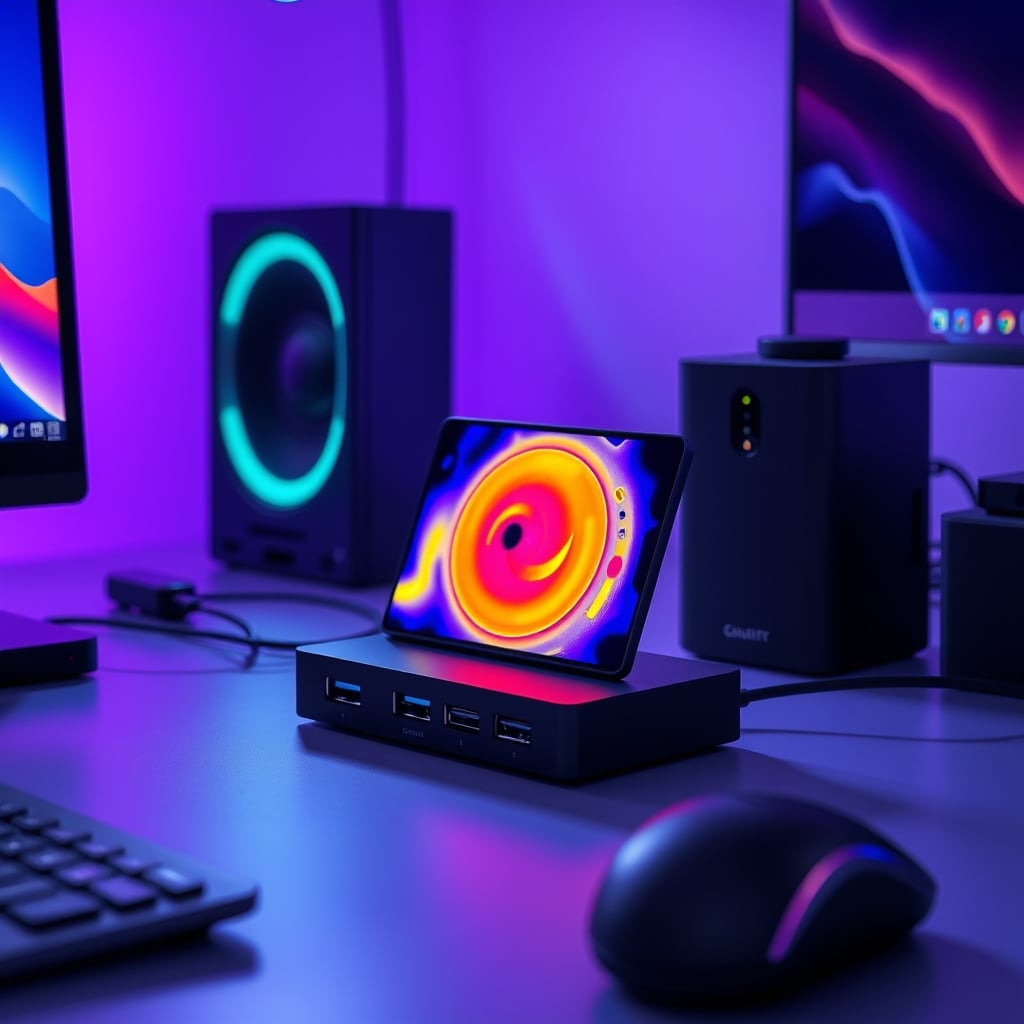
The Real Problem Isn't Your Devices, It's The Bottleneck You Bought
Most people think compatibility means "does it plug in and turn on?" That's the first lie. Real compatibility in 2026 is about sustained bandwidth, clean power delivery, and zero signal degradation across every port simultaneously. Your dock might claim 10Gbps per port, but that's a theoretical maximum under lab conditions with one device. Plug in your SSD, webcam, and audio interface at the same time? Now you're dealing with shared internal bandwidth, power contention, and controller latency that the spec sheet conveniently omits.
Users consistently report the same pattern: devices work fine individually through the dock, but introduce a second high-bandwidth peripheral and everything starts to stutter. This isn't a defect; it's by design. Cheaper docks use single controller chips that juggle all that traffic, creating a traffic jam inside a $150 piece of hardware. The industry lies about this by advertising the sum of all port speeds, not the realistic, simultaneous throughput.
This is overrated. The promise of a single-cable desk is a fantasy that ignores physics. You're trading a handful of direct, dedicated cables for a single point of catastrophic failure that degrades everything connected to it.
Why The "Future-Proof" Dock Is A Marketing Fantasy
Every product page screams "Thunderbolt 4" and "USB4" like it's a magic shield against obsolescence. Here's the brutal truth: the standards are a mess. USB4 is not Thunderbolt 4, even though it can use the same connector. Not all USB4 ports support the full 40Gbps. Not all Thunderbolt 4 docks deliver full PCIe tunneling for external GPUs. The certification logos have become meaningless marketing stamps, not performance guarantees.
Based on widespread user feedback, buying a dock for "future devices" is a waste of money. By the time those devices arrive, the power delivery standard will have changed, the video protocol will have updated, or a new form of data tunneling will make your expensive hub obsolete. I've seen docks from 2024 that can't properly handle 2026's higher-resolution webcams because the internal video bridge chip wasn't designed for that data rate. You're not future-proofing; you're buying yesterday's bottleneck at tomorrow's prices.
This doesn't work. Planning for hypothetical future gear sacrifices performance for your actual, right-now, expensive peripherals.
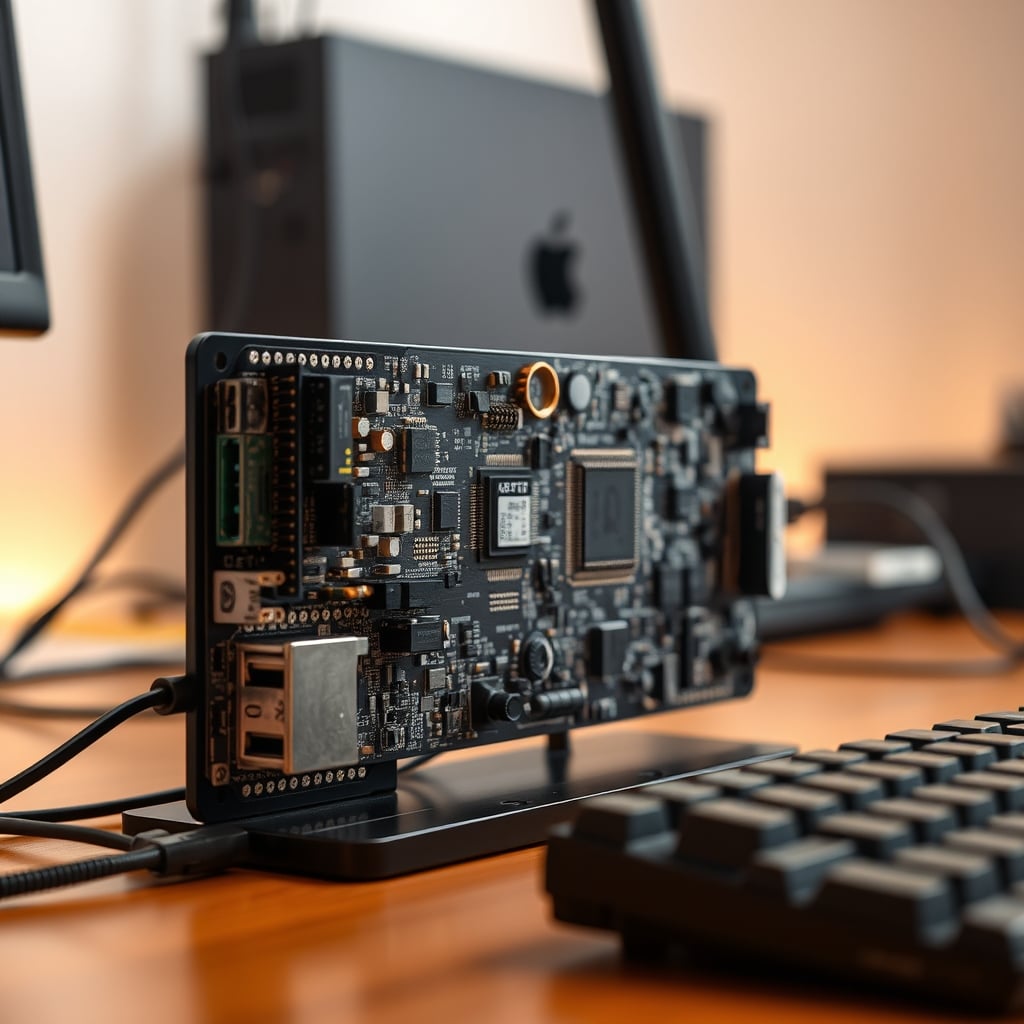
The Power Delivery Deception That's Cooking Your Gear
Here's where it gets dangerous. That 96W Power Delivery stamp on your dock? It's probably a lie under real load. Most docks allocate power dynamically, which sounds smart until your laptop starts drawing 60W for charging, your SSD pulls 7W, and your LED light strip wants another 10W. The dock's internal power supply can't deliver all that simultaneously without voltage sag or generating serious heat.
This is a known issue for long-term use. The heat has to go somewhere, and it usually gets dumped into the chips managing your data, raising their temperature and increasing error rates. This causes data retries, which you experience as latency, stuttering video, or dropped audio packets. That "warm" feeling on the bottom of your dock isn't normal operation—it's a sign of electrical inefficiency degrading your signal integrity. You wouldn't run your CPU at 90°C and expect peak performance, but that's exactly what you're asking your dock to do.
The industry lies about this by testing power delivery with only the laptop connected, not with a full suite of peripherals. In real use, this fails to deliver.
USB Dock Compatibility Issues: The Cable Management Myth That Needs To Die
Let's attack the biggest sacred cow: the idea that consolidating cables via a dock is the pinnacle of desk optimization. It's wrong. It's completely wrong. The pursuit of a "clean desk" via a single hub has created more performance and reliability problems than a bundle of dedicated cables ever could.
That single Thunderbolt cable from your laptop to the dock? It's now a single point of failure for your entire workstation. If that dock fails, your monitor, storage, audio, network, and peripherals all go dark. If that single cable gets damaged, you're dead in the water. Compare that to a setup where your monitor has its own DisplayPort cable, your audio interface uses its own USB connection, and your storage is direct. One failure isolates the problem.
But the bigger issue is signal integrity. Every connection, every internal bridge chip, every inch of internal PCB trace adds latency and potential for interference. A high-speed SSD connected directly to your motherboard's native USB controller will always outperform the same SSD connected through a dock's internal hub, then through a cable, then through your laptop's controller. The difference isn't always visible on a benchmark, but in real-world file transfers while other tasks run, the direct connection maintains consistency where the dock path starts to choke.
Most people get this wrong. They see fewer cables and think "better." What they actually get is a more complex, less reliable signal chain with more potential points of failure. Cable management should be about smart routing, not radical consolidation that compromises function.
What Actually Works: The Targeted, Purpose-Built Approach
Stop looking for the one dock to rule them all. That product doesn't exist without serious trade-offs. Instead, build your connectivity based on device class and priority. This is the real solution most tech reviewers are afraid to recommend because it doesn't sell a shiny new gadget.
For video: Use a direct connection from your GPU or laptop to your monitor. Every DisplayPort or HDMI cable run through a dock adds another display controller chip that can introduce color depth issues, refresh rate limits, or compression artifacts. If you need multiple monitors, get a GPU that supports them natively or use a dedicated DisplayPort MST hub—not a multi-function dock's video ports.
For high-speed storage: Connect your NVMe SSD enclosure or RAID directly to a native USB 3.2 Gen 2x2 or Thunderbolt port on your computer. Don't share that bandwidth with anything else. The performance consistency is worth the extra cable. For a deeper dive on how charging standards impact your gear, our piece on the brutal truth about device charging damage explains why power quality matters more than wattage.
For audio interfaces and peripherals: These are often more sensitive to latency than raw bandwidth. A class-compl USB 2.0 audio interface wants consistent timing, not necessarily 10Gbps. Connect it to a dedicated, powered USB 2.0 hub if you must, but better yet, use a direct motherboard port. The reduced jitter will give you cleaner recordings and lower buffer sizes.
This approach feels less elegant but performs infinitely better. You're designing for signal purity, not aesthetics.

The Adapter Kit Reality: When Cheap Actually Makes Sense
Here's the unconventional advice: instead of a $300 mega-dock, consider a small, high-quality adapter kit for the occasional connection needs. I'm talking about the simple, single-port adapters that convert USB-C to HDMI, or USB-A to Ethernet. These have one job, one chipset, and minimal internal complexity.
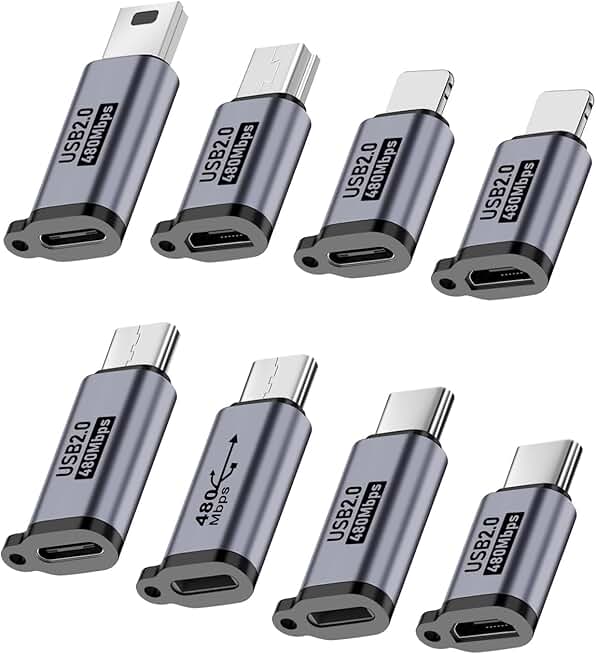
The UCEC adapter kit is the perfect example of this philosophy. It's not a dock. It's a collection of specific bridges for specific tasks. Need to connect a legacy Micro-USB device to your modern laptop? Grab that specific adapter. Need to read an SD card? Use the dedicated reader. Each connection is independent, with no shared internal bandwidth, no power contention between devices, and far less heat generation.
This is actually good. It seems like a step backward until you realize you're getting better performance for each individual task without paying for 15 ports you'll never use simultaneously. The money you save on not buying an over-engineered dock can be invested in better cables or even a dedicated PCIe expansion chassis if you really need serious I/O.
For more on why single-purpose tools often outperform multi-function gadgets, our guide to single port hub issues breaks down why simplicity wins.
Heat: The Silent Performance Killer Nobody Talks About
Open up any moderately priced dock after an hour of use. Feel the internal PCB. It's hot to the touch—not warm, hot. That heat comes from voltage regulators, bridge chips, and controllers working harder than they were designed to because they're trying to do eight jobs at once. Heat increases electrical resistance. Increased resistance means voltage droop and signal degradation.
In real use, this frequently causes issues with high-speed devices first. Your SSD might start throwing transfer errors. Your 4K webcam might drop to 1080p. Your monitor might flicker. These aren't random glitches; they're the physical manifestation of components operating outside their thermal comfort zone. The aluminum casing on premium docks isn't just for looks—it's a necessary heatsink for a product that generates surprising amounts of waste heat.
Most docks have zero active cooling. No fan, no vents, just passive dissipation through the case. If that case is sitting on a desk mat or tucked against a monitor stand, you're insulating the problem. This is the real issue. Not compatibility, but thermal design that can't handle real-world multi-device loads.
The Mistakes We've All Made (And How To Stop)
- Daisy-chaining hubs: Plugging a USB hub into another hub into your dock. This creates a latency nightmare and guarantees bandwidth contention. Each hop adds milliseconds of controller delay that feels like "lag" in your peripherals.
- Prioritizing port count over port quality: Seventeen ports sounds impressive until you realize only three can be used at full speed simultaneously. Choose docks with clear bandwidth allocation diagrams in their specs, or assume they're hiding something.
- Ignoring the upstream connection: Your beautiful Thunderbolt 4 dock is useless if your laptop only has USB 3.2 Gen 2. The dock can only be as good as the port it's connected to. Always match the dock's maximum capability to your computer's native port capability.
- Using the dock for charging only devices: That phone charger or LED light strip doesn't need to go through your data dock. It's introducing electrical noise into the system. Use a separate, dumb power brick for charging accessories. For the truth about how power delivery affects your entire setup, see our expose on power bank safety myths.
The Final Verdict: Skip It (Mostly)
The multi-function USB/Thunderbolt dock, as marketed in 2026, is overrated for anyone who cares about consistent, high-performance peripheral operation. The trade-offs in signal integrity, thermal performance, and single-point failure risk outweigh the convenience of cable reduction.
Worth it only in one specific scenario: for ultra-portable laptops with exactly one USB-C port, where the dock serves as a stationary port replicator for basic peripherals (keyboard, mouse, maybe one monitor) when you're at your desk. Even then, manage your expectations.
For everyone else—creators, engineers, developers, power users—skip it. Build your connectivity with purpose-built, direct connections. Use simple adapter kits for occasional needs. Your gear will perform better, your setup will be more reliable, and you'll understand exactly where every bit of data is flowing. The clean desk aesthetic isn't worth a dirty signal chain.
Frequently Asked Questions
Why does my USB dock work fine with one device but fail with multiple?
Because most docks share internal bandwidth and power across all ports. The specifications show theoretical maximums per port, not sustainable throughput when all ports are active. Adding a second high-bandwidth device creates contention that causes slowdowns, disconnections, or thermal throttling.
Is Thunderbolt 4 better than USB4 for dock compatibility?
Thunderbolt 4 has stricter mandatory requirements than USB4, which should mean better compatibility. However, in practice, many Thunderbolt 4 docks still struggle with simultaneous high-bandwidth devices due to internal design limitations, not the standard itself. The certification doesn't guarantee real-world multi-device performance.
Can a USB dock damage my devices?
Yes, primarily through inconsistent or dirty power delivery. When a dock's internal power supply is overloaded by multiple devices, it can deliver unstable voltage that stresses connected electronics. Thermal issues from poor design can also shorten the lifespan of both the dock and connected devices.
What's the most reliable alternative to a multi-function dock?
Direct connections from your computer to each critical peripheral (monitor, audio interface, storage), combined with a simple, single-purpose adapter kit for occasional connection needs. This approach eliminates shared bandwidth, reduces points of failure, and delivers the best possible performance for each device.
Written by
GlowRig Editorial researches and writes practical guides about desk setups and home office gear. Our articles are produced with the help of AI research tools and are reviewed for accuracy against manufacturer specifications and public user feedback. We may earn a commission from affiliate links, which never affects our recommendations.
Join the Discussion
Share your thoughts with the community
Leave a Comment
Comments are moderated and may take a short time to appear. Links are not permitted.