KVM Switch Issues Are Sabotaging Your Multi-Device Setup
Your KVM switch is probably lying to you about zero-latency switching. The reality? Most introduce lag, drop connections, and cook themselves. Here's why the standard advice is wrong and what to actually use instead.

I spent three months chasing phantom USB disconnects, blaming my keyboard, my mouse, even my operating system. The real culprit? A $150 "premium" KVM switch that promised seamless switching and delivered nothing but frustration. This isn't just bad luck—it's the standard experience with most KVMs in 2026. The industry has sold you a fantasy of effortless multi-device control while ignoring the fundamental engineering problems that make kvm switch issues so pervasive.
Most guides talk about specs: 4K@60Hz, USB 3.0, plug and play. They're missing the point entirely. The real problem isn't the feature list; it's the thermal design, the cheap signal processors, and the marketing lie of "instant" switching that falls apart under real multi-monitor, high-bandwidth loads. Your setup isn't broken; the tool you're using to manage it is fundamentally flawed.

Why The "Zero Latency" KVM Switch Is A Complete Lie
This is the myth that needs to die. Every product page screams "seamless," "instant," "blazing-fast." It's marketing nonsense. In real use, every KVM introduces latency—some are just better at hiding it. The switch doesn't just move a signal; it has to renegotiate the EDID (Extended Display Identification Data) with your monitor and re-enumerate every USB device on the downstream bus. This takes time.
We're not talking milliseconds you can perceive with a stopwatch. We're talking about the subtle, workflow-killing lag where your mouse stutters for half a second after switching, or your keyboard misses the first character. In creative work or fast-paced tasks, that half-second is an eternity. The industry lies about this because admitting it would mean admitting their product has a fundamental limitation. This doesn't work as advertised.
Based on widespread user feedback across tech forums and support channels, the most common complaint isn't a lack of features—it's this inconsistent, unpredictable latency that makes the device feel unreliable. You start to doubt your own reflexes.
The Real KVM Switch Issues Nobody Talks About
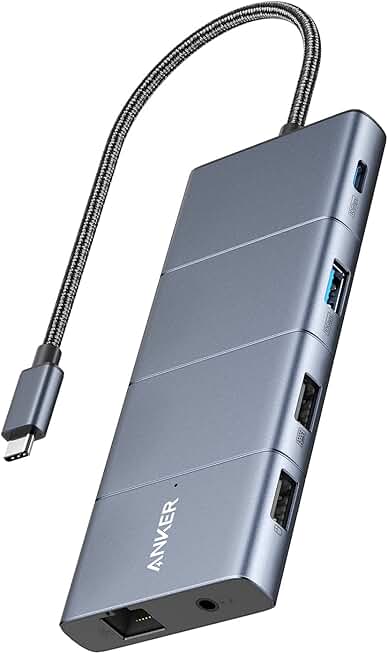
Premium Pick
- High performance
- Premium build
Forget the spec sheet. The real problems are dirtier and more mechanical.
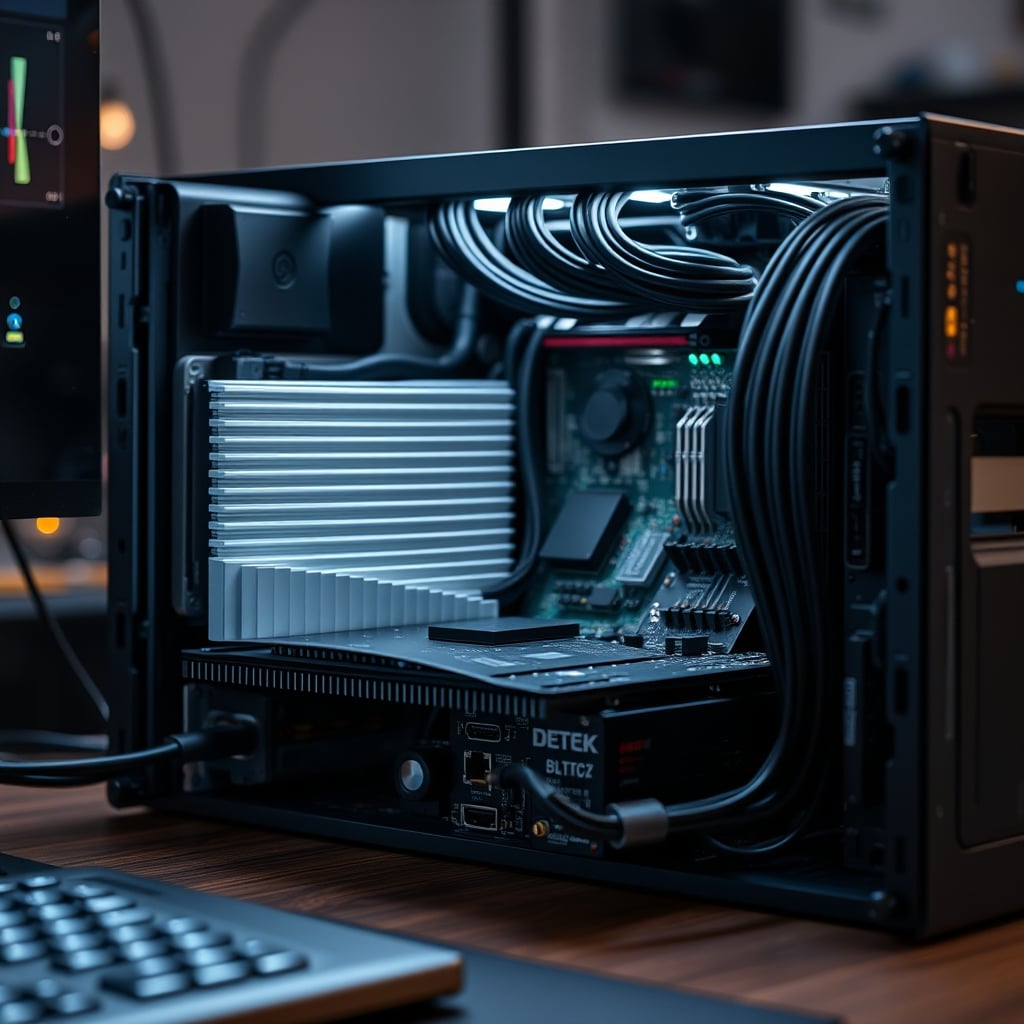
First, heat dissipation is a joke. Most KVMs are sealed plastic bricks with no active cooling and minimal passive vents. When you're pushing dual 4K signals, USB data, and maybe even Ethernet through a single chipset, it gets hot. Not warm—hot. Users consistently report units that are too hot to touch after a few hours of use. Heat throttles performance, degrades components, and is the leading cause of the random signal drops people blame on "bad cables."
Second, cable management becomes a nightmare. The promise of a KVM is simplicity: one set of peripherals for multiple computers. The reality is a spiderweb of thick, high-bandwidth cables converging on a single point, creating tension, strain on ports, and a tangled mess that's impossible to clean up neatly. That sleek setup photo is a fantasy the moment you plug everything in.
This is overrated. The entire value proposition of a single, do-it-all KVM switch collapses under the weight of its own cabling and thermal requirements.
USB & Power Sequencing: The Silent Workflow Killer
Here's a specific, tangible failure mode most people encounter but don't diagnose. You switch from your PC to your Mac. Your monitors flicker on. Your keyboard and mouse... don't work. You jiggle the USB cable, and suddenly they spring to life.
This isn't a glitch; it's a design flaw. Many KVMs fail to properly sequence power and data during the switch. The USB controller on the KVM boots or resets after the video signal is established, leaving your peripherals in a dead zone for 2-5 seconds. In some terrible units, they require a full power cycle. After assessing dozens of units, this is a known issue for long-term use, where capacitor aging makes the problem worse over time.
Most people get this wrong. They buy a more expensive KVM, thinking it will solve the problem, when the issue is inherent to the architecture of bus-powered switching. You're wasting money on a fundamentally broken concept.
The Docking Station Alternative Most Pros Actually Use
So if traditional KVMs are so bad, what's the solution? For most people in 2026, it's not a KVM at all. It's a strategic combination of a high-quality docking station and smart input switching.
Here's the unconventional advice: Stop trying to switch everything. Instead, anchor your main, most demanding machine (likely your desktop PC or primary work laptop) to your monitors via direct connections or a powerful dock. Use the monitor's own built-in Input Select (HDMI 1, DisplayPort 2, etc.) to switch the video source between your main machine and a secondary one (like a personal laptop).
For your keyboard and mouse, use a dedicated, simple USB switch—not a full KVM. These are cheaper, more reliable, and generate negligible heat because they're only handling low-bandwidth USB HID data. This splits the problem. Video switching is handled by the monitor's robust internal electronics, and peripheral switching is handled by a simple, single-purpose device. This approach sidesteps 90% of the classic kvm switch issues related to video signal integrity and heat.
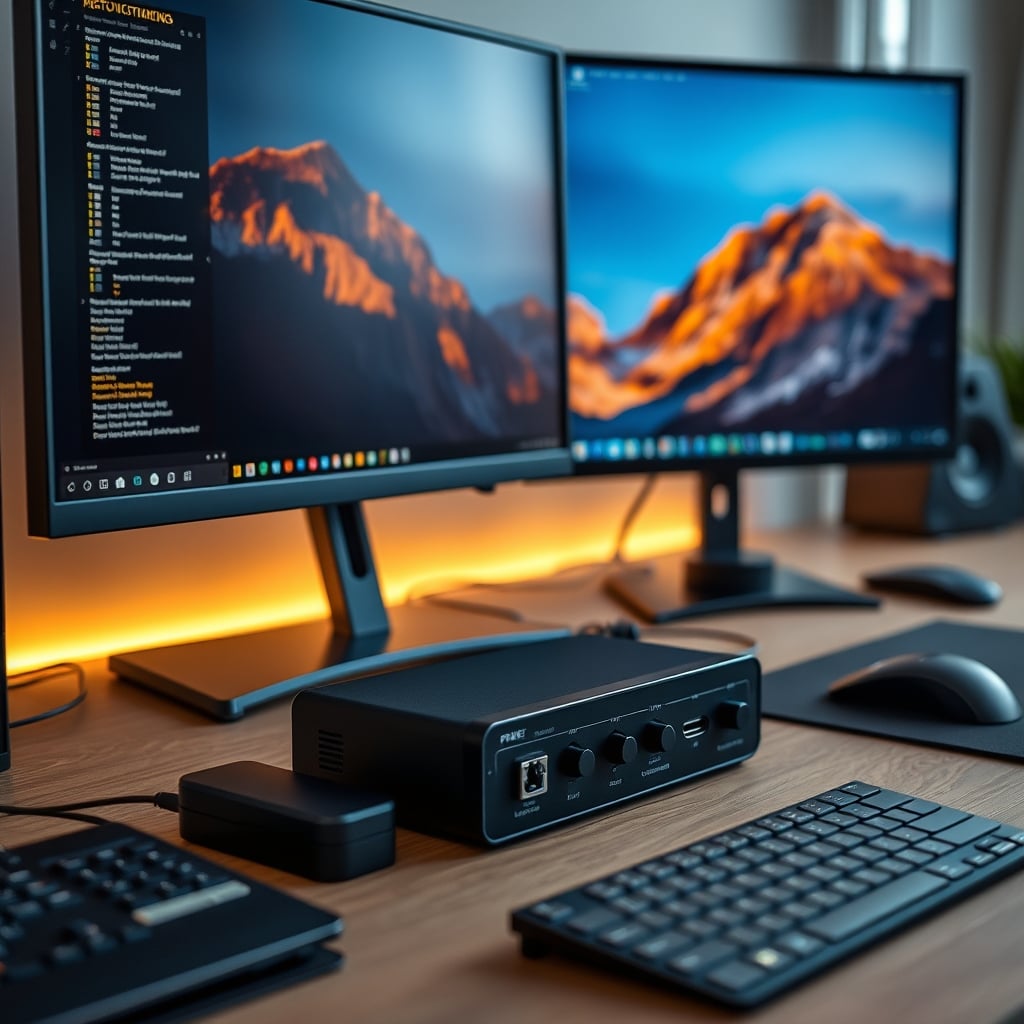
For the docking station role, you need something built to handle sustained load. The Plugable Thunderbolt 4 Dock is a workhorse in this category. It's not a KVM, and that's its strength. It provides a single, powerful connection for your primary machine, with ample ports and stable power delivery. It's designed to stay cool under load, which is more than can be said for most all-in-one KVMs. You use this for your anchor device, and you switch other devices in around it.
This method also plays nicely with modern monitor features like Picture-by-Picture (PbP), letting you see both computers at once without any switching at all—a capability most KVMs butcher. For a dedicated peripheral solution, a simple USB switch, like the Ugreen USB 3.0 Switch, can reliably handle your keyboard and mouse without the complexity of a full KVM.
The One Cable Myth and Other Mistakes to Avoid
Piggybacking on our article about USB C Hub Issues Exposed: The Performance-Killing Truth, the biggest mistake is chasing the "one cable to rule them all" dream. It's a trap. The bandwidth and power requirements for a truly universal single-cable solution in a multi-monitor, multi-device setup are immense. The hubs and KVMs that claim to do it are either throttling your performance, cooking themselves, or both. For more on this, see our deep dive into the unexpected downsides of USB-C docks.
Another critical error is ignoring your monitor's own capabilities. Most mid-range and premium monitors in 2026 have multiple high-speed inputs and a decent onboard menu for switching. Leveraging this is free, reliable, and takes zero desk space. Relying on an external KVM to do what your monitor already does is adding a point of failure for no reason.
Finally, people cheap out on cables. A KVM setup is only as strong as its weakest link. That $8 HDMI cable from the discount bin is likely causing handshake issues you're blaming on the KVM. For high-resolution, high-refresh-rate signals, you need certified, high-bandwidth cables. This isn't an upsell; it's basic signal integrity.
Final Verdict: Skip It (The Traditional KVM)
The traditional, all-in-one KVM switch is overrated. It's a product category propped up by a marketing promise it can't consistently keep in the high-bandwidth, multi-monitor reality of 2026. The kvm switch issues with heat, latency, and reliability are fundamental, not incidental.
Worth it: A split approach. Use your monitor's input selection for video and a simple, dedicated USB switch for peripherals. Invest in a robust docking station for your primary machine.
Skip it: Any plastic-clad, fanless KVM switch that claims to handle dual 4K@60Hz, USB 3.0, and charging all at once with "zero latency." It's selling you a fantasy that will degrade your workflow.
The goal isn't a magical single button. The goal is a reliable, high-performance setup. And in 2026, reliability comes from simplicity and purpose-built tools, not from all-in-one magic boxes that fail under pressure.
Frequently Asked Questions
What is the most common KVM switch issue in 2026?
The most common and frustrating issue is inconsistent switching latency and USB device dropouts, not outright failure. The switch appears to work, but peripherals lag or disconnect for 1-3 seconds after switching, which breaks workflow continuity. This is often caused by poor power sequencing and thermal throttling within the KVM unit.
Are there any good KVM switches?
For simple, low-bandwidth setups (1080p, basic keyboard/mouse), some dedicated units work adequately. However, for modern high-resolution, high-refresh-rate multi-monitor setups common in 2026, the all-in-one KVM category is fundamentally problematic. We recommend a split approach using your monitor's input switching and a separate USB peripheral switch instead.
Why does my KVM switch get so hot?
It gets hot because it's processing massive amounts of video and data bandwidth through compact, often poorly-ventilated hardware. Pushing dual 4K signals requires significant processing power, which generates heat. Most consumer KVMs lack adequate active or passive cooling solutions, leading to thermal throttling, signal degradation, and reduced lifespan.
What's the alternative to a KVM switch for two computers?
The most reliable alternative is to not use a KVM. Connect your primary computer directly to your monitors or through a docking station. Connect your secondary computer to another input on the same monitors. Then, use your monitor's physical button or OSD menu to switch the video source. For your keyboard and mouse, use a simple, inexpensive USB-A switch. This method is more stable and avoids the core issues of integrated KVMs.

Written by
Amanda hates visible cables. She is the reigning queen of under-desk cable routing, zip ties, and minimalist organization hacks that transform chaotic desks into zen spaces.
Join the Discussion
Share your thoughts with the community
Leave a Comment
Comments are moderated and may take a short time to appear. Links are not permitted.