Dual Monitor Posture Guide
You bought two screens for a productivity boost but ended up with a sore neck and strained eyes. The standard advice is wrong. We're cutting through the ergonomic BS to show you how to position your monitors for real, pain-free work.
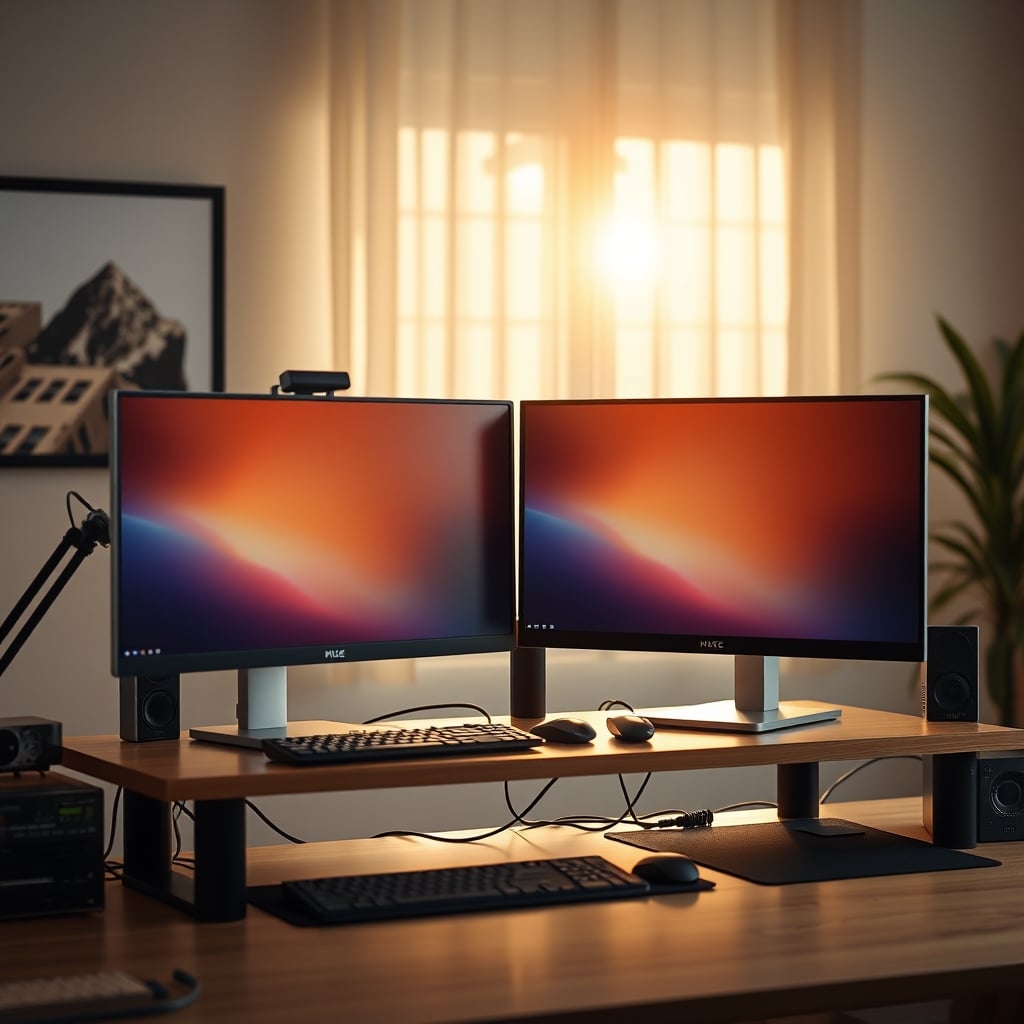
The biggest mistake you're making with dual monitor posture is trying to create perfect symmetry. You line them up side-by-side, centered like a corporate stock photo, and wonder why your neck is screaming after three hours. That setup is designed for looks, not for the human body. It forces you into a constant, subtle twist that adds up to real pain. Let's fix that.
You need to pick a boss. One monitor is your primary, where 80% of your work happens. The other is your secondary, for references, communications, or monitoring. Most people get this wrong by treating them as equals. Your primary screen must be directly in front of you, with the top of the screen at or slightly below eye level. Your secondary screen? It gets placed to the side, angled inward, and its primary content zone should be within a comfortable 15-degree head turn. This isn't a suggestion—this is the core fix for dual monitor posture that actually prevents strain.
The Monitor Arm Mandate (And Which Ones Are Overrated)
If you don't have monitor arms, you're playing a losing game. Desk stands are ergonomic dead-ends. A good gas-spring arm gives you the micro-adjustments needed to dial in that perfect, non-symmetrical position. But here's where most advice fails: you don't need a "dual monitor arm." In many setups, two single arms are superior. They offer independent height and tension adjustment, which is crucial when your monitors are different models or weights. That fancy, linked dual-arm rig? It often forces compromises. This is overrated for anyone who values precise, individual control.
Take the HUANUO FlowLift Single Arm. It's a workhorse. The gas spring is smooth enough for fine-tuning, and the clamp is solid. In common setups, this arm handles a 27-inch monitor without sag, which is the real test. It lets you position that primary screen exactly where it needs to be, without being yoked to your secondary screen's position.
Forget the 20-20-20 rule for a second. The single most important measurement is the distance from your eyes to the center of your primary screen. It should be about an arm's length away. Now, for height: the top third of your screen should be at or just below your natural, seated eye level. If you have to tilt your chin up even slightly to see it, you're asking for neck extension pain. If you're looking down, you're compressing your spine. Most monitor stands are too tall. This is why the arm is non-negotiable—it lets you drop the screen lower than any stand ever could.
For a heavier or ultrawide primary screen, the WALI Heavy Duty Single Arm is the move. It claims 33 lbs capacity, and based on consensus from long-term users, it holds a 34-inch ultrawide rock-steady. That stability is what prevents the subtle drift that ruins your careful posture setup over time.
The Bezel Gap Problem Nobody Talks About
You positioned everything "correctly," but you're still straining. The culprit is likely the black bar of death: the bezel gap between your monitors. Placing the bezel directly in front of you is a catastrophic error. It splits your primary field of vision, forcing your eyes to constantly jump this visual canyon. The fix is simple but blasphemous to symmetry lovers: offset the gap. Your primary screen should be centered on you; the secondary screen's bezel should be to the side. This places the continuous, usable screen real estate in your core sightlines. This is the real issue that most ergonomic guides completely ignore.
Dual Monitor Posture for Real Work (Not Just Photos)
Your posture should serve your workflow, not the other way around. Are you a coder? Your secondary screen for documentation should be vertical. A video editor? Your timeline should be on the lower half of your primary screen, with your preview on the secondary. A trader? Your secondary screens might need to be higher for monitoring. The cookie-cutter advice fails here. You have to think about where your eyes naturally want to go, and then place the pixels there. This frequently causes issues with pre-conceived notions of "clean" setups, but real performance beats aesthetics every time.
If you are committed to a linked solution for a clean look, the HUANUO FlowLift Dual Monitor Stand is the exception. Its key feature is independent tilt and swivel on each arm, which is rare in this price bracket. This lets you angle the secondary screen toward you without moving the primary—a small detail that makes a massive difference in reducing glare and improving viewing angles.
The Chair and Desk Are Part of the Equation
You can have perfect monitor placement and still have bad dual monitor posture if your chair and desk are wrong. Your chair's armrests should slide under the desk, allowing you to get close. Your elbows should be at roughly 90 degrees, and your forearms should be parallel to the floor. If your desk is too high and you're shrugging your shoulders, your neck will be tense no matter where your monitors are. This is a known issue for long-term use that monitor-centric guides overlook. For a deeper dive on this, check out our article on Secret Ergonomic Chair Features That Actually Matter.

Common Mistakes That Sabotage Your Setup
- Matching Monitor Heights with Books: Using random objects to prop up a monitor never works. It's never stable, it's never level, and it vibrates. This is a waste of time. Get an arm.
- Ignoring Glare and Lighting: Placing a monitor directly under a bright ceiling light or in front of a window creates glare that forces you to crane your neck to see. Ambient, indirect lighting is key. If your lighting is wrong, read Desk Lighting Setup Masterclass 2026.
- Setting It and Forgetting It: Your posture isn't static. You shift. You slump. You lean. The best setup includes a standing desk or the willingness to re-adjust your chair and screen positions throughout the day. Static posture is the enemy.
For a true budget fix that works, the Suptek Single Monitor Arm is shockingly competent. It's not as smooth as the gas spring options, but for $20, it gets a 24-inch monitor off your desk and into an adjustable position. It proves you don't need to spend a lot to solve the core problem of fixed monitor height.
The Final Verdict: Actually Good
Getting dual monitor posture right is one of the highest-return investments you can make in your desk setup. It's not about buying the most expensive gear; it's about rejecting symmetric dogma and using tools—especially single monitor arms—to create an asymmetric, body-aware workspace. The pain relief and productivity boost are immediate and tangible. Skip the matching dual-arm rig unless you have matching monitors and a specific need. Focus on dialing in your primary screen first, then position the secondary as a supportive sidekick. Your neck will thank you by not hurting anymore.
For more on how your entire environment affects focus, our experiment on The Truth About Work Environment Focus breaks down the other half of the equation.
Frequently Asked Questions
Should dual monitors be at the same height?
No, absolutely not. This is the symmetry lie. Your primary monitor should be centered and positioned for ideal neck posture. Your secondary monitor should be placed to the side and may need to be at a different height to align its content with your natural sightline when you turn your head. Forcing them to the same height often creates strain.
Is a dual monitor arm better than two single arms?
Often, no. A linked dual monitor arm is overrated for most users. It typically forces both monitors to share a central column, limiting independent height adjustment. Two single monitor arms give you superior, individual control, which is crucial if your monitors are different models, sizes, or weights.
How far apart should dual monitors be?
The bezel gap should not be directly in front of you. Position your primary monitor centered on your body. Place the secondary monitor close enough that you can comfortably see it with a slight head turn (about 15 degrees), but the physical gap should be offset to the side of your primary focus area to avoid splitting your central vision.
What is the most common mistake in dual monitor posture?
Treating both monitors as equals and arranging them in a perfect, symmetrical arc. This ignores how your body actually works. You have a dominant eye and a primary task. Setting up without a clear primary and secondary screen leads to constant, fatiguing neck movement.
Can I fix my dual monitor posture without buying new gear?
You can make minor improvements by lowering your chair or raising your seat, but the fix is limited. Desk stands don't allow for the precise, low positioning your neck needs. A monitor arm is the single most effective tool to achieve correct posture. Budget arms start under $25 and solve the core problem.
Written by
GlowRig Editorial researches and writes practical guides about desk setups and home office gear. Our articles are produced with the help of AI research tools and are reviewed for accuracy against manufacturer specifications and public user feedback. We may earn a commission from affiliate links, which never affects our recommendations.
Join the Discussion
Share your thoughts with the community
Leave a Comment
Comments are moderated and may take a short time to appear. Links are not permitted.