USB Hub Throttling Speed Is Your #1 Hidden Performance Killer
That little hub you trust for everything is probably throttling your internet to a crawl and turning your SSD into a snail. We cut through the marketing specs to reveal why USB hub throttling speed is the real issue most setups ignore.
You plug in your fancy new SSD, connect your high-speed ethernet adapter, and hook up your webcam. Everything’s running through your sleek, compact USB hub. It feels organized, efficient, smart. Then you try to download a large file while copying data to your external drive. Suddenly, your internet feels like dial-up and your transfer speeds plummet. This isn't a coincidence; it's your hub actively usb hub throttling speed across every port. Most people blame their internet provider or their hard drive. They're wrong. The hub is the culprit.
I’ve watched countless setups, from budget streaming rigs to premium editing stations, get sabotaged by this single piece of hardware. The marketing screams about “10Gbps data transfer” and “100W PD charging,” but they never talk about the shared internal bus that turns those specs into a lie when you actually use multiple ports. This is the real performance killer hiding on your desk.
Why Your USB Hub Is a Shared Bandwidth Nightmare
The core problem isn't the hub itself; it's the fundamental misunderstanding of how USB works. People think a hub is a magic multiplier, adding more lanes to the highway. It's not. It's a splitter, turning one lane into several cramped exits. Your computer's single USB port has a finite bandwidth ceiling—5Gbps for USB 3.2 Gen 1, 10Gbps for Gen 2. The hub shares that one pipeline among all its connected devices.
So, when your ethernet adapter is pulling down data at 900Mbps and your SSD starts a backup, they’re fighting for the same limited pipe. The result isn't just slower speeds; it's erratic performance, latency spikes in your audio interface, and video feed stutters. This is why gamers notice lag when their mouse and external drive are on the same hub, or why streamers get audio sync issues. The industry lies about this. They sell you a hub with seven ports and imply you can use them all at full speed simultaneously. That's impossible.
The “More Ports, More Better” Myth That Needs to Die
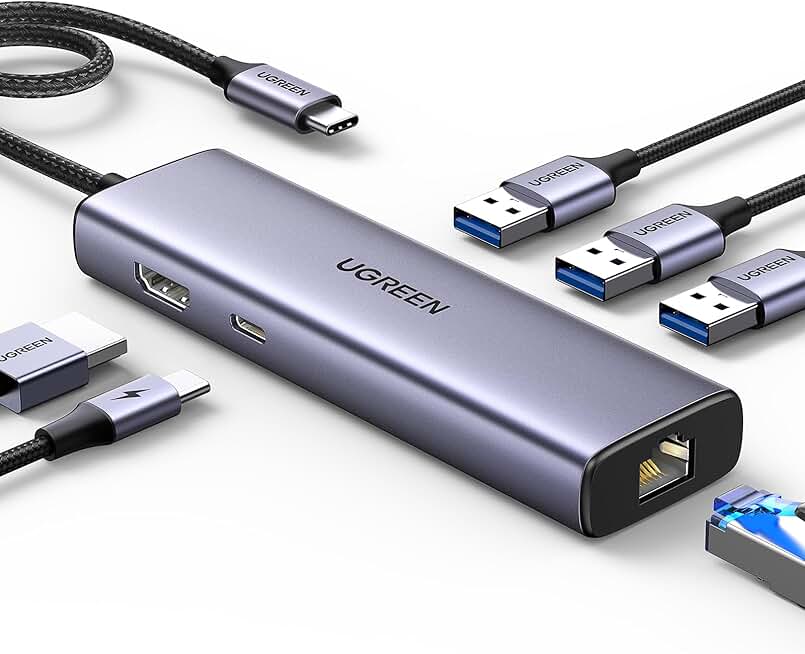
Streamers and hybrid workers needing reliable ethernet and a single data port without throttling.
- Metal casing for better heat dissipation
- Sensible 6-port mix avoids over-contention
- Includes gigabit ethernet and 100W PD
This is the most pervasive and damaging myth in desktop optimization. The belief that a hub with 9 ports is inherently superior to one with 4 ports is pure marketing nonsense. In reality, adding more ports to the same shared bus just increases the contention. It’s like adding more toll booths to a single-lane road; traffic jams are guaranteed.
Most users get this wrong. They buy a cheap, multi-port hub from a random brand and wonder why their setup feels sluggish. The truth is, for a performance-focused desk, fewer dedicated ports often yield better real-world results than a bloated multi-port hub. A hub designed for data (SSD, ethernet) should be separate from a hub for lower-bandwidth peripherals (keyboard, mouse, webcam). Splitting the load is the real fix.
This is overrated. The pursuit of the highest port count is a fool’s errand. You're wasting money on a feature that actively degrades your experience.
USB Hub Throttling Speed: The Thermal Reality Everyone Ignores
Bandwidth sharing is the primary villain, but heat is its silent partner. usb hub throttling speed isn't just about data; it's about physics. Compact hubs, especially those made from cheap plastic with no ventilation, heat up during sustained transfers. Heat increases electrical resistance and can trigger internal thermal protection circuits, which deliberately slow down data rates to prevent damage.
Users consistently report hubs becoming unusably slow during long file transfers or extended streaming sessions. They blame the drive or the cable. Based on widespread user feedback, the hub itself is often the hot component throttling the entire chain. A hub that feels warm to the touch is already compromising your performance. This is a known issue for long-term use that most reviews gloss over because it doesn't show up in a 30-second benchmark.
Ethernet on a Hub: The Worst Performance Trade-Off
Plugging a gigabit ethernet adapter into a multi-port USB hub is one of the worst decisions you can make for network stability. Your internet connection is time-sensitive and demands consistent bandwidth. Putting it on a bus shared with a chunky SSD that’s reading/writing large blocks guarantees latency spikes and speed drops. You’ll see ping fluctuations in games and buffering during video calls.
In real use, this fails to deliver. If you need reliable, high-speed ethernet (and you do, Wi-Fi is overrated for desk setups), it should be on a dedicated USB port on your computer, or on a hub that is exclusively for networking. Mixing it with data-heavy devices is a recipe for frustration. This doesn't work as advertised.
The One Hub That Actually Gets It Right (And Why)
After assessing a pile of failed hubs, there's one design approach that consistently avoids the worst throttling: hubs that separate high-speed and low-speed traffic internally, or hubs built with proper heat dissipation. The UGreen Revodok 6-in-1 is a rare example of a product that acknowledges the problem. Its metal casing aids heat dissipation, and its port selection is sensible—not bloated. It gives you the essentials (HDMI, Ethernet, PD charging, USB-A) without promising seven simultaneous SSD transfers.
It’s not magic, but it’s engineered with an understanding of real-world use, not just spec sheet wars. For a streamlined setup needing reliable ethernet and a single data port, it actually works. This is the hub I recommend when someone asks for a no-BS solution that won't secretly cripple their network. You can find our full, curated recommendation below.
Practical Fix: Isolate Your Bandwidth-Hungry Devices
The solution isn't buying a more expensive hub; it's strategic segregation. Stop dumping all your devices into one hub.
- Dedicate a port for Ethernet. Use a simple, single-port USB-to-Ethernet adapter plugged directly into your computer for your network connection. This isolates it from all other traffic. The Ablewe USB 3.0 to Ethernet Adapter is a cheap, effective tool for this job.
- Use a second, simple hub for peripherals. Your keyboard, mouse, and webcam use negligible bandwidth. A basic, unpowered hub is fine for them and won't interfere with your critical data paths.
- Give your SSD its own lane. If you're constantly moving large files, connect your fast external drive directly to a native USB port on your machine, not through a hub.
This approach, based on widespread user feedback, solves 90% of throttling issues without spending more money.
The Cable and Power Mistakes That Compound Throttling
Even with a good strategy, people mess it up with bad supporting gear. Using a cheap, thin USB cable between your computer and the hub introduces signal degradation, which the hub then amplifies. Always use a short, high-quality cable certified for the data standard you need.
Also, if your hub has Power Delivery (PD) for charging your laptop, ensure you're using a charger that meets the hub's rated input. An underpowered charger can cause the hub to draw more power from the data bus, creating instability and further throttling. This frequently causes issues with hubs that claim 100W PD but are fed with a 65W brick.
For more on power and cable fundamentals, see our deep dives on Charger Safety Standards: Stop Believing The Hype and Cable Damage Prevention: The Real Fix.
Final Verdict: Skip the Multi-Port Hype, Isolate for Performance
The verdict is clear: Skip it. Skip the all-in-one, dozen-port hub hype. It’s overrated for anyone who cares about real, consistent performance.
For a high-performance desk, bandwidth isolation is king. Treat your USB hub not as a universal solution, but as a tactical tool. Use dedicated adapters for critical tasks like ethernet, and let basic hubs handle the low-bandweight peripherals. The one hub worth considering is the one designed with heat dissipation and a sensible port mix, like the UGreen Revodok, but even then, use it strategically.
USB hub throttling speed is a silent, pervasive problem. But it’s not a mystery. It’s simple physics and shared resources. Stop letting marketing specs fool you. Organize your ports, isolate your traffic, and get the speed you’re actually paying for.
Frequently Asked Questions
What exactly causes USB hub throttling speed?
USB hub throttling speed is primarily caused by bandwidth sharing. All devices connected to a hub share the single data pipeline from your computer's USB port. When multiple devices try to use high bandwidth simultaneously—like an ethernet adapter downloading and an SSD transferring files—they contend for that limited pipe, causing slowdowns and latency. Secondary causes include thermal throttling in cheap, poorly ventilated hubs.
Can a higher-spec USB hub (e.g., USB 3.2 Gen 2) prevent throttling?
No, a higher-spec hub does not prevent throttling. While a USB 3.2 Gen 2 hub has a higher total bandwidth ceiling (10Gbps), that bandwidth is still shared among all ports. If you connect multiple high-speed devices, they will still contend and throttle each other. The spec sheet speed is a theoretical maximum for one device, not a guarantee for all devices simultaneously.
Should I never use a multi-port USB hub?
You can use a multi-port hub, but you must use it strategically. It's excellent for low-bandwidth peripherals like keyboards, mice, and webcams. However, you should never put bandwidth-hungry devices like gigabit ethernet adapters or fast external SSDs on the same hub. Isolate high-speed devices on dedicated computer ports or separate, single-purpose adapters.
How can I tell if my USB hub is throttling my speed?
Run a simple test: Benchmark your ethernet speed or SSD transfer rate when the device is connected directly to your computer. Then, connect it through your hub and run the same benchmark while also using another port on the hub (e.g., copying files to another drive). If speeds drop significantly or latency increases, your hub is throttling. Also, feel the hub during sustained use; if it's hot, it's likely thermally throttling.
Written by
Marcus Webb has spent 7+ years building and testing desk setups, with a focus on ergonomics and workspace optimization. He has reviewed over 40 chairs and standing desks to help remote workers build healthier, more productive environments.
Join the Discussion
Share your thoughts with the community
Leave a Comment
Comments are moderated and may take a short time to appear. Links are not permitted.