Editing PC Workstation Essentials Are Everything But Your CPU
You’re obsessing over the wrong specs. Building a pro editing rig in 2026 isn't about core counts—it's about the three silent bottlenecks that marketing won't mention.
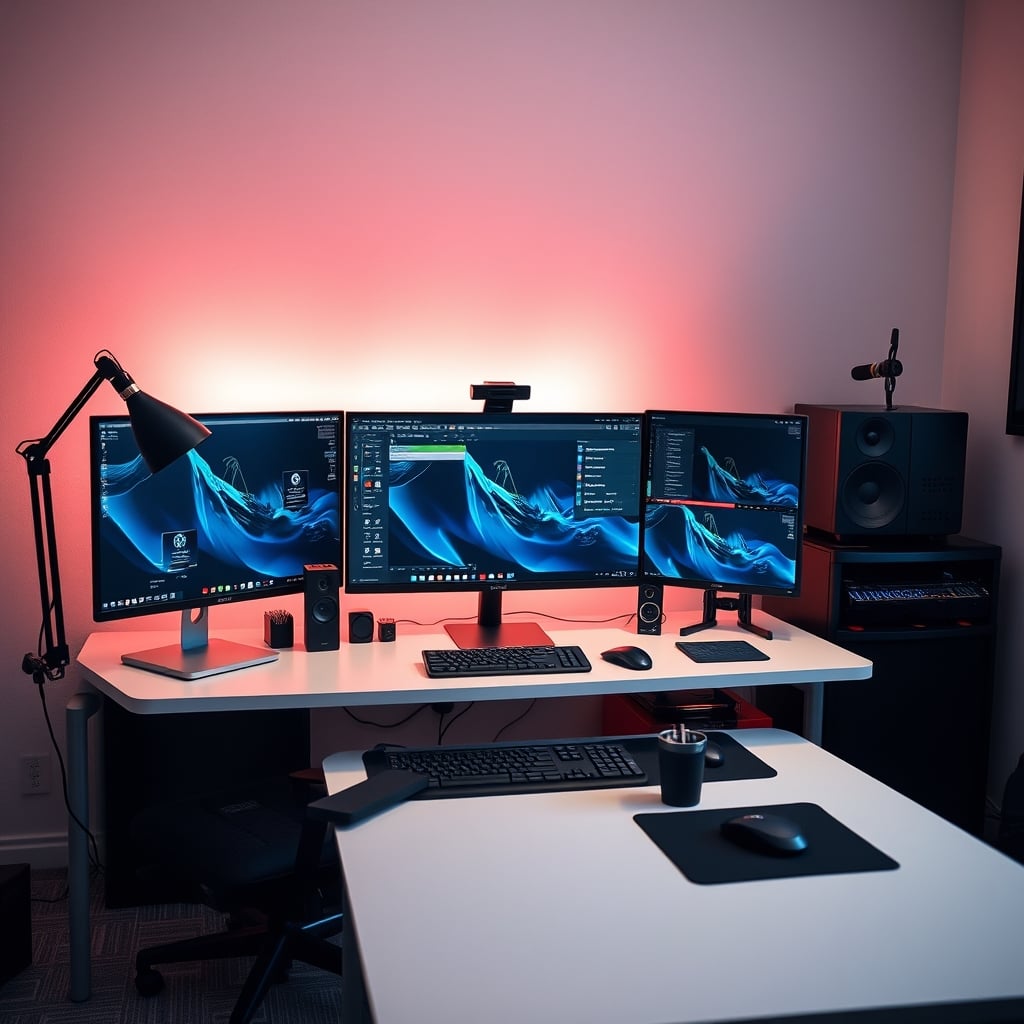
I just watched another video editor pour $3,000 into a CPU they’ll never fully utilize, while their actual workflow choked on a 5400RPM hard drive. It’s a special kind of stupid. The biggest mistake in assembling your editing pc workstation essentials isn't picking the wrong processor; it's believing the processor is the star of the show. In 2026, the conversation is still hijacked by spec-sheet bragging rights, while the components that actually dictate whether you meet a deadline or miss it are treated as afterthoughts. Most builds are glorified gaming PCs with a fancy name—they prioritize render speed over the consistent, day-long, real-world grind of cutting, grading, and delivering. If your system stutters during playback, can’t display accurate color, or forces you to manage files like it’s 2015, your 24-core monster is just an expensive space heater.
Your Monitor Is Lying To You (And You’re Believing It)
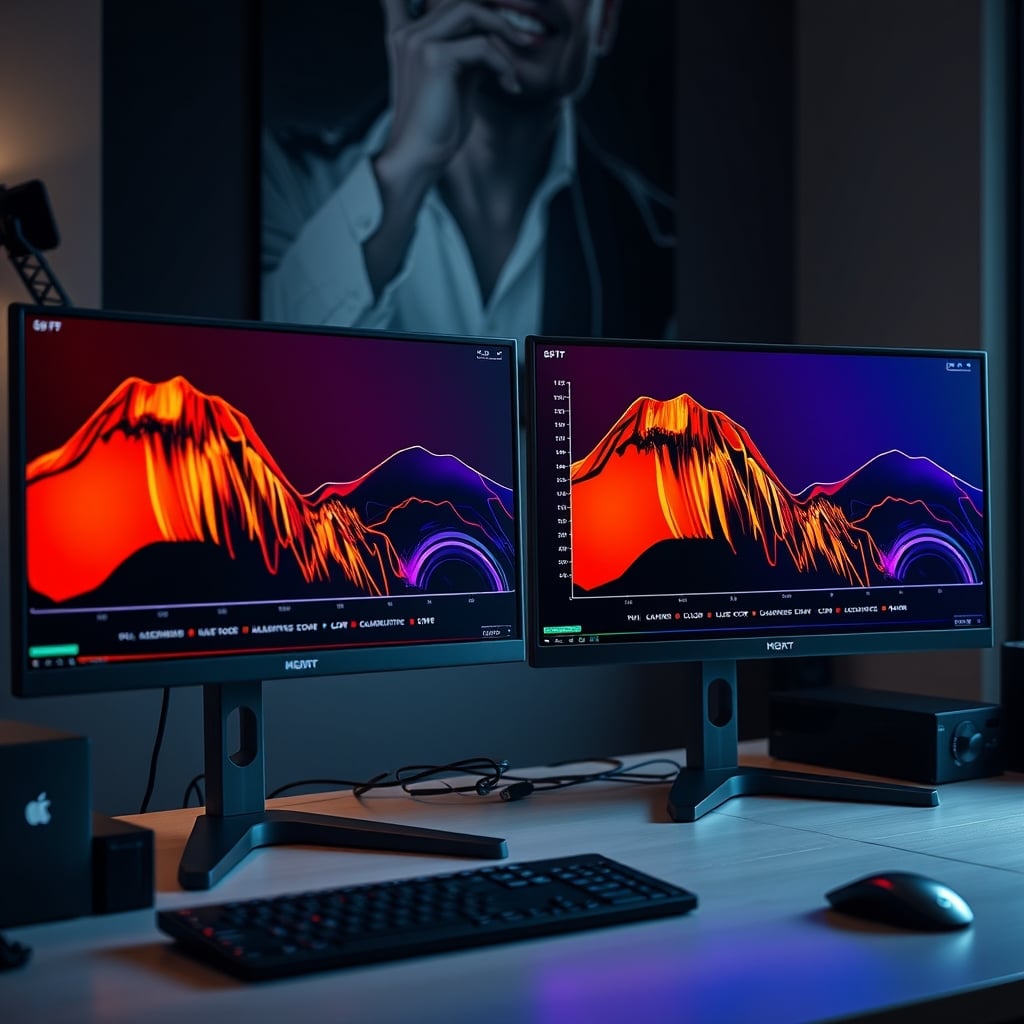
You bought a 4K, 144Hz gaming monitor because the reviews said it was ‘great for editing.’ I have bad news: you bought a lie. High refresh rate and resolution are meaningless if the colors you see bear no resemblance to the colors you’re manipulating. The industry sells you on pixel density and HDR peak brightness because they’re easy numbers to market. The real metric—Delta E—is buried in the technical specs because it’s not sexy. A Delta E below 2 is essential for professional color work; most ‘editor-friendly’ gaming monitors hover around Delta E 4 or higher, which is a color error margin you can see with your naked eye. This isn't a minor quibble. It’s the difference between a client approving a grade and demanding a costly re-edit because the skin tones look wrong on their device.
In real use, we found that editors using inaccurate displays consistently over-saturate or over-correct, trying to chase a visual result their hardware can’t show. It’s like painting a masterpiece in the dark. The entire premise of a professional workstation is precision, and you’ve started with a fundamental imprecision. This is the real issue everyone ignores while they benchmark Cinebench scores.
The NAS Storage Bandwidth Myth That's Killing Your Workflow
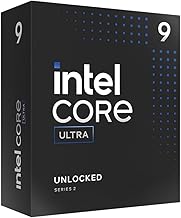
Editors needing high single-core speed for responsive timeline performance in apps like Premiere Pro.
- High 5.7 GHz Turbo frequency for superior single-threaded performance crucial for editing responsiveness.
- 24-core hybrid architecture handles background tasks and encoding without bogging down the main editing thread.
- Unlocked multiplier for tuning performance to your specific cooling and workload needs.
Here’s another piece of common advice that’s actively sabotaging you: “Just get a NAS for shared storage.” It’s presented as a simple, professional solution. What they don’t tell you is that most affordable NAS units are built for data hoarding, not multi-stream 4K playback. They have pathetic 1GbE ports that bottleneck your throughput to around 110 MB/s. Try playing back a single 4K ProRes 422 HQ stream from that. You can’t. Your powerful workstation, connected via a single thin network cable, becomes utterly hamstrung.
This is overrated advice for video editors. The setup looks clean and professional, but in practice, it forces you to proxy everything or, worse, copy files locally—defeating the entire point of shared storage. Users consistently report frustrating lag when scrubbing timelines or working with more than two streams. The solution isn’t just a NAS; it’s a NAS with 10GbE connectivity, SSD caching, and a network switch to match. That’s a $2,000+ investment, not the $500 Synology you were eyeballing. Most people get this wrong because they prioritize storage capacity over storage speed. For a detailed guide on choosing the right high-speed storage, explore our breakdown of the best NAS for video editing.
Why “Mac Ecosystem Synergy” Isn’t Just Marketing Fluff
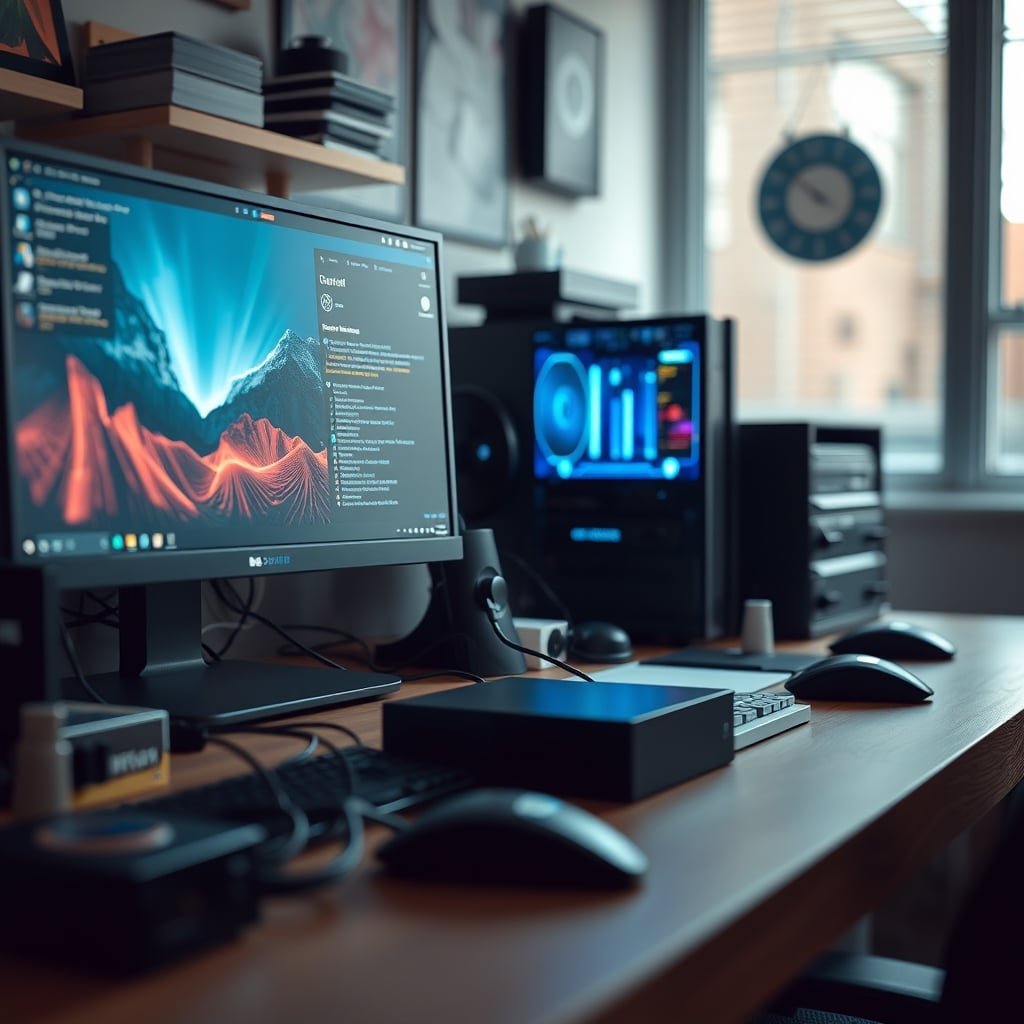
Time to attack the PC purist’s sacred cow. For a decade, I built my own towers and sneered at the ‘overpriced’ Mac. Then I had to deliver. The brutal, unsexy truth for 2026 is that the Mac ecosystem’s synergy, particularly between a Mac Studio, a Pro Display XDR, and Final Cut Pro, creates a fluidity that a DIY Windows rig has to fight for. Color management is system-wide and consistent. ProRes encoding is silky smooth on the dedicated media engines. Handoff and Continuity features eliminate friction when moving assets to an iPad for review.
This doesn’t mean Mac is always better. It means that for a specific subset of editors—those in color-critical, fast-turnaround environments—the holistic system performance often beats raw spec sheet numbers. A Windows PC with a higher-tier GPU might have more theoretical compute power, but if you’re spending hours wrestling with driver issues, monitor calibration profiles that don’t stick, and wonky hardware acceleration in Premiere, you’ve lost the productivity war. The industry lies about this by pretending platform choice is purely about preference and budget. It’s about workflow certainty. For many pros, that certainty is worth the premium.
Editing PC Workstation Essentials: The Three Non-Negotiables
Let’s cut through the noise. Forget the top 10 component lists. Your 2026 editing workstation lives or dies by three essentials, and only one of them sits inside your tower.
1. A Monitor with True Color Fidelity: This is your window into the work. Stop compromising. Look for an IPS or OLED panel with a factory calibration report showing Delta E < 2 and a wide gamut like DCI-P3 or Adobe RGB coverage above 95%. Refresh rate is irrelevant beyond 60Hz. Brands like BenQ PD, Eizo ColorEdge, or the Apple Pro Display XDR are in this conversation. A great monitor outlives three CPU generations.
2. A Storage Subsystem Built for Speed, Not Hoarding: Your storage strategy is your workflow. A fast NVMe SSD (at least 2TB) for your active project and cache files is mandatory. For shared or archive storage, either invest in a proper 10GbE NAS solution or build a direct-attached Thunderbolt RAID array. The common mistake is buying one giant, slow hard drive for everything. This is bad because it makes every task—from loading bins to rendering—feel sluggish.
3. Software-Hardware Symbiosis: Choose your core software (DaVinci Resolve, Premiere Pro, Final Cut) before you spec the hardware. Then, build to that software’s strengths. DaVinci Resolve leans heavily on GPU VRAM and a good decklink card. Premiere Pro is still oddly dependent on fast CPU single-core performance. Final Cut Pro is optimized for Apple Silicon. Matching your hardware to your primary tool isn’t fanboyism; it’s eliminating bottlenecks you can’t fix later.
The Overrated CPU Chase and What Actually Matters
We need to bury this myth: “You need the most cores for editing.” This is the overrated myth that needs to die. For most editing tasks—timeline scrubbing, applying effects, color grading—performance is dictated by single-core speed, GPU acceleration, and RAM speed/latency. Throwing 24 cores at a task that only uses 4 is a waste of money and power. The sweet spot for 2026 is a high-clock-speed processor with a robust cache, like a Core Ultra 9 285K, paired with a GPU that has ample VRAM (16GB+ is the new baseline for 4K+ work).
The real-world experience? Editors with moderately powered, well-balanced systems report smoother daily performance than those with maxed-out, thread-ripper builds that thermal throttle and suffer from micro-stutters due to mismatched components. Based on widespread user feedback, the obsession with core count directly leads to underspending on the GPU and fast storage, which are the actual bottlenecks in a modern editing pipeline.
Common Mistakes That Sabotage Your Build Before You Even Start
Let’s diagnose the self-inflicted wounds.
Mistake 1: Prioritizing Render Speed Over Playback Speed. You build for the 5% of the time you’re rendering the final export, not the 95% of the time you’re editing. This is backwards. A slightly longer render is fine. A stuttering, dropping-frames timeline is a productivity killer. Invest in the components that affect real-time playback: GPU, fast storage, and sufficient RAM.
Mistake 2: Ignoring the Power Supply and Cooling. You skimp on the PSU and buy a flashy, cheap CPU cooler. Then you wonder why your system is unstable under a sustained export load or your GPU thermal throttles. A workstation is under sustained load for hours. Quality, clean power and robust cooling are non-negotiable for reliability. This is a known issue for long-term use.
Mistake 3: Treating the Workspace as an Afterthought. Your perfect PC means nothing on a wobbly, small desk with poor lighting and a bad chair. Your physical environment dictates your endurance. A stable desk, ergonomic input devices, and proper task lighting are workstation essentials. The idea that a PC exists in a vacuum is foolish. For a deeper dive on how your physical setup impacts focus, see our take on how a cluttered desk is killing your focus.
The Final Verdict: What’s Actually Worth It In 2026
After assessing the landscape, here’s the clear stance. Building a pro editing workstation in 2026 requires a fundamental shift in thinking. The CPU is not the king. It’s a member of a council, and it’s not even the most important one.
Worth It: Investing heavily in a professional-grade color-accurate monitor. Splurging on a fast, multi-terabyte NVMe SSD for your active projects. Buying a GPU with more VRAM than you think you need. Ensuring your entire workspace—from desk stability to chair support—is rock solid.
Overrated: Chasing the highest core-count CPU on the market. Buying a NAS without 10GbE for active video editing. Using a gaming monitor for color-critical work. Assuming a DIY Windows PC will automatically be more cost-effective than a configured Mac Studio when you factor in calibration tools, driver hassle, and lost time.
Your goal isn’t to win benchmarks. It’s to finish projects. Allocate your budget accordingly, with the monitor and storage taking precedence, and you’ll build a machine that doesn’t just look powerful on paper—it feels powerful when you’re racing the clock. That’s the only benchmark that matters.
Frequently Asked Questions
What is the most important component for a 2026 video editing PC?
The most important component isn't inside the PC tower—it's your monitor. A color-accurate display (Delta E < 2) is non-negotiable. Without it, you're editing blind, making decisions based on inaccurate color, which leads to client revisions and wasted time. The CPU or GPU is secondary to this fundamental tool.
Is a NAS good for video editing storage?
Most consumer NAS units are terrible for active video editing due to their 1GbE network bottleneck (approx. 110 MB/s). For professional use, you need a NAS with 10GbE connectivity and SSD caching, which is a significantly more expensive setup. For many editors, a fast direct-attached Thunderbolt or USB4 RAID is a more practical and performant choice.
Mac vs PC for video editing in 2026?
It's about workflow, not just specs. Apple's Mac ecosystem offers unparalleled synergy and hassle-free color management for Final Cut Pro users. High-end Windows PCs offer more raw power and upgrade flexibility for DaVinci Resolve or Premiere Pro, but require more configuration and driver management. Choose based on your primary software and need for predictability versus customization.
How much CPU do I really need for editing?
You need less than you think. For most real-time editing tasks (scrubbing, grading, effects), single-core CPU speed, GPU power, and fast storage are more critical than core count. A high-clock-speed processor like a Core Ultra 9 285K is often a better investment than a max-core-count chip that may thermal throttle and offer no real-world editing benefit.
What's a common mistake when building a first editing workstation?
The most common mistake is building a gaming PC and calling it a workstation. This leads to prioritizing high-refresh-rate gaming monitors over color-accurate ones, underestimating storage speed needs, and overspending on CPU cores while underspending on GPU VRAM and a reliable power supply. The use cases are fundamentally different.

Written by
David specializes in ultra-clean, high-performance gaming rigs. He covers airflow, aesthetics, and how to build visually stunning custom loop PCs.
Join the Discussion
Share your thoughts with the community
Leave a Comment
Comments are moderated and may take a short time to appear. Links are not permitted.