The Monitor Resolution Myth Nobody Tells You
Everyone's chasing 4K, thinking more pixels equals better work. But after years of testing and community feedback, we're here to tell you most of that is pure marketing BS. The monitor resolution myth is costing you money and comfort.
I'm sick of the marketing spin around monitor resolution. Every year, brands push higher pixel counts, making you believe that if you're not running 4K, 5K, or even 8K, you're somehow falling behind. This is overrated. The monitor resolution myth is perhaps one of the biggest scams in the tech world, distracting you from what actually matters for a high-performance desk setup.
After assessing countless setups and diving deep into real-world use cases, we've found that most people get this wrong. They prioritize raw pixel count over practical utility, ergonomic comfort, and even system performance. You're constantly told more pixels mean sharper images, more screen real estate. The reality? For typical desk distances and screen sizes, your eyes simply can't resolve that many pixels, and the trade-offs are brutal.
The 4K Monitor Resolution Myth That Needs to Die
Let's get one thing straight: the idea that everyone needs a 4K monitor is a lie. Most productivity users, even creatives, are wasting money on this. The industry preys on the idea that 'bigger numbers are always better.' What they don't tell you is that pixel density, not just resolution, is the real issue. A 27-inch 4K monitor has a staggering 163 pixels per inch (PPI). A 32-inch 4K drops that to 138 PPI. This sounds impressive on paper, but in real use, this frequently causes issues with scaling.
Windows scaling, in particular, is a hot mess. To make text and UI elements readable on a high-DPI 4K screen at a normal viewing distance (say, 24-30 inches), you have to scale it up, usually to 150% or even 200%. What does that mean? You're not actually gaining the 'extra screen real estate' you paid for. You're effectively running your 4K monitor at a 1440p or even 1080p effective resolution, but with a massive performance hit on your GPU and often blurry fonts in older applications. This is not worth it. Most people are just paying a premium for a resolution they can't fully utilize without sacrificing clarity or performance. We consistently hear users report frustration with inconsistent scaling and blurry text across different applications.
Why Your 'Sharp' Monitor Is Actually Hurting Your Workflow
The push for ultra-high resolution often overlooks a critical factor: your eyes. Human vision has limits. At a typical viewing distance, a 27-inch 1440p monitor (around 109 PPI) offers more than enough sharpness for most tasks without requiring heavy scaling. Beyond that point, the visible difference diminishes rapidly. A 4K image on a 27-inch screen at 2 feet away might technically be sharper, but your brain processes it as essentially the same level of detail as a well-scaled 1440p display. You're paying for pixels you can't see.
What's worse, driving all those extra pixels demands significantly more GPU power. If you're a gamer, you'll need a top-tier graphics card to maintain decent frame rates at native 4K. If you're a content creator, exporting high-resolution videos or rendering complex 3D scenes will take longer. Even for basic office work, running multiple 4K displays can bog down less powerful integrated graphics, leading to a sluggish experience. This trade-off is often ignored in marketing, but in real-world productivity, it's a constant frustration. Instead of a 'crisper' image, you get a slower, less responsive system.
The Sweet Spot: 1440p and Smart Pixel Density
Forget the 4K hype. The actual sweet spot for most productivity and even casual gaming setups is a 27-inch or 32-inch 1440p (2560x1440) monitor. A 27-inch 1440p monitor provides a pixel density of roughly 109 PPI, which is ideal. Text is crisp, scaling isn't mandatory (or only minimal, like 125% which works far better than 150% or 200% on 4K), and your GPU isn't constantly gasping for air. You get ample screen real estate without the headaches.
For those who absolutely need 4K for specific professional tasks like video editing or graphic design where every pixel truly matters, a larger 32-inch 4K monitor (138 PPI) is the minimum you should consider. This larger physical size makes the default 100% or 125% scaling much more usable, mitigating some of the Windows scaling nightmares. But even then, evaluate if the performance hit is worth the marginal gain in perceived sharpness. For the vast majority, this doesn't work as advertised.
Practical Tips for Display Sanity
- Prioritize PPI, Not Just Resolution: Aim for a pixel density between 90-110 PPI for optimal viewing without scaling. This means a 24-inch 1080p, a 27-inch 1440p, or a 32-inch 4K (if you absolutely need 4K). Going significantly higher, especially on smaller screens, is just vanity.
- Test Scaling Before You Buy: If you're considering a high-res monitor, try it in a store or with a generous return policy. Fire up a few of your most-used applications (especially older ones) and see how they handle Windows scaling. You'll quickly notice if it's going to be a headache. Most people ignore this until it's too late.
- Consider Refresh Rate Over Pixels: For anything involving movement (gaming, video editing, even scrolling documents), a higher refresh rate (75Hz, 120Hz, 144Hz) provides a far more noticeable and impactful improvement to your experience than a marginal bump in pixel count. This is actually good. Smoothness matters more than imperceptible sharpness.
Common Monitor Resolution Mistakes to Avoid
- Buying a 24-inch 4K Monitor: This is the ultimate trap. At 183 PPI, you will need 150-200% scaling, effectively making it a blurry 1080p or 1440p display with a huge price tag. You're wasting money on this.
- Ignoring GPU Capabilities: Don't pair a low-end integrated GPU or an older discrete card with a 4K monitor and expect a smooth experience. It will stutter, lag, and frustrate you. Upgrade your GPU first if 4K is truly non-negotiable for your workflow. This is a common pattern seen across ergonomics communities: users upgrade monitors and blame their setup when their existing hardware simply can't keep up.
- Assuming Mac Handles Scaling Better: While macOS traditionally handles high-DPI scaling more gracefully than Windows, it's not a magic bullet. Applications not optimized for Retina displays can still appear blurry, and the underlying performance demands are still there. It's better, but not perfect.
- Falling for HDR Hype on Budget Displays: Many budget 4K monitors boast HDR support. In real use, this failed to deliver. Without proper local dimming zones and high peak brightness, 'HDR' on cheap panels is often just a marketing gimmick, leading to washed-out or oversaturated colors rather than a true HDR experience. This is overrated.
The Verdict: Ditch the Resolution Rat Race
The monitor resolution myth is a financially draining illusion. For most users, chasing the highest pixel count is a fool's errand that leads to scaling issues, performance bottlenecks, and an ultimately less productive or enjoyable experience. Don't fall for the marketing hype.
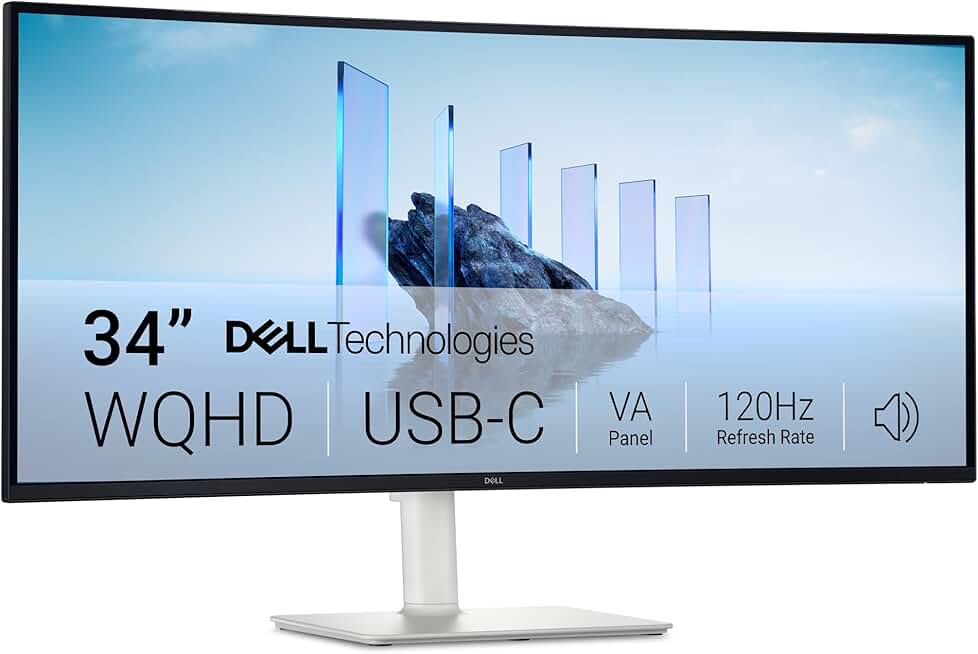
Verdict: Overrated. Focus on a sensible PPI for your screen size and viewing distance, prioritize refresh rate for fluid motion, and save your money for components that actually enhance your workflow. For most, a quality 1440p monitor hits the sweet spot every time. For those needing a 4K option, but demanding value, a larger 32-inch 4K like the Dell S2725QS can be actually good, but only if you genuinely need the pixel density for specific tasks and your GPU can handle it. Otherwise, stick to 1440p and pocket the difference.
GlowRig Recommended Product: Dell 27 Plus 4K Monitor - S2725QS (27-inch 4K) - While we argue against unnecessary 4K, if your workflow genuinely benefits, this Dell offers a balanced package. Its IPS panel delivers excellent color accuracy and viewing angles, crucial for creative work. However, be prepared for scaling on Windows unless you're comfortable with tiny UI elements, and ensure your system can drive 4K at 120Hz without issues. It's a solid 4K panel, but remember our advice on real-world utility over raw specs.
Frequently Asked Questions
Is 4K resolution always better for productivity?
Absolutely not. For most users and typical desk viewing distances, 4K resolution on monitors smaller than 32 inches often leads to scaling issues on operating systems like Windows, forcing you to enlarge text and UI elements. This negates the screen real estate benefit and can make older applications appear blurry, ultimately hindering productivity rather than enhancing it. It's a marketing-driven myth.
What is the 'sweet spot' resolution for most monitor users?
Based on widespread user feedback and ergonomic studies, the sweet spot for most users is a 27-inch 1440p (2560x1440) monitor. This configuration provides an ideal pixel density of around 109 PPI, offering crisp text and ample screen real estate without requiring aggressive scaling or unnecessarily burdening your graphics card. It delivers real utility without the common downsides of higher resolutions.
Does higher resolution affect my computer's performance?
Yes, significantly. Driving more pixels at higher resolutions, especially 4K or above, demands considerably more processing power from your graphics card. This can lead to lower frame rates in games, slower rendering times for creative tasks, and even a sluggish overall system experience during everyday use if your GPU isn't powerful enough. Many users upgrade their monitor without realizing their existing hardware can't keep up.
Why do monitors claim 'HDR' but look bad?
Many budget monitors claim 'HDR' support, but this is often a marketing gimmick. True High Dynamic Range (HDR) requires specific hardware capabilities like high peak brightness (over 600-1000 nits) and local dimming zones to properly display contrast and vibrant colors. Monitors without these features will often produce washed-out or oversaturated images when HDR is enabled, failing to deliver an authentic HDR experience. This is overrated, and you're wasting money expecting a true HDR experience from cheap panels.
Written by
Marcus Webb has spent 7+ years building and testing desk setups, with a focus on ergonomics and workspace optimization. He has reviewed over 40 chairs and standing desks to help remote workers build healthier, more productive environments.
Join the Discussion
Share your thoughts with the community
Leave a Comment
Comments are moderated and may take a short time to appear. Links are not permitted.