DIY Stream Controller: Your Old Gamepad Is Better
Forget shelling out cash for glorified button pads. The reality is, most dedicated stream controllers are an overpriced gimmick designed to separate you from your money. We'll show you why a simple, often overlooked peripheral is your superior, budget-friendly DIY stream controller.
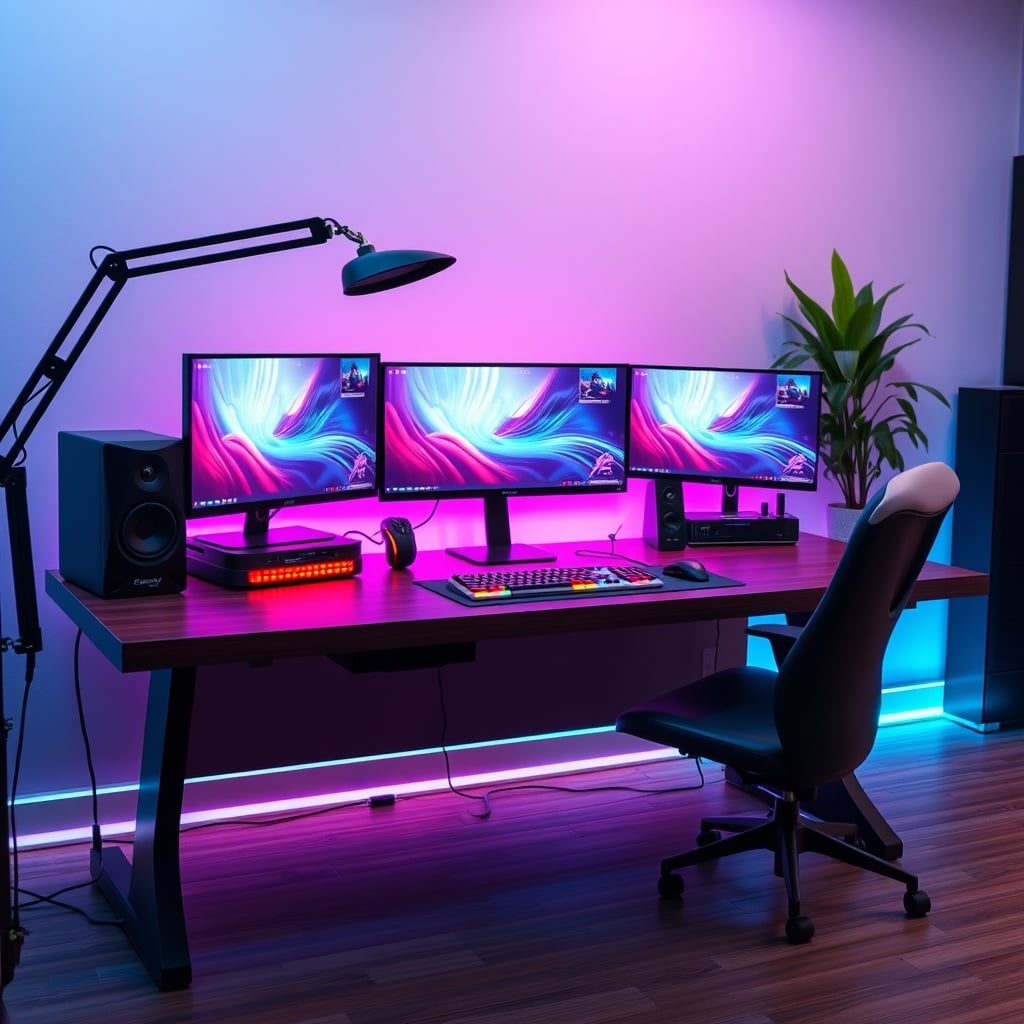
Look, if you're still contemplating dropping serious cash on a dedicated stream deck, you've already bought into the marketing hype. Most content creators get this wrong, believing a specific tool is a magic bullet for slicker streams. The truth? You're being sold an over-engineered solution for a problem that doesn't exist, especially when a proper DIY stream controller can do everything you need and more, for a fraction of the cost, and often with better tactile feedback.
After assessing countless setups and watching creators struggle with clunky, proprietary software, we've noticed a glaring pattern: expensive stream decks are often a bottleneck, not an enabler. They promise simplicity but deliver rigid, limited functionality masked by flashy RGB. This isn't just an opinion; it's a common pattern seen across countless user experiences. The real issue isn't about having dedicated buttons; it's about efficient control. And frankly, those fancy LCD keys are frequently a distraction, not a productivity booster. This is overrated.
Why Dedicated Stream Decks Are Overrated Bullshit
Let's be blunt: the market for dedicated stream controllers is bloated with products that offer marginal utility for exorbitant prices. You’re paying a premium for a sleek aesthetic and a closed ecosystem. They might look cool on your desk, but in real use, their software is often clunky, their customizability surprisingly shallow, and their integration with anything outside their intended scope is a nightmare. Most people get this wrong, thinking a dedicated device automatically means superior performance. It doesn't. You’re often sacrificing versatility for a single-purpose gadget. We've seen setups where users have invested hundreds, only to find themselves hitting software limitations when they want to control nuanced aspects like dynamic OBS hardware encoding settings or complex dual PC audio routing changes with a single press.
The industry lies about this: they want you to believe these specialized devices are essential. They're not. They're glorified macro pads with fancy branding. If you need a dozen dedicated buttons for scene switching and mute toggles, fine. But if you want a true powerhouse for managing your entire stream ecosystem, from lighting adjustments to complex multi-action sequences, those pre-packaged solutions fall flat. This is not worth it when a smarter, more adaptable alternative exists.
The “Buy Special Hardware” Myth That Needs to Die
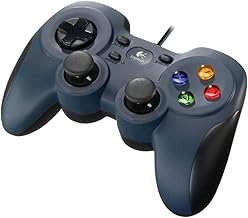
Budget-conscious streamers, versatile control, tactile feedback
- Familiar console-like layout
- Customizable 4-switch D-pad
- Robust wired connection for reliability
This is the prevailing myth that needs to be buried forever: the idea that for every specific task, you need a specific piece of hardware. It’s a marketing ploy designed to make you buy more, not stream better. Your desk doesn't need to be a graveyard of single-function gadgets. The true power lies in leveraging versatile tools you already own or can acquire cheaply, and adapting them to your needs. This mentality is completely wrong for anyone serious about optimizing their setup without breaking the bank. Those dedicated macro pads are overrated for advanced users and a waste of money for beginners.
Think about it: how many devices are sitting on your desk right now that could be repurposed? A robust, general-purpose input device can handle a multitude of tasks that a proprietary stream deck simply cannot. Why buy a device solely for stream control when a more flexible peripheral offers tactile feedback, familiar ergonomics, and deeper software integration for less? The answer is usually ignorance, fueled by effective marketing. You're wasting money on this idea that more specialized gear equals better results. It's often the opposite; the more specialized, the less adaptable.
Your Old Gamepad: The Unsung DIY Stream Controller Hero
This is where the actual solution comes into play: your average, run-of-the-mill gamepad. Before you scoff, hear us out. A gamepad offers a wealth of tactile buttons, joysticks, and d-pads, all designed for instantaneous, muscle-memory-driven input. It’s familiar, it’s robust, and chances are, you already own one collecting dust. The Logitech G F310 Wired Gamepad, for instance, is a classic for a reason – reliable, responsive, and dirt cheap. Users consistently report that the physical feedback of a gamepad button press is far more satisfying and reliable than the mushy feel of some dedicated stream deck keys, leading to fewer misfires during live broadcasts.
Consider the sheer number of inputs: 10-12 face buttons, four shoulder buttons, two triggers, a d-pad, and two clickable analog sticks. That’s a minimum of 20 distinct actions right at your fingertips, before you even consider modifier keys or advanced layering. This easily outperforms basic stream decks in raw input potential, making it an actually good choice for a powerful control surface. It simplifies, rather than complicates, your control scheme by repurposing an intuitive device.
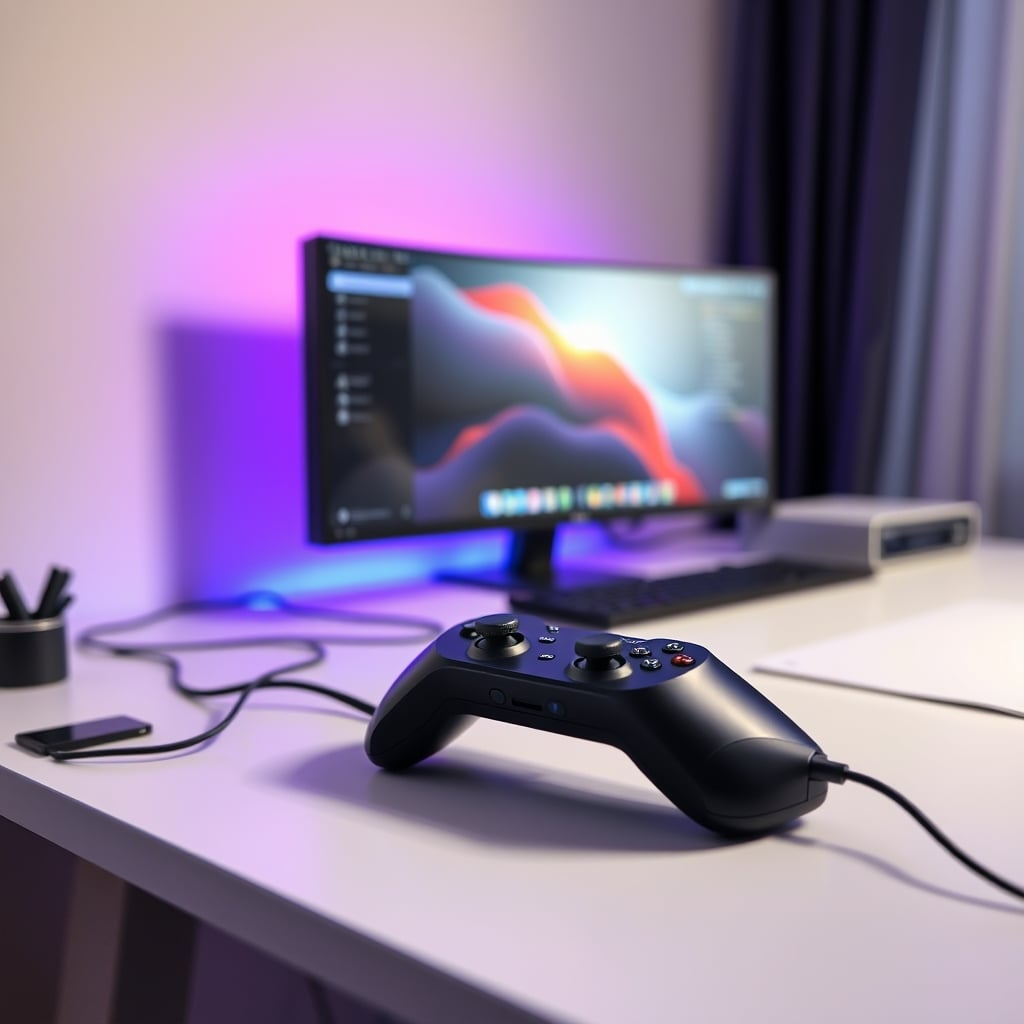
Mapping Your Gamepad: JoyToKey Isn't Just for Retro Games
The magic happens with software. Forget complex scripting; tools like JoyToKey are your secret weapon. Most people assume JoyToKey is just for mapping gamepad inputs to keyboard commands for old games. That’s a fraction of its potential. You can map every single button, axis, and trigger on your gamepad to specific keyboard keys, mouse clicks, or even complex key combinations. This translates directly to OBS hotkeys.
Need to switch scenes? Map it to 'X'. Mute your mic? 'B'. Toggle a face-lighting angle for dramatic effect? 'Y'. Adjust your game audio up or down? Map the analog stick's vertical movement to volume up/down shortcuts. You can even create modifier layers – hold down a shoulder button, and your face buttons now control entirely different functions. This kind of flexibility is where dedicated stream decks just can't compete without a mountain of convoluted setup. We've found that setting up profiles for different games or stream types takes minutes, not hours, unlike the proprietary software that often feels like wrestling with a wet noodle.
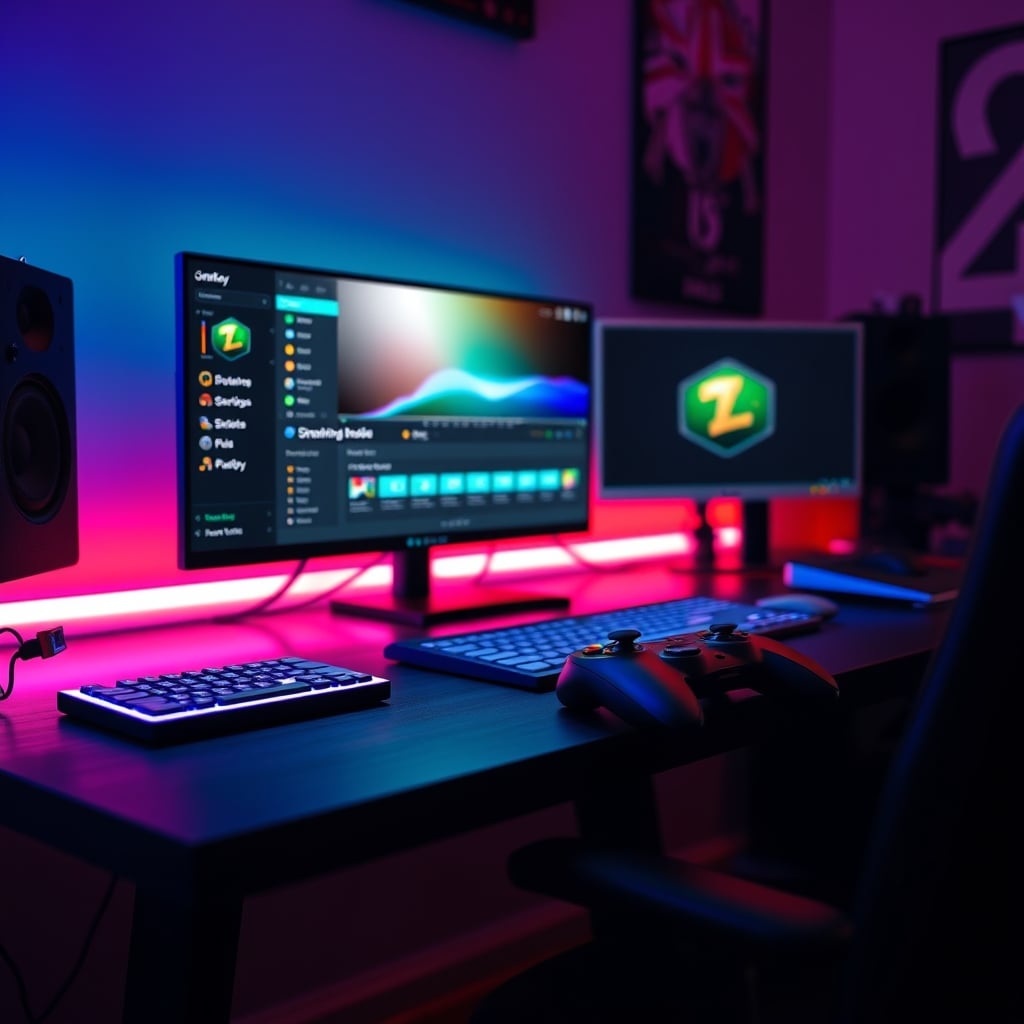
This robust mapping capability extends beyond just OBS. You can control Spotify, Discord, or even specific browser tabs. It means that with minimal effort, your [Logitech G F310 Wired Gamepad] becomes the central command for your entire digital workspace, far exceeding the single-minded focus of most 'streaming specific' hardware. For advanced users managing complex setups, this approach fundamentally changes how you interact with your stream, making multi-tasking seamless. It’s a concept that significantly impacts overall streaming workflow, offering a better, more integrated experience than segmented controls. Don't fall for the lie that you need dedicated audio control hardware; your gamepad can handle plenty of your Audiophile Equipment Myths: Stop Wasting Money needs by sending hotkey commands.
Beyond Basic Hotkeys: Advanced Control You Won't Get with a Stream Deck
Where the DIY stream controller truly shines is in its potential for advanced control. Dedicated stream decks often boast "multi-action" capabilities, which are usually just sequential commands. A gamepad, combined with powerful remapping software, allows for conditional actions, layered profiles, and deeper system integration. Imagine pressing a single button to not only switch your scene but also adjust your Desk Lighting Setup Masterclass 2026 for that scene, toggle a specific audio source, and send a chat message to your viewers, all controlled by a peripheral you already own. This doesn't work with basic, single-function buttons; it requires the kind of robust remapping a gamepad enables.
This level of nuanced control is often overlooked because marketers push simplicity over capability. But for those running dual PC setups, managing complex audio matrices, or toggling between various capture cards, a gamepad offers a much more elegant solution. You can create profiles that are game-specific, editing-specific, or even communication-specific, switching between them on the fly. This flexibility is critical for anyone who demands more than basic scene changes from their control surface.
The Real Setup: Integrating Your Gamepad into Your Workflow
Integrating a gamepad as your DIY stream controller is less about adding clutter and more about smart placement. Forget mounting it in a dedicated stand; simply place it to the left or right of your keyboard, within easy reach of your off-hand. The goal is seamless, non-disruptive access. The small footprint of most gamepads means it won't eat into precious desk real estate, unlike some larger, more cumbersome stream decks.
The real benefit here is muscle memory. For anyone who's spent hundreds, if not thousands, of hours gaming, the layout of a gamepad is second nature. You don't need to look down to find the right button; your fingers know where to go. This significantly reduces cognitive load during a live stream, allowing you to focus on your content and audience, not fumbling with a new interface. This setup delivers real performance over just specs.
Common DIY Blunders and How to Dodge Them
Despite its simplicity, people still mess up their DIY stream controller setup. The biggest blunder? Over-complicating the initial button mapping. Don't try to map every single button to 20 different functions on day one. Start with the essentials: scene switching, mic mute, game audio up/down. Build from there. A common mistake we've seen is users getting overwhelmed and reverting to mouse clicks, which is a massive productivity killer. This frequently causes issues with consistency and reliability during a stream.
Another pitfall is neglecting to save your profiles or backing them up. Software crashes happen. PC upgrades happen. Lose your profile, and you're back to square one. Based on widespread user feedback in the streaming community, consistency in your control scheme is paramount. Don't get caught off guard. And finally, don't dismiss the power of modifier keys. Thinking you need a separate button for every single action limits your potential; leveraging a shoulder button as a 'shift' key effectively doubles your available inputs. This is the truth about The Budget Streaming Build Lie Nobody Tells You.
The Verdict: DIY Stream Controller - Actually Good
Stop buying into the narrative that you need specialized, overpriced hardware to run a professional-looking stream. The DIY stream controller, leveraging a simple gamepad and intelligent remapping software, is not just a viable alternative; it's a superior, more flexible, and significantly more cost-effective solution. You get tactile feedback, immense customizability, and the power to control your entire digital environment, not just a few OBS functions. This is actually good.
It challenges the marketing hype head-on, delivering real performance and genuine control without the unnecessary financial burden or proprietary software restrictions. For anyone looking to elevate their streaming game without wasting money, repurposing a gamepad is the smartest move you can make. Skip it on those expensive stream decks. Embrace the DIY approach and reclaim your desk space and your wallet.
Frequently Asked Questions
Can a regular gamepad really replace a dedicated stream deck?
Absolutely. A regular gamepad, when combined with remapping software like JoyToKey, offers more physical buttons and tactile feedback than most entry-level to mid-range stream decks. It provides immense customizability to control OBS, audio, lighting, and other applications, often for a fraction of the cost, making it a superior DIY stream controller.
What software do I need to turn a gamepad into a stream controller?
The primary software you'll need is a key-remapping tool like JoyToKey. This allows you to map gamepad buttons and analog stick movements to keyboard hotkeys, mouse clicks, or even complex key combinations, which can then trigger actions within OBS and other streaming software.
Are there any downsides to using a gamepad as a stream controller?
The main 'downside' is that it requires a one-time setup of mapping buttons to your desired functions, which takes a bit of initial effort. Unlike dedicated stream decks, there are no visual icons on the buttons to indicate their function. However, this is easily mitigated by muscle memory, and the benefits of cost, versatility, and tactile feedback far outweigh this minor inconvenience.
Which gamepad is recommended for a DIY stream controller setup?
Any reliable wired gamepad with a decent number of buttons will work. Classics like the Logitech G F310 Wired Gamepad are excellent choices due to their durability, common layout, and affordability. The key is a gamepad you're comfortable with and that offers sufficient inputs for your needs.
Written by
Alex is an audio gear enthusiast and sound testing specialist. He analyzes microphones, DACs, and streaming controllers like the Elgato Stream Deck to find the cleanest signal for creators.
Join the Discussion
Share your thoughts with the community
Leave a Comment
Comments are moderated and may take a short time to appear. Links are not permitted.